
Introduction
An L-shaped electric standing desk can fix a very specific home-office problem: corner chaos. You’ve got multiple screens, a laptop, chargers, a dock, notebooks—and suddenly the “extra space” becomes a tangled pile of cables and half-used gear. A good L-shaped sit-stand desk isn’t just about moving up and down; it’s about keeping your main work zone stable at standing height, keeping devices powered without a rat’s nest of adapters, and giving clutter a “home” so your desktop stays usable.
OffiGo focuses on standing desks built for how people work today—long hours at home, mixed tasks, and real rooms with real constraints. In 2026, the trend isn’t just “bigger desktop.” It’s storage-first setups (drawers/cabinets), integrated power (AC + USB + Type-C), and layout flexibility (reversible returns) so your corner desk actually fits your space.
Please find more information on our website: https://www.offigo.com/
Top OffiGo L-Shaped Picks
1. OffiGo 55" L-Shaped Electric Standing Desk
- Desk ID: 55" L-Shaped Electric Standing Desk with Spacious Work Surface & Adjustable Height
- Why this setup works: the 55-inch L shape gives you a clear “main zone” (keyboard/mouse/primary display) plus a “side zone” for a dock, notebook, or a small printer—without swallowing the room.
- Layout flexibility: the reversible L-shaped return makes it easier to work around window glare, door swing, and outlet placement.
- Built for stability: reinforced frame design minimizes shaking even during intense typing or gaming.
- Grab-and-go hook: hang your headphones, bag, or gear right at the desk side for quick access.
- Daily usability: electric height adjustment supports switching between sitting and standing during long sessions.
- Trade-offs to consider: if you’re an “everything on the desk” person, the lack of drawers means you’ll rely more on bins, a side cart, or under-desk organization.
If you want an L-shaped electric standing desk that feels straightforward—space, sit-stand movement, and integrated charging—this is the cleanest entry point. It’s especially practical if you’re still dialing in your home office and don’t want storage dictating your layout.
2. OffiGo 55" L-Shaped Electric Standing Desk
- Desk ID: 55" L-Shaped Electric Standing Desk with Keyboard Tray & Monitor Shelf
- Corner efficiency: you still get the 55" L-shaped footprint, so the return becomes a dedicated staging area for a notebook, reference materials, or a second device.
- Ergonomic accessory: the monitor shelf elevates displays and can free up surface space underneath for small accessories.
- Ergonomic add-ons: the keyboard tray helps lower your typing position without forcing you to raise your chair (which often leads to shoulder tension).
- Power Access: 3 AC outlets (125V/12A) plus 1 USB and 1 Type-C charging port (5V/2A) keep your devices powered and ready at the desk
- Reversible layout: the return can be installed on either the left or right side to fit your room layout.
- Sit-stand workflow: electric height adjustment makes it easier to alternate posture during the day rather than locking into one position.
- Trade-offs to consider: if you already use a big monitor arm or a deep keyboard, a fixed tray/shelf combo may feel restrictive—measure your gear before choosing this style.
This is the best pick when your desk discomfort is driven by “typing posture” and “screen height” more than raw desktop size. The tray + shelf approach gives you a structured layout that can feel more comfortable over a full workday.
3. OffiGo 55" L-Shaped Standing Desk with Large Movable Storage Cabinet
- Desk ID: 55" L-Shaped Electric Standing Desk with File Cabinet, Drawers & Adjustable Height
- Cabinet utility: an integrated file cabinet is more practical than small drawers when you’re storing documents, folders, or bulk supplies.
- Lockable storage + mobility: the product listing notes a lockable drawer and casters, which helps if you want to reposition storage to match your workflow.
- Corner layout: 55" L-shape keeps the desk compact enough for many rooms while still creating separate zones.
- Sit-stand convenience: electric height adjustment supports switching posture during long sessions.
- Trade-offs to consider: cabinet placement can influence leg room and chair movement; pay attention to which side the return should be on before assembly.
If your “desk mess” is mostly paper and supplies, a file cabinet beats extra surface area. This is the best 55" option for building an organized workstation without adding a separate filing unit.
4. OffiGo 59" L-Shaped Electric Standing Desk
- Desk ID: 59" L-Shaped Electric Standing Desk with Drawers, Keyboard Tray & Monitor Stand
- Bigger main zone: the 59-inch size gives you extra elbow room for a wider keyboard/mouse area or additional devices.
- Ergonomic structure: includes a keyboard tray and monitor stand, which can help you keep the desktop visually cleaner and your viewing angle more consistent.
- Organization support: built-in drawers help keep small tech (dongles, chargers, external drives) from drifting into piles.
- Quick switching: the listing references three memory presets, which is useful if you alternate sitting/standing at predictable times.
- Trade-offs to consider: more built-ins can reduce “blank flat space” for oversized accessories; if you do a lot of crafting, hardware work, or large paper layouts, a simpler top may be better.
This is the most “fully featured” pick for people who want an L-shaped electric standing desk to behave like a complete workstation—organized, ergonomic, and optimized for daily sit-stand switching.
5. OffiGo 63" Reversible L-Shaped Height-Adjustable Standing Desk
- Desk ID: OffiGo 63″ L-Shaped Height Adjustable Standing Desk, Reversible Large Workspace for Multi-Monitor Office Setups
- Room-filling surface: the 63-inch L-shaped footprint supports a true “two-zone” workflow—work zone + gear zone—without needing a second table.
- Reversible layout: reversible L-shape helps you choose the return side that fits your room and cable routes.
- Everyday ergonomics: electric height adjustment supports alternating posture instead of staying seated all day.
- Trade-offs to consider: a bigger return can block walkways or bump chair clearance if your corner is tight—measure wall-to-wall and the chair swing radius.
If your main limitation is “I’m out of usable space,” this 63" option is the cleanest way to expand without creating a messy, multi-table setup.
6. OffiGo 63" L-Shaped Electric Standing Desk
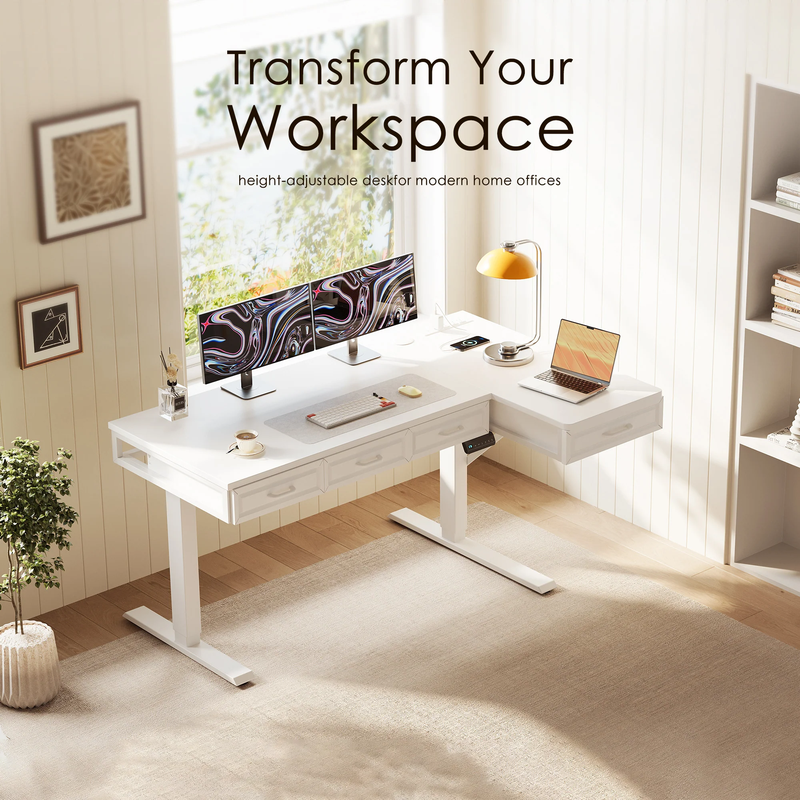
- Desk ID: 63" L-Shaped Electric Standing Desk with Fabric Drawers & Built-in Power Outlets
- Storage volume: includes four fabric drawers for supplies, documents, and daily essentials.
- Cable control: the listing highlights a rear cable tray, which is a big deal on sit-stand desks where cords can snag during height changes.
- Height range: OffiGo notes electric adjustment from approximately 29.9" to 46.1", covering common seated and standing working heights.
- Built-in charging: includes power outlets, USB, and Type-C ports for device-heavy desks.
- Trade-offs to consider: fabric drawers are great for “soft storage,” but if you want heavier-duty filing or locking storage, a cabinet-based model may fit better.
This is the practical choice when you want the largest desk class (63") plus lots of built-in storage and cable control, without the desk feeling like a heavy filing system.
7. OffiGo 55" L-Shaped Electric Standing Desk
- Desk ID: 55" L-Shaped Electric Standing Desk with Wooden Drawers & Power Outlets
- Drawer organization: includes four wooden drawers to keep cables, notebooks, and accessories off the desktop.
- Integrated charging: includes integrated power outlets with USB and Type-C for convenient device charging.
- Layout flexibility: reversible design helps you choose the best return orientation for your space.
- Stability focus: built on an industrial steel frame, intended to keep the workspace steady through daily height changes.
- Trade-offs to consider: integrated drawers can reduce knee clearance depending on how you sit; also, built-in storage adds weight/complexity compared to a simpler top.
If your goal is a corner workstation that stays visually clean even with lots of tech, built-in wooden drawers + integrated power is the most direct path—fewer add-on organizers, fewer loose adapters, fewer “where did that cable go?” moments.
How to Choose Your L-Shaped Electric Desk
How much desktop space do you actually need?
Start with your monitor count and how you work. If you’re on a laptop plus one monitor, a 55" L-shaped electric standing desk can feel surprisingly roomy because the return creates a dedicated “side zone.” However, if you run two monitors plus a dock, speakers, a tablet, or paper reference, the 59"–63" range gives you more freedom to keep your primary work area centered rather than pushed to the edge.
A simple test: place your keyboard and mouse where you want them, then imagine a clear 12"–18" zone behind that for monitor bases, a soundbar, or a desk shelf. If that space doesn’t exist without crowding your forearms, you’ll benefit from sizing up.
Do you need drawers, cabinet storage, or none?
Ask yourself what causes your desk to get messy. If it’s small tech—cables, dongles, chargers—drawers are the fastest fix because they remove visual clutter without changing your workflow. If your clutter is paper, files, or shared supplies, a file cabinet style is more useful than shallow drawers.
On the other hand, if you’re very minimal and you like a clean, open surface, you might be happier with fewer built-ins and a separate organizer you can reposition. Built-in storage is convenient, but it also “locks in” where bulk lives on the desk.
Want built-in power outlets for fewer adapters?
Integrated AC/USB/Type-C is one of those features you notice most in real homes, because wall outlets are often inconvenient behind a corner desk. Built-in power makes it easier to keep chargers accessible and reduces the temptation to run extension cords across walkways.
Even with built-in power, plan for movement: your display cables and power cord need slack for standing height. A cable tray (or at least a consistent route) helps prevent snags and keeps the desk quiet during height changes.
Is a keyboard tray essential for your posture?
If your shoulders creep up when you type, or your wrists feel “too high,” a keyboard tray can help by lowering the input surface. That said, trays are not universal: very large mechanical keyboards, certain mouse setups, or gaming layouts can feel cramped.
If you mostly type on a laptop keyboard, a tray might not matter as much as a monitor shelf/stand (which can help get your screen closer to eye level). The best approach is to pick the add-on that solves your biggest discomfort first.
Practical tips before you buy
- Measure your corner first: confirm wall-to-wall clearance and the return depth, then check chair swing space so you don’t bump the desk every time you rotate.
- Plan cable routes before assembly: decide where your power strip (if any), dock, and chargers will live, then build the desk so outlets and the return side support that plan.
- Set a sit-stand rhythm you can keep: a randomized trial published in Applied Ergonomics (2025) found a structured 30 minutes sitting / 15 minutes standing pattern improved lower back pain outcomes more than a personalized ratio in desk workers. (study link)
Comparison Table Key Attributes at a Glance
| Model | Size | Storage type | Power / USB | Ergonomic add-ons | Best for scenario | Trade-offs / limitations |
|---|---|---|---|---|---|---|
| OffiGo 55" Spacious Work Surface & Adjustable Height | 55" | None | None | None | Clean, simple corner sit-stand | Less built-in clutter control |
| OffiGo 55" Keyboard Tray & Monitor Shelf | 55" | None | AC + USB + Type-C | Keyboard tray + monitor shelf | Typing comfort + screen elevation | Tray/shelf may constrain large gear |
| OffiGo 55" File Cabinet + Drawers | 55" | File cabinet + drawer | None | None | Paper/supply storage in one footprint | Cabinet placement can affect leg room |
| OffiGo 59" Drawers + Keyboard Tray + Monitor Stand | 59" | 2 fabric drawers | AC + USB | Keyboard tray + monitor stand | Multi-monitor + structured layout | Less flexible “blank” worktop area |
| OffiGo 63" Reversible L-Shaped Height-Adjustable Standing Desk | 63" | None | None | None | Bigger corner surface | Requires more room clearance |
| OffiGo 63" Fabric Drawers + Built-in Power | 63" | 4 fabric drawers | AC + USB + Type-C | None | Storage-heavy tidy desktop | Fabric storage is lighter-duty |
| OffiGo 55" Wooden Drawers + Power Outlets | 55" | 4 wooden drawers | AC + USB + Type-C | None | Premium organization + charging | More built-ins; may not suit minimalist tastes |
Conclusion
The best L-shaped electric standing desk is the one that matches your actual workflow: how many screens you run, how much “side zone” you need, and whether your biggest problem is posture, clutter, or charging. If you want a simple corner sit-stand upgrade, start with OffiGo’s 55" spacious work-surface model; if you need structured ergonomics, look at keyboard tray and monitor shelf setups; and if your desk gets messy fast, prioritize drawers or a file cabinet configuration.
Once you pick the right size and storage style, your corner desk stops being a dumping ground and becomes a stable, flexible workstation you can use comfortably every day.
FAQ
1) How do I choose between 55", 59", and 63" L-shaped desks?
A 55" L-shaped electric standing desk is usually enough for a laptop plus one or two monitors, especially if you keep accessories minimal. A 59" size makes sense when you want a little more primary work space for a wider keyboard/mouse zone or extra devices. Choose 63" when you want a true two-zone workflow—work on one side, gear/notes/printer on the other—without stacking items. Before you decide, measure chair clearance and walkway space so the return side doesn’t create a bottleneck.
2) Is a reversible L-shaped layout actually useful in a home office?
Yes—reversible returns are one of the most practical features for real rooms because outlets, windows, and doors rarely land where you want them. It also helps if you move frequently or expect to reconfigure the room later. Decide your return side before assembly based on where your monitor and dock will sit, because display and power cables route more cleanly when your “tech cluster” is closest to power. If you’re right- or left-handed, reversing can also improve mouse space and reduce repetitive reach.
3) Do I really need built-in power outlets and USB/Type-C ports on a desk?
If your setup includes a laptop, monitor(s), phone, headphones, and a dock, integrated power can simplify your daily routine and reduce visible clutter. It’s especially helpful when your desk sits tight into a corner and the wall outlet becomes hard to reach. However, you still need a cable plan so cords don’t pull when the desk rises—leave slack and route cables through a tray or consistent path. If you prefer a minimalist surface, consider whether you want charging on the desktop or tucked underneath.
4) What’s the difference between a desk with drawers vs a file cabinet?
Drawers are ideal for small items you touch daily—chargers, adapters, pens, notepads—so your desktop stays clear. A file cabinet is better for folders, documents, and bulk supplies, and it’s often the better choice for shared workspaces. Cabinet storage can also reduce the need for extra furniture in a small room, which helps keep your corner office feeling open. The main trade-off is footprint and placement, since cabinets can influence leg room and chair movement.
5) Should I prioritize a keyboard tray or a monitor shelf/stand?
A keyboard tray helps most when your wrists and elbows feel too high on a standard desktop, because it lowers the typing surface without requiring a taller chair. A monitor shelf/stand helps when your screen feels too low and you catch yourself leaning forward, and it can free up space underneath for peripherals. If you already use monitor arms, a built-in shelf may matter less, and you might prioritize storage or cable routing instead. In practice, the best choice is the feature that fixes your biggest daily discomfort first.
6) Why does my sit-stand desk feel messy even with a large surface?
Most desk mess comes from unmanaged cables and “homeless” small accessories, not a lack of square inches. Start by creating two zones: a permanent tech zone (dock, chargers, power) and a clear work zone (keyboard, mouse, writing space). Then separate cable types—power cords on one path, data/display on another—so they don’t tangle when the desk moves. Finally, use drawers or a small bin for the items you use weekly rather than daily, so your desktop only holds what you truly need.