
Introduction
Back-to-back calls. A laptop that never leaves your desk. Notebooks, chargers, and sticky notes that somehow multiply by Thursday. If remote work has taught us anything by 2026, it’s that home-office productivity is less about “having a standing desk” and more about having a desk that stays organized while you switch posture.
That’s why integrated features—built-in storage, monitor shelves, keyboard trays, and on-desk power—have become the new baseline for a practical electric standing desk. Research continues to support that posture changes can improve comfort and may support measurable productivity gains during desk work (study link).
So which OffiGo desk fits your workflow: compact and clutter-prone, corner-based and multi-monitor, or big-surface “executive” work? Below are five OffiGo electric standing desks selected to match real remote-work scenarios—without forcing you to build your setup from a pile of add-ons.
Top OffiGo Desks for Real Remote-Work Setups
1) 48" Electric Standing Desk with 3 Wooden Drawers, Monitor Shelf & USB Power Outlets

If you’re working from a bedroom corner, a small apartment, or a shared room, the hardest part isn’t standing—it’s preventing your desk from becoming the “everything shelf.” This 48-inch OffiGo model is purpose-built for compact setups that still need daily organization. The key advantage is that it treats storage and ergonomics as part of the desk, not accessories you buy later.
For small spaces, “more desk” isn’t always the answer—better layout is. This OffiGo desk builds in the exact features that keep a compact workstation functional over months of remote work: drawers that prevent surface clutter, power within reach, and a monitor shelf that supports a consistent setup even as you raise and lower the desk.
- Click here to shop
- Best for: compact remote-work setups that need built-in storage to avoid daily “desk reset”
- Desktop size: 48-inch surface that balances footprint with usable space
- Storage: three wooden drawers to keep chargers, notebooks, and small peripherals out of sight
- Ergonomics: integrated monitor shelf to help keep screens at a more comfortable viewing height
- Power at hand: built-in USB power outlets so you can charge without a floor power strip
- Workspace vibe: includes LED lighting, which can be helpful if you work early/late and want softer ambient light
- Workflow fit: great for laptop + monitor, or a clean single-monitor workstation
2) 55" U-Shaped Electric Standing Desk with Monitor Stand & Keyboard Tray, Height Adjustable Home Office Desk

Some remote workers don’t just “work at a desk”—they operate from it. If you’re juggling email, docs, and meetings while also writing notes, managing devices, or keeping a reference book open, a rectangular desktop can feel like a constant reshuffle. OffiGo’s 55-inch U-shaped (semicircular) desk is designed to keep more tools within reach, so you’re not repeatedly breaking focus.
A U-shaped desk isn’t just about size—it’s about reducing the “reach tax” that breaks concentration. The keyboard tray and wrap-around surface help separate “typing space” from “workspace,” while built-in charging keeps devices closer to the desktop. If your day includes frequent switching between writing, typing, and device management, this shape can feel noticeably calmer.
Click here to shop
- Best for: multitaskers who want a wrap-around surface for smoother task switching
- Shape advantage: U-shaped / semicircular layout creates a more “cockpit-like” reach zone
- Height range (listed): approximately 28.4" to 46.5" for sit-to-stand switching
- Desktop footprint (listed): about 55.1" W × 29.1" D for a balanced home-office size
- Typing comfort: includes a keyboard tray to free surface space and improve wrist/arm positioning
- Built-in convenience: power/USB charging reduces reliance on floor strips and dangling cords
- Modern detail: includes LED lighting, useful for ambient light or a cleaner setup aesthetic
3) OffiGo 55" U-Shaped Electric Standing Desk with Storage, Keyboard Tray & Integrated Power

For many remote workers, the upgrade isn’t about moving into a corner — it’s about creating a workspace that stays organized while everything stays within reach. This OffiGo 55-inch U-shaped desk is designed as a wraparound workstation, giving you dedicated zones for tools, screens, and daily items without needing extra side furniture.
Instead of simply adding surface area, the desk focuses on usable structure: a primary work zone, a device zone, and a quick-access zone. With built-in storage, a keyboard tray, and integrated power, your setup remains consistent instead of slowly spreading across the room over time.
- Click here to shop
- Best for: daily sit-stand users who keep multiple tools within arm’s reach
- Layout: 55-inch U-shaped wraparound footprint that surrounds the user
- Storage-forward design: includes built-in drawers for essentials you use constantly (cables, adapters, notebooks)
- Typing zone: includes a slide-out keyboard tray to keep your primary typing area consistent
- Monitor positioning: elevated monitor shelf supports a cleaner screen setup without an arm
- On-desk power: built-in power access helps keep charging and cables controlled on the desktop
- Workflow fit: ideal for laptop + external monitor, or dual-monitor with a side zone for paperwork
4) 59" L-Shaped Electric Standing Desk with Drawers, Keyboard Tray & Monitor Stand
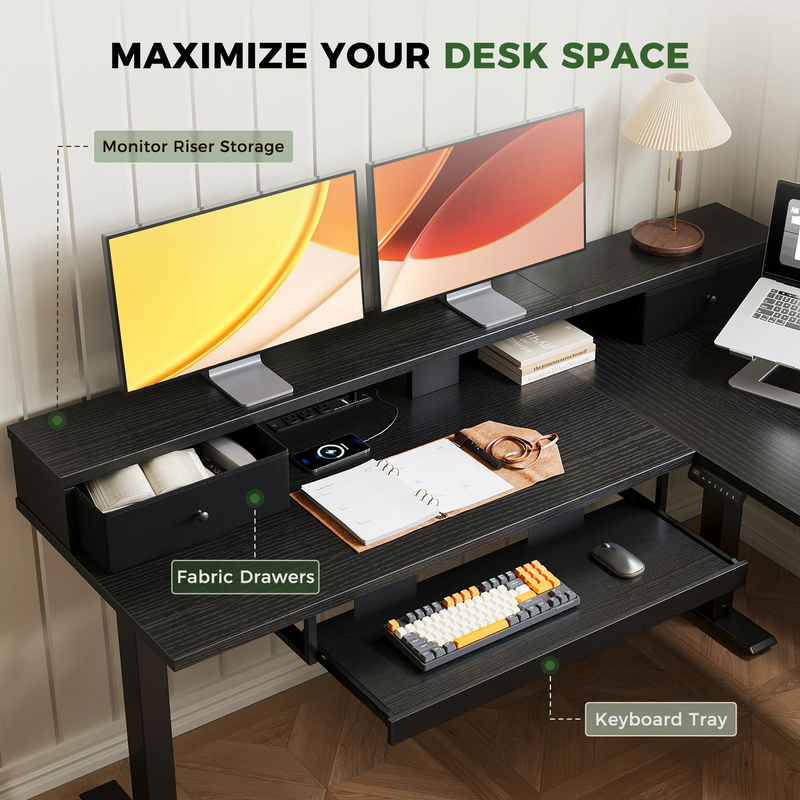
If your workday involves a true dual-monitor setup, a mic/camera, and a rotation of accessories (tablet, notebook, headset), many 55-inch desks start to feel tight. This OffiGo 59-inch L-shaped model adds room while keeping the practical features remote workers actually use: organized storage, consistent typing position, and a monitor stand for better screen placement.
Remote work setups expand over time. This desk is a smart “future-proof” pick because it balances more usable surface with the features that keep that surface usable: a monitor stand for consistent placement, drawers for accessories, and memory presets that make posture switching easy enough to actually do.
Click here to shop
- Best for: bigger corner setups, dual monitors, and daily posture switching
- Space upgrade: 59-inch L-shaped layout provides extra room for multi-device workflows
- Memory presets: includes three memory presets, useful if you switch sitting/standing on a schedule
- Storage: includes 2 integrated drawers plus a keyboard tray
- Ergonomics: elevated monitor shelf/stand helps keep screens at a stable viewing height
- Charging access: integrated power outlets reduce cable sprawl on and around the desk
- Use case fit: strong choice for creators, analysts, and knowledge workers who live in multiple windows
5) 71" Executive Electric Standing Desk with Built-in Power Outlets & 1.38" Thick Desktop
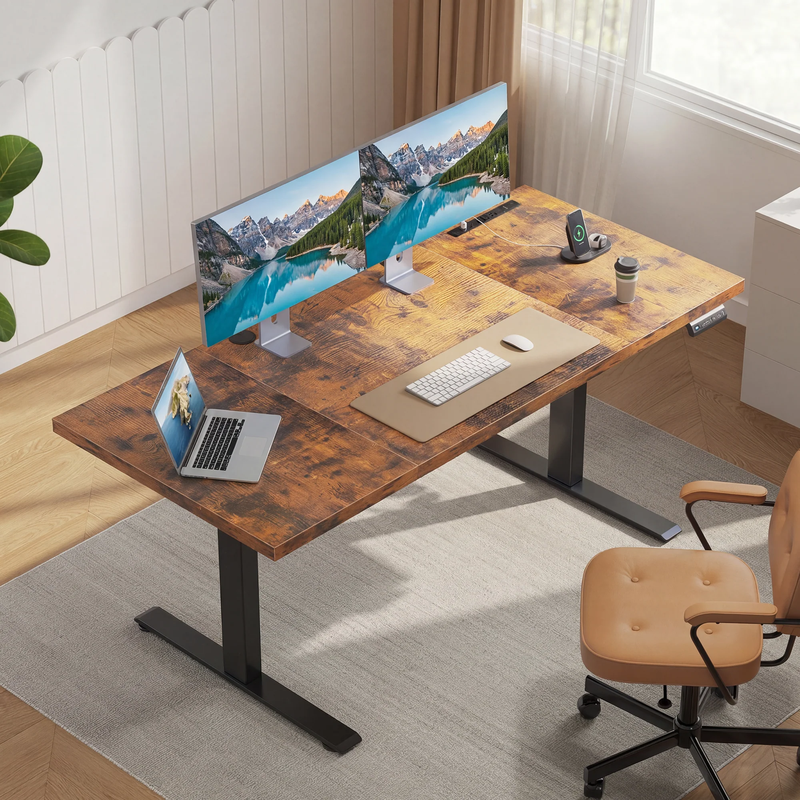
If you have the room, a large desk can make remote work feel dramatically less cramped—especially when you’re mixing computer work with documents, sketching, or hands-on tasks. OffiGo’s 71-inch executive desk is designed for bigger home offices (or shared offices) that need a spacious surface and the convenience of on-desk power. It also highlights a key differentiator: a noticeably thicker desktop.
For remote workers with space, the biggest quality-of-life improvement is having room for dedicated zones: screen zone, writing zone, and “inbox” zone. This desk’s large width and thick desktop support that kind of layout, while built-in power keeps the setup clean instead of turning into a cable jungle.
Click here to shop
- Best for: large home offices, executive-style setups, and wide work zones
- Desktop size: 71-inch surface for multiple monitors and document-heavy work
- Desktop thickness (listed): 1.38" thick for a more substantial feel
- Power built in: built-in power outlets to keep devices charging without a separate strip
- Workstyle fit: great for wide monitor spacing, reference materials, or a “work + life admin” surface
- Environment fit: suitable for home offices and light office environments where presence matters
- Practical benefit: more surface reduces constant repositioning, which can cut micro-distractions
Key factors that matter most to Choose Your Remote-Work Desk
Choosing a desk is easier when you stop thinking in specs-first terms and instead ask: What does my desk need to do every single day? OffiGo’s lineup is especially strong when you prioritize integrated organization over add-ons.
- Layout (straight vs. L-shaped vs. U-shaped): If you need zones (typing + paperwork, or work + devices), L and U shapes often reduce interruptions. Straight desks can be best when you want a minimal footprint and a simple, repeatable setup.
- Storage (drawers, shelves, cabinet-style): If your desk is clutter-prone, storage is not a “nice to have.” Built-in drawers help you keep the surface clear without buying a separate file unit.
- Power (AC + USB + Type-C needs): On-desk charging matters most if you use laptops, phone charging, lamps, or audio gear daily. Integrated power can also simplify cable routing because everything stays closer to the desktop.
- Footprint (room fit + corner placement + depth): Width matters, but depth impacts comfort too—monitor distance and keyboard placement both depend on it.
Selection help
Q&As
Which layout reduces reach and clutter the fastest?
If you frequently reach for devices, notebooks, or reference materials, U-shaped and L-shaped desks can keep your essentials closer, which reduces “stand up and hunt” moments. On the other hand, if you work mostly on one screen and keep few accessories, a straight desk with drawers can be more efficient.
Do you type better with a keyboard tray?
Keyboard trays can help keep wrists and elbows in a more natural position—especially if your desktop is busy or you like your keyboard lower than your writing surface. However, trays can also reduce knee clearance for some sitting positions, so it’s best if you know you like that feel.
Will built-in power replace your power strip?
Often, yes—at least for the devices you plug in daily. The bigger advantage is that you can keep cords from hanging to the floor, which matters when you raise and lower the desk. Still, if you run many devices (speakers, chargers, lighting, hubs), you may use both—but with less mess.
How much desktop space do you truly use?
Measure your current setup’s real footprint: monitor stands, laptop, keyboard/mouse, notebook, plus the “always there” items like chargers. Then add buffer space for the days you’re spreading out. If you hate rearranging your desk mid-task, go one size up.
Practical tips before you buy
First, measure your room and plan your chair path—especially in corners where an L-shaped desk can block movement. Next, decide where power will come from and leave slack for cables at standing height; tight cords are one of the most common sit-stand frustrations. Finally, plan your zones on paper (screen zone, writing zone, storage zone) so you choose a desk shape that matches your routine.
Common mistakes to avoid
A frequent mistake is buying the widest desk that fits the wall, then realizing you needed depth or storage more than width. Another mistake is ignoring your storage needs and trying to solve clutter with random add-ons; that usually creates a mismatched, cable-heavy setup. Also, don’t assume you’ll stand “all the time”—most people benefit more from consistent switching than from forcing long standing sessions.
Comparison Table
| Desk | Width | Shape | Storage type | Power / USB / Type-C | Keyboard tray | Monitor shelf/stand | Trade-offs (be honest) |
|---|---|---|---|---|---|---|---|
| OffiGo 48" Desk w/ 3 Wooden Drawers | 48" | Straight | 3 wooden drawers | AC outlets + USB | No | Yes | Smaller surface can feel tight with dual monitors + accessories; LED may not suit minimalist setups |
| OffiGo 55" U-Shaped Desk | 55“ | U-shaped | None | AC outlets + USB | Yes | Yes | Deeper footprint can crowd small rooms; LED and built-in electronics may be “too feature-forward” |
| OffiGo 55" U-Shaped Desk w/ Storage & Tray | 55" | U-shaped | 2 fabric drawers | AC outlets + USB | Yes | Yes | The fixed U-shape layout reduces flexibility if you like rearranging your setup later. |
| OffiGo 59" L-Shaped Desk w/ Drawers & Tray | 59" | L-shaped | 2 fabric drawers | AC outlets + USB | Yes | Yes | Larger corner footprint; may be more desk than needed for simple laptop-only workflows |
| 71" Executive Electric Standing Desk | 71" | Straight | None | AC outlets + USB + Type C | No | No | Needs a larger room; wide surface invites “spread” unless you maintain zones |
Conclusion
A better remote-work desk isn’t defined by a single spec—it’s defined by whether your setup stays comfortable and organized after weeks of real use. Start by matching desk shape to your workflow zones (straight, L, or U), then prioritize the features that reduce daily friction: storage where you need it, power where you plug in, and ergonomics that stay consistent as you switch between sitting and standing.
OffiGo focuses on an integrated approach—standing desks designed around real home-office scenarios, where built-in organization and on-desk power make posture switching easier to maintain. If you’re ready to upgrade, explore the OffiGo picks above and choose the one that fits your space and the way you actually work.
FAQ
1) How do I pick between an L-shaped and U-shaped standing desk?
An L-shaped standing desk is usually best when you want to maximize corner efficiency and keep a primary work zone plus a side zone for peripherals or paperwork. A U-shaped design can feel more wrap-around, which helps if you constantly switch between typing, writing, and device management. If your workflow includes frequent reaching across zones, U-shape can reduce interruptions by keeping items within easy reach. Start by mapping your daily tasks into zones and choosing the shape that keeps those zones stable.
2) Do built-in power outlets actually reduce cable clutter?
Yes—built-in power outlets and charging ports can reduce how many cords drop to the floor and how often you rely on an external power strip. The biggest benefit is keeping laptop, monitor, and accessory power within reach, which makes quick device swaps easier during remote workdays. It also helps you route cables more intentionally, especially when you raise and lower the desk. Pair built-in power with a simple cable-routing plan so cords have slack at standing height.
3) What’s the point of a keyboard tray on a standing desk?
A keyboard tray can improve typing comfort by letting you keep elbows and wrists in a more natural position, especially if your desktop is crowded. It also frees up surface space for notebooks, docks, or a second monitor. For remote workers who spend hours typing, a tray can reduce the temptation to hunch forward because your typing position stays consistent. The tradeoff is that tray height and leg clearance need to match your chair height and how you like to sit.
4) How much desk width do I need for a two-monitor work-from-home setup?
Two monitors often fit best when you also have room for a laptop, microphone, or paperwork, so the “right” width depends on your extras. If you regularly reference documents or use a writing pad, stepping up to a larger desk or an L-shaped layout can prevent constant rearranging. A practical approach is to measure your current setup’s total width and add at least 6–10 inches of buffer space for chargers and accessories. Don’t forget depth—monitor distance matters as much as width for comfort.
5) How do I keep my monitor at the right height when switching from sitting to standing?
The goal is to keep your screen at a comfortable viewing height so you don’t tilt your head down for long periods. A monitor shelf or monitor stand can help keep your display positioned consistently, especially if you’re not using an adjustable monitor arm. When you switch to standing, check that your eye line stays near the top portion of the display and your shoulders remain relaxed. If you notice neck tension after a few days, adjust screen height before changing anything else.
6) Should I prioritize storage or desktop space for remote work?
If you constantly lose small items—chargers, notebooks, pens—built-in storage can make your daily workflow smoother than simply adding more surface area. Storage is especially valuable in apartments or shared spaces where you need to reset your workstation quickly. Desktop space matters most when you run multi-device setups or need dedicated zones for tasks like drawing, paperwork, or planning. The best choice is usually the desk that removes your most frequent friction point first.
0 comments