
Introduction
Long workdays at home can quietly compound into a familiar loop: clutter spreads, posture drifts, and your “temporary” setup starts to feel like it’s working against you. Choosing the best electric standing desk for long-hour professional setup isn’t just about having a desktop that moves up and down—it’s about building a workstation that stays stable at standing height, keeps essentials within reach, and reduces friction every time you switch tasks. When your desk supports your workflow, you spend less time adjusting your environment and more time focused.
In a professional long-hour setup, your desk becomes the anchor for ergonomics (monitor height, keyboard position, and reach zones), organization (drawers, shelves, file storage), and power management (charging and cable routing). This guide walks you step-by-step through defining your needs, measuring your space, selecting the right shape, and prioritizing stability, surface usability, storage, and integrated power.
To make the decision practical, we’ll reference several OffiGo electric standing desks that match real home-office scenarios—compact 48-inch workstations, corner-friendly L-shapes, wrap-around U-shapes, and executive-size surfaces—so you can translate requirements into an actual desk choice.
How-To Steps
Step 1: Define workday and posture needs
Before comparing desk sizes or features, map your actual workday. Write down how many hours you sit, how many hours you want to stand, and what tasks happen in each posture. Deep-focus writing, coding, and spreadsheet work often need a stable keyboard/mouse position for long stretches, while calls and review work can be easier to do standing. This matters because a desk that feels “fine” for 30 minutes can feel cramped or unstable during a 6–10 hour day.
Next, define your posture targets. A simple rule is: seated posture should let your shoulders relax with elbows around 90 degrees, and standing posture should keep the same neutral arm position without shrugging. If you already know you get neck pain, prioritize a setup that supports monitor height and alignment without stacking books under screens. OSHA notes that the top of the monitor should be at or slightly below eye level, with the center of the screen below horizontal eye level for many users. (osha.gov)
If your long-hour plan includes frequent posture switching, look for an electric standing desk with memory presets so you can move between your seated and standing heights consistently, rather than “eyeballing it” and slowly drifting into awkward positions.
Step 2: Measure room, wall, and clearance
Measure first, then shop—especially if you’re aiming for a long-hour professional setup where the desk must fit cleanly with chair travel, standing space, and storage access. Start with the wall you plan to use and record the maximum usable width. Then measure depth: you want enough desktop depth for monitor distance plus keyboard/mouse space, but also enough walking clearance behind your chair.
Use a quick clearance checklist:
- Chair clearance: can your chair roll back at least 24–30 inches without hitting a bed, sofa, or shelf?
- Standing clearance: can you stand comfortably without toes hitting baseboards or cabinet fronts?
- Drawer/cabinet clearance: if you want storage, confirm drawers and cabinet doors can open fully.
- Cable/power plan: locate outlets and note cord lengths so you don’t end up with a stretched power strip crossing a walkway.
A practical desk-buying rule from OSHA’s workstation purchasing guidance is to ensure the desk is deep enough to place the monitor at least 20 inches from your eyes, and large enough for monitor + keyboard + input device with room for work items you use daily. (osha.gov)
If you’re fitting a smaller room, a compact workstation like the OffiGo 48" Electric Standing Desk with 3 Wooden Drawers, Monitor Shelf & USB Power Outlets can be easier to place because it’s designed around a 48-inch footprint while still offering built-in storage and power access.
Step 3: Choose desktop shape for workflow
Desktop shape is where “scene-driven” planning pays off. Instead of chasing specs, choose the shape that matches how you work: where your primary monitor sits, where reference material goes, and where peripherals live. In long-hour setups, the wrong shape often causes a subtle but constant problem—twisting your torso to reach frequently used items, or pushing essentials behind your keyboard because the desk surface is too narrow.
Here’s a practical way to decide:
- Straight desk: best for minimalist setups, single monitor + laptop, and smaller rooms.
- L-shaped desk: best for splitting zones (e.g., main monitor zone + writing zone), corners, and multitasking.
- U-shaped desk: best if you type heavily and want wrap-around reach (center zone for keyboard/mouse, side zones for notes/controllers/audio gear).
An L-shape can be especially effective for long days because it lets you keep your main work zone centered while placing “secondary” items—printer, notebook, charging dock—off to the side without stacking them in front of you.
If your workflow includes multiple “zones” and you want corner efficiency, look at options like the OffiGo 59" L-Shaped Electric Standing Desk with Drawers, Keyboard Tray & Monitor Stand, which is designed around an L-shaped layout plus organization features that reduce daily clutter.
Step 4: Prioritize stability and frame quality
Stability is the make-or-break factor for a long-hour professional setup, especially when standing. A desk that wobbles while typing doesn’t just feel annoying—it can cause you to tense your shoulders and grip the mouse harder, which adds fatigue. To evaluate stability, think in terms of real forces: leaning slightly while reading, resting forearms during heavy typing, or bumping the desk edge while moving between tasks.
When comparing electric standing desks, prioritize:
- A sturdy steel frame designed for frequent height changes.
- A stable feel at standing height, not only at seated height.
- Solid connection points (tight hardware, secure desktop-to-frame interface).
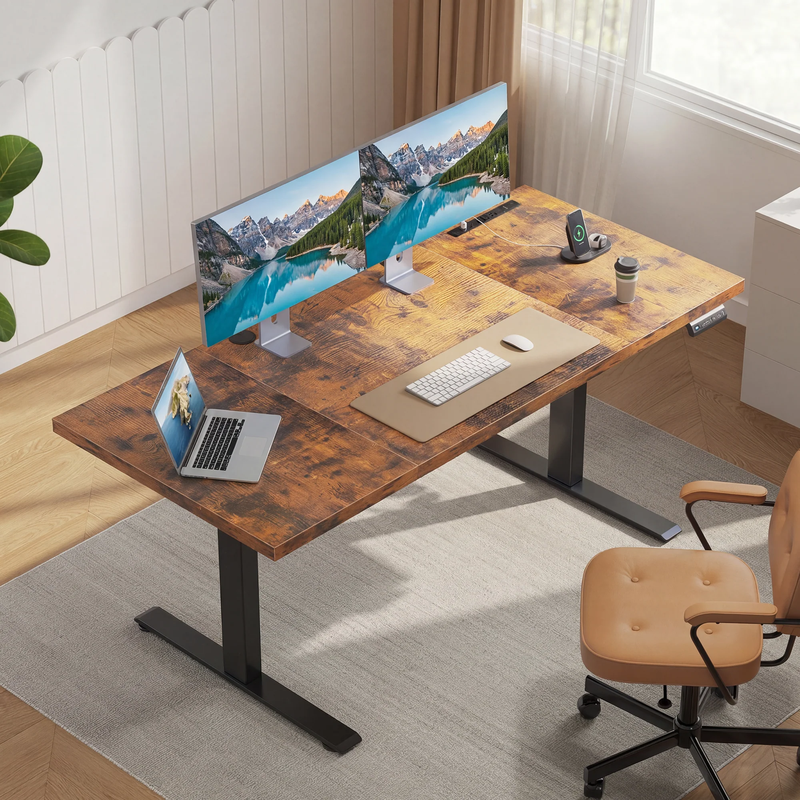
For larger setups, stability matters even more because you’ll run multiple screens. The OffiGo 71" Executive Electric Standing Desk with Built-in Power Outlets & 1.38" Thick Desktop is positioned for expansive, multi-monitor environments and emphasizes a thick 1.38-inch three-piece desktop paired with a sturdy steel frame—useful when your workday includes constant typing and frequent sit-stand transitions.
If you’re planning an L-shaped corner setup, consider a reversible design so you can place the return on the left or right based on your room layout. The OffiGo 63" L-Shaped Electric Standing Desk with Adjustable Height & Integrated Power highlights a reversible L-shape configuration, which is a practical stability-and-layout win when you move apartments or reconfigure your room.
Step 5: Select usable surface and layout
Desk size alone doesn’t guarantee usability. What matters is whether your “neutral reach zone” stays clear: the area where your keyboard, mouse, and primary notes sit without forcing you to reach, twist, or stack items. For long-hour work, a clean, stable layout reduces cognitive load—your hands find what they need without constant micro-adjustments.
Build your layout from the center out:
- Primary zone: keyboard and mouse centered to your body.
- Visual zone: monitor centered in front of you; if you use dual monitors equally, center the seam.
- Reference zone: notes/tablet placed close to monitor so your neck isn’t constantly turning.
- Accessory zone: phone, pen cup, audio interface, or chargers placed on the far edge.
If you find you’re always out of space, you’re usually missing one of two things: either the desk is too small for your monitor + peripherals, or the desk lacks vertical organization (monitor shelf/stand) that frees surface area.
The OffiGo 48" Electric Standing Desk with 3 Wooden Drawers, Monitor Shelf & USB Power Outlets is built around an ergonomics-friendly concept: a 48-inch desktop paired with a monitor shelf and drawers. In practice, the monitor shelf can reclaim valuable surface space so your keyboard and mouse can stay centered, while small items (chargers, notepads, cables) can live in drawers instead of drifting across the desktop during the week.
Step 6: Decide on built-in storage requirements
Storage is not just “nice to have” in a long-hour professional setup—it’s often the difference between a workstation that stays consistent and one that becomes a distraction. When supplies, cables, and paperwork have no home, they migrate into your primary work zone. Over time, that forces you into awkward wrist angles (keyboard pushed back), crowded mouse movement, and a constant feeling of mess.
Choose storage based on what you actually handle daily:
- Small-item storage (drawers): pens, chargers, adapters, sticky notes, earbuds.
- Keyboard tray: helpful if your desk surface height or typing posture needs finer tuning.
- File cabinet storage: useful if you handle paper, contracts, or notebooks you want off the desktop.
If you want an all-in-one station with more serious storage, the OffiGo 55" L-Shaped Electric Standing Desk with File Cabinet, Drawers & Adjustable Height pairs the L-shaped surface with an integrated file cabinet and drawers. That setup can reduce “visual clutter,” which many long-hour professionals notice as an immediate productivity boost—especially when the corner return becomes a dedicated admin/storage zone rather than a second pile.
If you prefer storage integrated directly into your main working area, the OffiGo 55“ U Shaped Electric Standing Desk with 2 Drawers & Keyboard Tray & Monitor Stand is built around drawers plus a slide-out keyboard tray. In daily use, a keyboard tray can help keep your wrists neutral while keeping the desktop surface available for notebooks or a small docking station.
Step 7: Check integrated power and cable control
For a long-hour professional setup, power placement and cable routing are quality-of-life features that prevent daily friction. If you constantly plug and unplug laptops, charge accessories, or move devices for calls, integrated power keeps that routine from becoming a mess of adapters and desk-edge dangling cords.
When evaluating integrated power, focus on usability:
- AC outlets for laptop chargers and monitors.
- USB (and if available, Type-C) for phones, accessories, and small devices.
- Cable management path so cables don’t snag when the desk moves up and down.
An integrated power approach is especially valuable on L-shaped desks, where you might have a “tech corner” (dock, audio gear, chargers) on the return. The OffiGo 63" L-Shaped Electric Standing Desk with Fabric Drawers & Built-in Power Outlets is designed around that idea—built-in power access can reduce desktop power strips, while the corner layout gives you a natural place to stage cables without crowding the main typing zone.
If you’re building a large professional workstation with multiple monitors, the OffiGo 71" Executive Electric Standing Desk with Built-in Power Outlets & 1.38" Thick Desktop adds expansive surface area plus built-in outlets so you can keep charging and monitor power consolidated near the desk rather than running cords to the floor.
Scenario Variations
Small room: compact straight desk with vertical organization. If you’re working in a bedroom or tight office, prioritize a shorter-width desk that still supports organization. A compact desk with drawers and a monitor shelf helps you keep the primary surface clear, which matters when the room can’t accommodate extra shelving or a rolling cart.
Corner setup: reversible L-shape for flexible placement. If your room layout changes or you might move, a reversible L-shape lets you swap the return left-to-right. This can be the difference between a desk that fits cleanly and one that blocks a closet door or window.
Heavy typing: wrap-around workflow with a keyboard tray. If you type for hours (coding, writing, support tickets), prioritize keyboard comfort and reach. A U-shaped or L-shaped desk with a keyboard tray can keep your wrists and elbows in a repeatable position while your secondary tools stay on the side zones.
Multi-monitor: executive surface for clean spacing. If you run multiple monitors, a longer desktop makes it easier to keep screens centered and notes in front of you without pushing your keyboard too close to the desk edge. This is especially useful if you also use a microphone arm, camera, or monitor arms that need clamp space.
Prerequisites & Safety
Required Tools & Materials
To choose and set up an electric standing desk smoothly, gather a few basics before you start. A tape measure and a quick room sketch prevent ordering a desk that blocks walkways or drawers. Measure your monitor and laptop footprints (including stands) so you’re planning surface area realistically, not guessing. Identify your power outlet location and check cord lengths, because sit-stand movement needs slack and proper routing. If you plan to stand in blocks, add an anti-fatigue mat to reduce foot and lower-back fatigue. Finally, have cable ties or an under-desk cable tray ready so you can route cables cleanly from day one.
Safety Considerations
Electric standing desks are safe when assembled correctly and used thoughtfully, but long-hour use increases the importance of basic precautions. During assembly, unplug devices and keep power supplies off the floor where they can be pinched or pulled. When raising or lowering the desk, keep hands clear of pinch points around moving frame components, and don’t allow children or pets to play under the desk while it’s moving. After assembly, re-check all bolts after a few days of use; small looseness can translate into wobble at standing height.
If your setup includes heavy monitors or a desktop-mounted arm, verify the desk is stable on your floor type. Uneven floors can exaggerate wobble, so leveling feet (if included) and careful placement matter. Also, if you use a desk with drawers or a rolling cabinet, avoid overloading open drawers and keep heavier items low to reduce tip risk.
Troubleshooting
Even a good desk choice can feel “wrong” if setup details are off. Use the table below to diagnose the most common long-hour workstation issues.
| Problem | Likely cause | Solution |
|---|---|---|
| Wobble at standing height | Uneven floor, loose hardware, heavy monitor arm leverage | Level the desk feet, tighten all bolts, and move monitor arms closer to the center of the desktop. |
| Cable clutter and snagging during lift | No routing plan, cables too short, power strip on the floor | Add an under-desk tray, bundle slack with Velcro ties, and route one “spine” cable down a single leg with enough slack for full travel. |
| Desk feels too small after a week | Layout mismatch, no secondary zone for notes/devices | Shift to an L-shaped layout, add a monitor shelf/stand, and move charging/notes to a dedicated side zone. |
| Wrist/forearm fatigue during typing | Keyboard height too high, shoulders elevating | Lower the keyboard surface (or use a keyboard tray) so elbows stay near 90 degrees and shoulders remain relaxed. |
Conclusion
Choosing the best electric standing desk for long-hour professional setup comes down to getting the fundamentals right: a stable frame, a shape that matches your workflow, a surface that supports neutral reach, storage that prevents daily clutter creep, and power/cable control that keeps the setup clean through constant height changes. Measure your room carefully, map your sit-stand routine, and pick the desk format that supports your real work—not just a spec sheet. Once you choose, assemble thoughtfully, route cables with slack, and fine-tune your monitor and keyboard positions so your posture stays consistent through long days.
Frequently Asked Questions
How do I choose what desk size fits long-hour work?
Start by listing what must live on the desk every day: monitor(s), laptop/dock, keyboard/mouse, and at least one “reference” area for notes or a tablet. Then measure the combined footprints and add breathing room so you aren’t forced to push the keyboard to the edge or stack papers in front of your mouse. If you use two monitors, plan for a wider central zone so your body stays centered while you work. For many people, moving from a compact straight desk to an L-shape is the simplest way to gain usable space without crowding the room.
Is built-in power actually worth it for a professional home office?
Built-in power is worth it if you frequently charge devices, plug in accessories, or want a clean desktop without a power strip sitting in your primary work zone. It reduces daily friction because the “where do I plug this in?” problem disappears, and you can route fewer cables to the floor. It also makes it easier to keep cables from snagging during height changes, because you can centralize charging on the desktop rather than running multiple cords upward. The key is still routing: even with built-in outlets, bundle and guide cables so they have slack through the full sit-stand range.
Do drawers and file storage really improve productivity, or are they just furniture features?
For long-hour work, storage is less about aesthetics and more about protecting your neutral reach zone. When small items pile up—adapters, notebooks, earbuds, pens—your keyboard and mouse gradually shift into awkward positions. Drawers give those items a default home, so your primary work posture stays consistent day after day. If you handle paperwork, a file cabinet helps keep documents accessible without becoming a permanent desktop stack.
Should I pick an L-shaped desk or a straight desk for long workdays?
Choose a straight desk if your workflow is simple: one main screen, minimal peripherals, and you want the smallest footprint. Choose an L-shape if you multitask across tools (monitor + laptop + notes), need a dedicated charging/printing zone, or want corner efficiency. In long-hour setups, the L-shape advantage is that it reduces reaching and keeps secondary items off your main typing area. If your room allows it, an L-shape often feels more “professional” because it naturally creates zones without extra furniture.
What should I do if my sit-stand transitions feel uncomfortable after a week?
First, confirm your seated and standing heights are truly ergonomic, not just “close.” Your keyboard surface should keep shoulders relaxed and elbows near 90 degrees in both postures, and the monitor height may need re-tuning so you aren’t tilting your head up while standing. Next, adjust your routine: shorter standing blocks (10–20 minutes) can feel better than forcing long standing periods early on. Finally, consider an anti-fatigue mat and reassess footwear, because foot and lower-back discomfort often gets misattributed to the desk itself.
0 comments