
Introduction
A standing desk can feel like a productivity upgrade until the first week ends with neck tension, tight shoulders, or sore wrists. In most cases, the problem is not the standing desk itself. The problem is that the height settings, monitor height, and keyboard position are not calibrated as one system.
This guide focuses on standing desk height settings for a modern home office where the desk is more than a flat surface. Many people now prefer a standing desk with keyboard tray, a standing desk with monitor stand, and even a standing desk with drawers for daily storage. Those features can make your workspace setup easier, but only if you plan the ergonomic hierarchy correctly.
You will learn a practical method to set sitting and standing heights, tune a keyboard tray to reduce wrist strain, position a monitor stand to limit neck flexion, and plan clearance around drawers and storage. The goal is a repeatable sweet spot you can save as presets and refine over time.

Official Site: OffiGo
Standing Desk and Workspace Setup Fundamentals
Ergonomics sounds complex, but your body mostly wants the same simple thing all day: joints stacked, muscles not braced, and tools placed so you do not reach or crane. A standing desk helps because it lets you change posture, but it only helps if your setup supports neutral positions both sitting and standing.
Neutral posture means stacked joints and low effort
Neutral posture is not a perfect pose that you hold forever. It is a low-strain range where your head stays roughly over your ribs, your shoulders do not shrug, and your wrists stay straight while typing.
A useful checkpoint is the elbow angle. OSHA notes that neutral working postures often keep elbows close to the body and bent roughly 90 to 120 degrees. That range matters because it reduces shoulder load and keeps the forearm aligned with the keyboard plane. (osha.gov)
The height hierarchy: feet, input plane, then screen
Many people start by raising the monitor, but the input plane is the true anchor. If the keyboard is too high, you compensate by shrugging or extending wrists. If the keyboard is too low, you hunch or lean forward.
Build your workspace setup in this order:
- Feet and stance: stable base, no locked knees.
- Input plane: keyboard and mouse height first.
- Screen: monitor height and distance adjusted last.
This hierarchy becomes even more important when you use a standing desk with keyboard tray. The tray changes the input plane, which often changes the correct monitor height.
Input plane choices: desktop vs. keyboard tray
A keyboard tray can be a major ergonomic win, but only when it is sized and positioned so you do not compromise mouse placement.
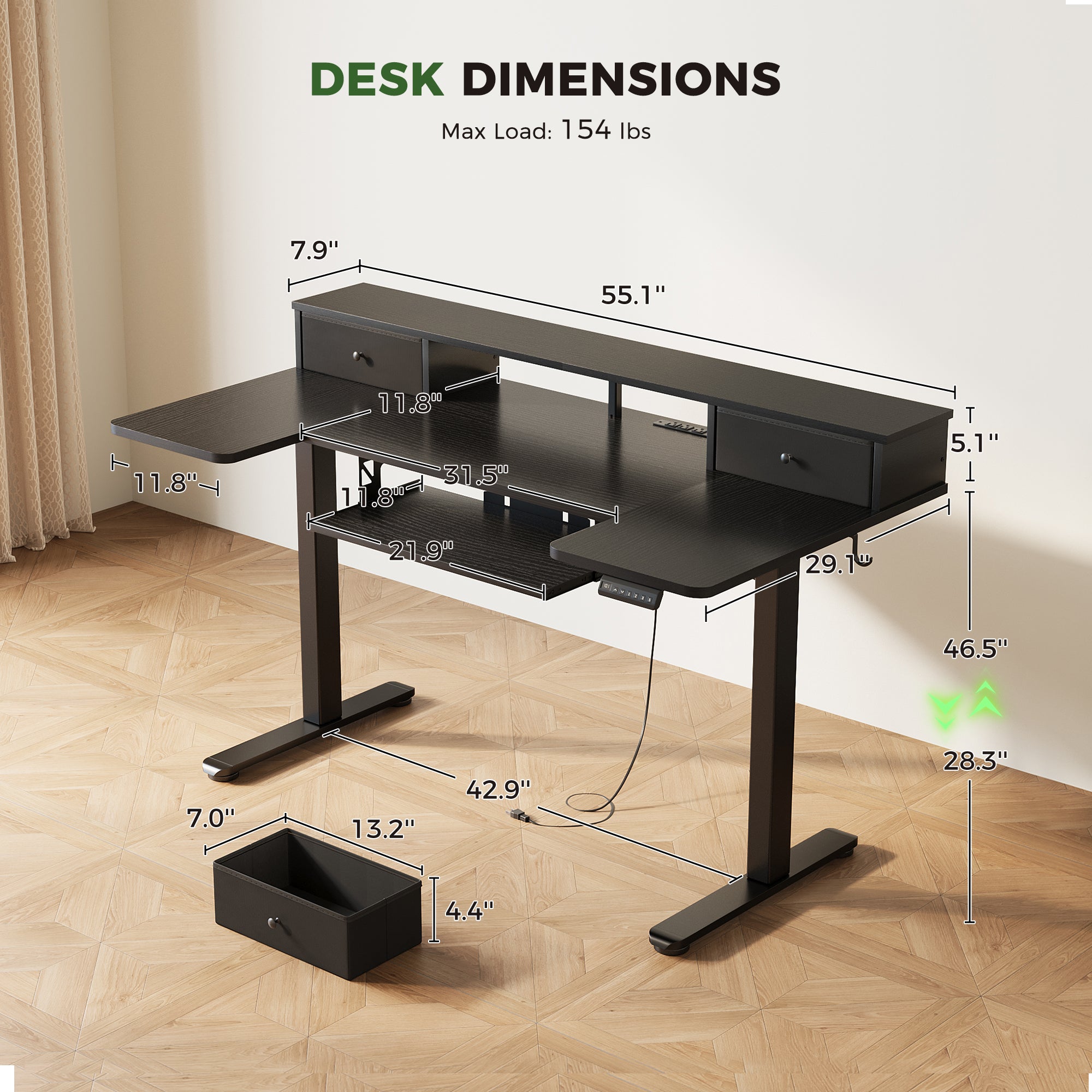
For example, the OffiGo 55-inch U-shaped electric standing desk with storage lists a keyboard tray size of 21.9 inches by 11.8 inches. (offigo.com) That tray can work well for compact keyboards and many mice, but the key is keeping both devices on the same plane so your shoulder does not hike when mousing.
If your mouse sits on the desktop while your keyboard sits on a lower tray, your right shoulder (or left, for left-handed users) often ends up abducted. That can create shoulder fatigue even if your wrists feel better.
Reach zones: primary, secondary, and storage
A desk with drawers and a U-shaped or L-shaped layout is easiest to use when you treat it like a cockpit:
- Primary zone: keyboard, mouse, and the 12-inch radius around them.
- Secondary zone: notebook, phone stand, headset, and the items you touch a few times per hour.
- Storage zone: drawers and shelves for items you touch a few times per day.
A standing desk with drawers should reduce micro-clutter on the desktop. However, drawers can also reduce under-desk clearance, which matters when a keyboard tray slides in and out.
Body-First Desk Height Calibration
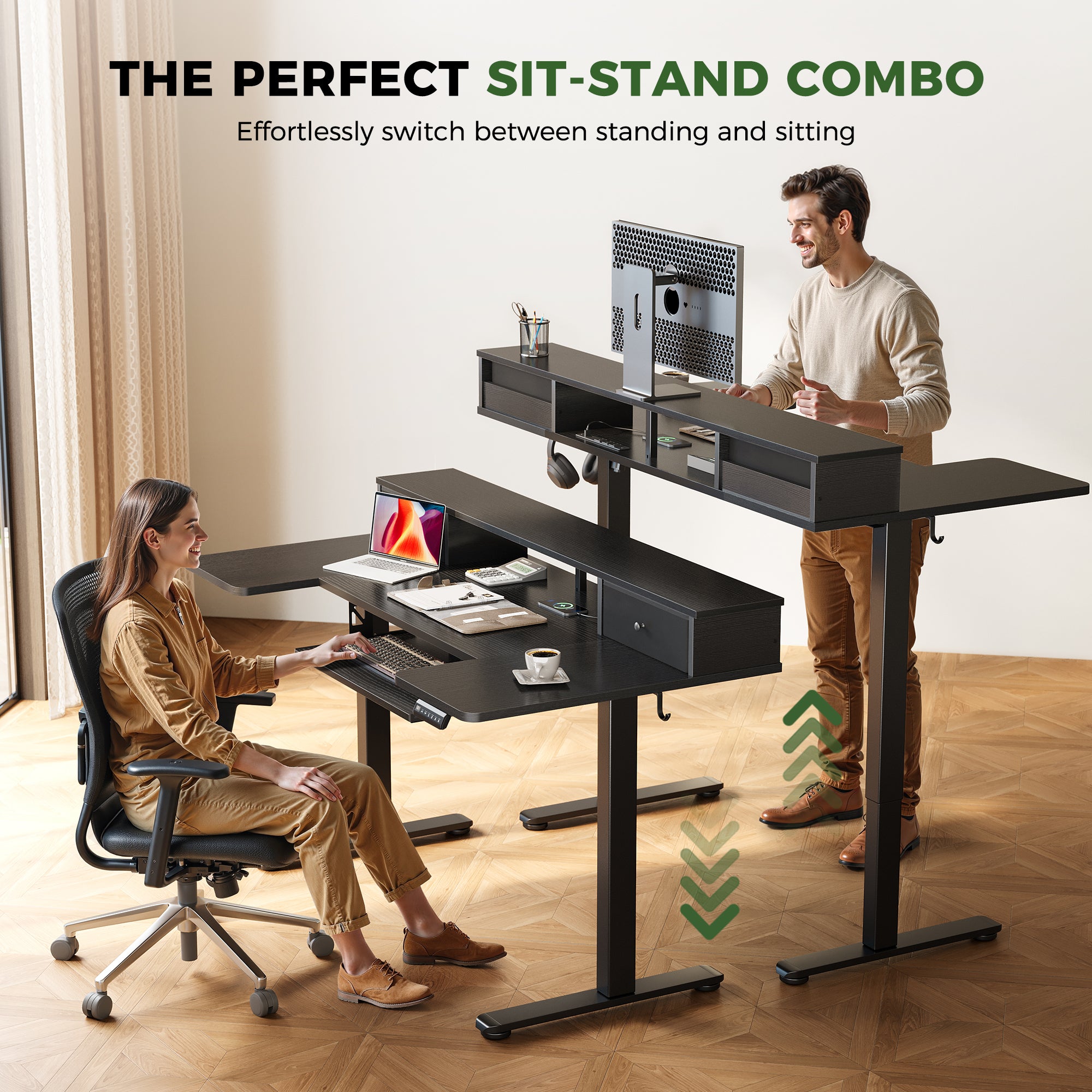
A good standing desk height is not a number you copy from a chart. It is a relationship between your elbows, your input devices, and your footwear. The fastest way to find the sweet spot is to calibrate with your body first, then lock in the desk height.
Step 1: Set your standing baseline using the elbow rule
Use this quick calibration:
- Stand tall with shoulders relaxed and arms hanging naturally.
- Bend elbows so forearms are parallel to the floor.
- Adjust the standing desk height so the keyboard surface meets your hands.
Your goal is elbows near 90 degrees, but do not obsess over perfection. OSHA describes neutral elbow positions as roughly 90 to 120 degrees, which allows small variations without strain. (osha.gov)
Step 2: Confirm wrist and shoulder checkpoints
Once the desk is near elbow height, check two failure modes:
- Shrug test: if your shoulders rise during typing, the surface is too high.
- Wrist test: if wrists bend up or down to reach keys, the surface is too low or the keyboard angle is wrong.
If you use a keyboard tray, do this test on the tray, not on the desktop.
Step 3: Set your sitting height as a separate system
Sitting height settings should not be a simple subtraction from standing. Chair height and foot contact change everything.
A practical method:
- Set chair height so feet are supported and thighs are roughly parallel.
- Bring the desk down until elbows again fall into a relaxed 90 to 120 degree range.
- If the desk must go too low to match your elbows, keep the desk slightly higher and use a chair height adjustment or footrest to restore balance.
How OffiGo desks support calibration in a home office
OffiGo designs desk systems that bundle the features people often add later: a keyboard tray, a monitor stand, and integrated power. That matters because it reduces accessory stacking, which often forces awkward heights.
For example, the OffiGo 55-inch U-shaped electric standing desk with storage includes a monitor stand, two drawers, a keyboard tray, and an integrated power hub. It also lists an adjustable height range of 28.3 inches to 46.5 inches. (offigo.com)
That range is useful because it covers many common sitting and standing heights for a modern home office. However, the real win is that you can save your calibrated positions as presets and stop guessing each morning.
Shop: OffiGo 55 U Shaped Electric Standing Desk with 2 Drawers and Keyboard Tray and Monitor Stand
Keyboard Tray Sweet Spot
A standing desk with keyboard tray can remove a common ergonomic trap: raising the desktop to fit the monitor, then typing too high all day. The tray lets you keep the input plane low and consistent.
Step 1: Match tray height to forearm level
Treat the tray as the keyboard surface. Adjust it (or adjust the desk height, if the tray is fixed) so:
- Forearms are level or slightly declined toward the keyboard.
- Elbows stay close to your sides.
- Wrists stay straight over the home row.
If you feel pressure at the underside of your forearms, the tray may be too high, too sharp at the edge, or too far forward.
Step 2: Avoid contact stress at the edge
Contact stress is the dull ache you feel when the tray edge presses into soft tissue. You can reduce it by:
- Pulling the tray out only as far as needed.
- Keeping your keyboard a little back from the front edge.
- Using a thin wrist rest only if it helps you keep wrists neutral.
If you rest on the edge because you are reaching, your tray is likely too far from your body. Bring the chair in, then re-check elbow angle.
Step 3: Keep mouse and keyboard on the same plane
In a good workspace setup, the mouse should sit next to the keyboard, not up on the desktop. Otherwise, your shoulder rotates and lifts to reach.
Desk selection matters here. The OffiGo U-shaped desk tray is listed at 21.9 inches by 11.8 inches. (offigo.com) That size can be workable for many setups, but you should confirm your mouse pad and mouse fit before committing to a full-time tray workflow.
OffiGo example: larger tray on an L-shaped standing desk
Some users need more tray real estate, especially if they want a full-size keyboard and a normal mouse zone. The OffiGo 55-inch L-shaped electric standing desk with keyboard tray and monitor shelf lists a keyboard tray at 25.6 inches by 11.8 inches. (offigo.com)
That extra width can make it easier to keep both keyboard and mouse on the tray, which often improves shoulder comfort during long sessions.
Shop: OffiGo 55 L-Shaped Electric Standing Desk with Keyboard Tray and Monitor Shelf
Monitor Stand Placement and Angles

Monitor height is where many standing desk setups fail quietly. People raise the screen until it feels impressive, then spend hours with the neck slightly extended. A standing desk with monitor stand can help, but only if the height is set for your eyes, not for the room.
The center-of-screen guideline
OSHA notes that the center of the monitor should normally sit about 15 to 20 degrees below horizontal eye level. (osha.gov) This matters because most people view comfortably with a slight downward gaze.
Practical translation:
- Keep the top of the screen near eye level or slightly below.
- Let your eyes drop naturally to the center of the display.
Step-by-step: set monitor height after the keyboard height
Use this order:
- Set keyboard tray or desk height for relaxed elbows.
- Sit or stand in your neutral posture.
- Raise or lower the monitor stand so you do not tilt your head up or down.
If you use a laptop plus external monitor, make the external monitor primary and keep it centered. Put the laptop off to the side as a secondary screen.
Distance and alignment for a dual monitor setup
A common home office pattern is dual monitors on the monitor shelf. To reduce neck rotation:
- Center your body on the primary screen.
- Angle the secondary screen in a shallow V toward you.
- Keep both screens at the same vertical height if you use them equally.
If you feel neck stiffness on one side, the most likely cause is the primary screen being off center.
OffiGo monitor stand approach
OffiGo desks often integrate a monitor shelf so you do not have to stack risers or improvise with boxes. For example, the L-shaped model lists a monitor stand size of 39.4 inches by 7.9 inches, designed to elevate screens while leaving space below for accessories. (offigo.com)
This type of built-in standing desk with monitor stand can simplify your workspace setup because the monitor elevation is stable and consistent across sit-stand transitions.
Shop: OffiGo 55 L-Shaped Electric Standing Desk with Keyboard Tray and Monitor Shelf
Sit-Stand Transition and Micro-Adjustments
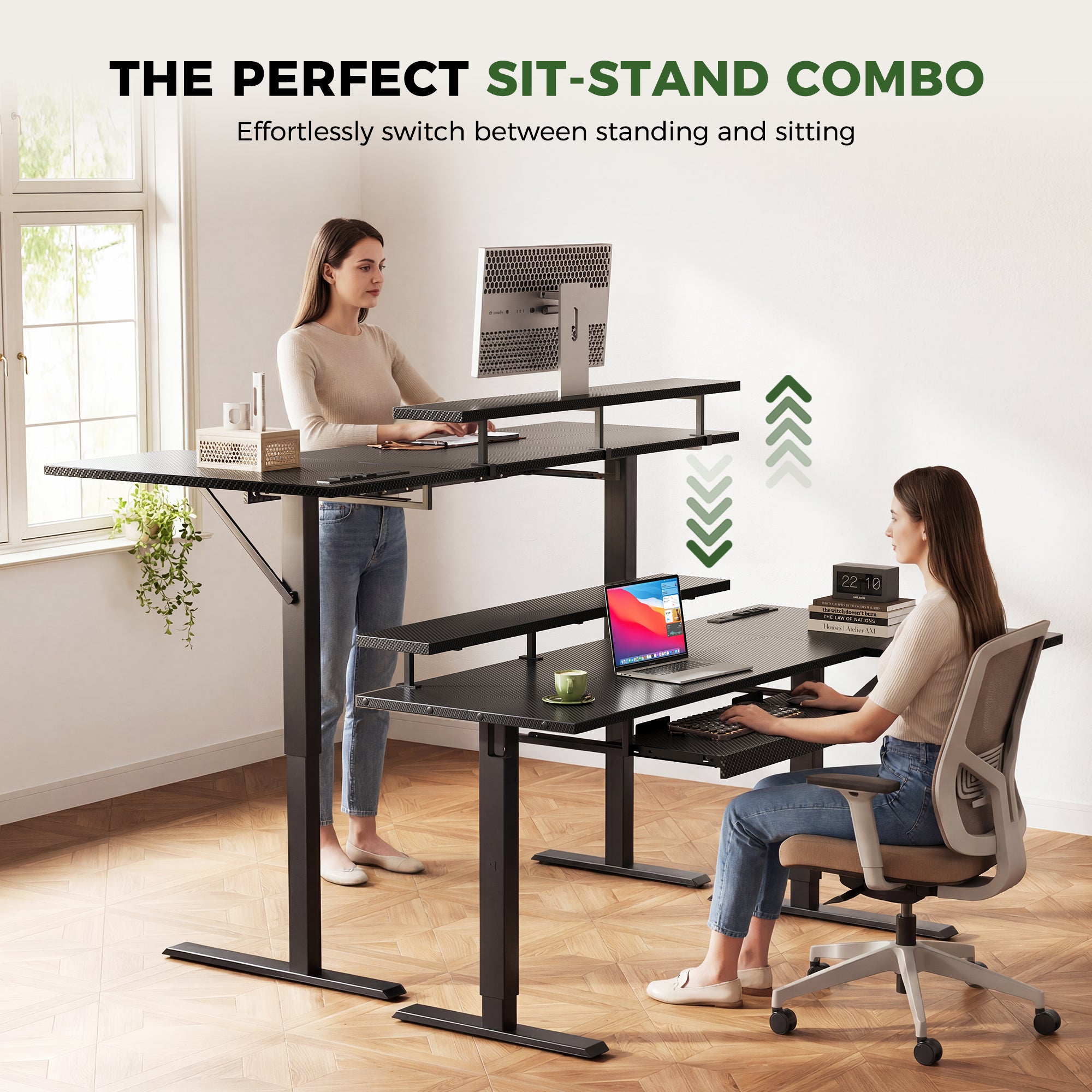
A standing desk helps most when you actually change posture. Many users stand too long on day one, then stop using standing mode because the feet and lower back feel tired. Instead, treat sit-stand as a pacing skill.
Build a sustainable switching rhythm
A simple starting rhythm is a timer-based routine, such as switching every 30 to 60 minutes. The exact cadence depends on your tasks and comfort, but consistency matters more than the perfect schedule.
NIOSH has noted in a review of prolonged standing risks that many sources emphasize movement and the ability to shift between standing, sitting, or leaning rather than holding one static posture for long periods. (cdc.gov)
Save presets for shoes, barefoot, and chair height
Small height differences add up. If you stand in shoes some days and barefoot other days, the keyboard height that felt perfect can become too high or too low.
A practical preset plan:
- Preset 1: Sitting typing.
- Preset 2: Standing typing in your most common footwear.
- Preset 3: Standing for calls or reading (often slightly higher than typing).
Avoid locked knees and forward lean
Two common standing desk mistakes:
- Locked knees: makes legs stiff and can increase low-back fatigue.
- Forward lean: often caused by the keyboard being too far away or the monitor being too low.
Fixes are usually simple. Step closer to the desk, lower the keyboard plane slightly, and bring the screen closer rather than leaning your body forward.
Why integrated power supports better transitions
Transitions fail when cables snag, chargers drag, and you hesitate to move the desk. Integrated power helps reduce that friction.
For example, OffiGo highlights built-in outlets and USB ports on certain models, and the L-shaped desk lists 3 AC outlets plus USB and Type-C charging. (offigo.com) When the charging hub moves with the desktop, you avoid re-routing cords every time you raise the standing desk.
Shop: OffiGo 55 U-Shaped Electric Standing Desk with Monitor Stand and Keyboard Tray
Storage, Drawers, and Clearance Planning

A standing desk with drawers is not just about neatness. Storage changes how you move at the desk. It can reduce reaching and twisting if you plan zones well, or it can create clearance conflicts if drawers and trays compete for space.
Plan knee and thigh clearance first
Before you commit to under-desk storage, confirm three things:
- Your thighs have space when seated.
- The keyboard tray can slide freely.
- Your chair arms do not collide with drawer faces.
OffiGo provides drawer and tray dimensions for planning. For example, its U-shaped desk listing includes a drawer size of 13.2 inches by 7 inches by 4.4 inches and a height range of 28.3 to 46.5 inches. (offigo.com) Those details help you predict where your knees will land at your preferred sitting height.
Use drawers to protect your primary zone
The biggest productivity gain from storage is keeping the input zone clear. Use drawers for:
- Chargers and adapters you do not need daily.
- Pens, sticky notes, and small tools.
- A headset you want nearby but not on the desktop.
If your desktop fills with supplies, your keyboard gets pushed back, then you lean forward and lose neutral posture.
Keep heavy items below elbow height
When you store heavy items above your elbow height, you often lift with the shoulder elevated. Keep heavier objects lower, and keep high shelves for light items.
In a compact home office, the U-shaped extension can also become a holding lane for active paperwork. That can reduce constant stacking and unstacking, especially for paper-heavy workflows.
Cable paths and the sit-stand motion
A standing desk adds a moving cable problem. Use a simple rule:
- Anything that moves with the desktop should be plugged into the desk-mounted power hub.
- Anything that stays on the floor should have enough slack and a clean vertical path.
If cables pull tight at standing height, you will avoid transitions and lose the core benefit of a standing desk.
Shop: OffiGo 55 U Shaped Electric Standing Desk with 2 Drawers and Keyboard Tray and Monitor Stand
How to Choose a Standing Desk for Your Home Office
Choosing a standing desk is easier when you stop thinking in terms of style and start thinking in constraints. Your workspace setup has physical limits: your room dimensions, your body dimensions, and the equipment you must support.
Height range: does it fit both sitting and standing?
Evaluate height range against your real routine:
- If you are shorter, confirm the desk goes low enough for relaxed elbows when seated.
- If you are taller, confirm the desk goes high enough for standing typing without shrugging.
OffiGo lists a 28.3 to 46.5 inch range for its 55-inch U-shaped desk model. (offigo.com) Its 55-inch L-shaped model lists a 28.4 to 47.2 inch range. (offigo.com) Use those ranges as a starting filter, then validate with your own elbow-height measurement.
Keyboard tray size: can your mouse live there too?
A standing desk with keyboard tray should support your full input workflow. Compare tray size to your gear:
- Compact keyboards: often fit easily.
- Full-size keyboards: can leave less mouse room.
- Large mouse pads: may not fit and can force the mouse back to the desktop.
OffiGo lists a 21.9 x 11.8 inch tray on its U-shaped desk listing and a 25.6 x 11.8 inch tray on its L-shaped listing. (offigo.com) That difference can matter if you want keyboard and mouse on the same plane.
Monitor support: built-in stand vs. arms
A standing desk with monitor stand can be great if:
- You want a stable, simple elevation.
- You use one or two monitors at consistent heights.
Monitor arms add flexibility, but they also add cost, setup complexity, and stability requirements. If you often change monitor positions or share the desk, arms can be worth it.
OSHA notes that monitor placement should be considered together with the keyboard, desk, and chair, because an incorrect screen height can force awkward neck and shoulder postures. (osha.gov)
Storage layout: drawers, shelves, and knee space
A standing desk with drawers should match your work type:
- Paper-heavy work: drawers plus a U-shaped zone layout can keep piles visible but controlled.
- Tech-heavy work: prioritize cable routing, device charging, and a clear primary zone.
- Small rooms: storage is helpful, but confirm the desk footprint does not crowd your chair path.
Quick decision table for typical scenarios
| Application scenario | Key constraint | Standing desk features that help | Trade-off to watch |
|---|---|---|---|
| Small home office and dual monitors | Limited space, clutter risk | U-shaped layout, integrated power, monitor stand | U-shape needs enough room depth |
| Typing-heavy work (coding, writing) | Wrist and shoulder comfort | Keyboard tray sized for mouse + keyboard | Tray can reduce knee clearance |
| Paper-heavy workflows | Multiple active lanes | Standing desk with drawers, wider surface zones | Storage can compete with tray space |
| Frequent calls and video meetings | Fast posture changes | Memory presets, stable monitor height | Standing too long causes fatigue |
Best Practices and Common Mistakes
Best Practices
- Calibrate desk height by elbows, not by desk numbers.
Elbow height anchors the input plane. If elbows relax, shoulders and wrists usually follow. - Keep wrists straight while typing.
A straight wrist often requires the keyboard to be slightly lower than people expect, especially when standing. - Recheck your setup every few weeks.
Small changes like new shoes, a new chair height, or a thicker desk mat can shift your sweet spot. - Use presets to reduce daily friction.
If changing height is easy, you will do it. Presets turn good ergonomics into a habit. - Treat storage as a posture tool.
A standing desk with drawers protects your primary zone so the keyboard does not drift backward over time.
Common Pitfalls to Avoid
- Raising the monitor by stacking random objects.
Makes the screen unstable and often puts the center of the display too high. OSHA notes the center of the screen is typically best 15 to 20 degrees below horizontal eye level. (osha.gov) - Resting forearms on sharp tray edges.
Creates contact stress and encourages wrist bending. Adjust tray position or add a softer edge solution. - Keeping the mouse on the desktop while the keyboard is on a tray.
This often forces shoulder abduction and can cause upper-trap fatigue during long sessions. - Standing still for long blocks.
NIOSH highlights movement and posture variability as a common theme in guidance around prolonged standing risk. (cdc.gov) - Setting one height and never changing it.
The value of a standing desk is not standing all day. The value is the ability to shift.
Conclusion
The ergonomic sweet spot is not a single standing desk height. It is a system: neutral elbows, a keyboard tray set to support straight wrists, a monitor stand that keeps your gaze slightly downward, and storage that protects your reach zones.
Start by calibrating your standing and sitting heights using the elbow rule, then fine-tune keyboard tray and monitor placement. Save presets, review comfort weekly, and make micro-adjustments as your routine changes. Over time, your home office workspace setup will feel effortless instead of exhausting.
Frequently Asked Questions
What is the best standing desk height for most people?
The best standing desk height is the one that lets your elbows stay close to your body while your forearms remain level during typing. Most users feel good when elbows land near a 90 to 110 degree bend, but small differences are normal. A keyboard tray can change the correct number because it lowers the input plane. After you set height, confirm that your shoulders stay relaxed and your wrists stay straight.
Should a standing desk with keyboard tray be lower than the desktop?
Yes, a standing desk with keyboard tray is often lower than the desktop because it is designed to align your forearms and wrists for typing. The key is that the tray should not force you to reach forward or rest your arms on a hard edge. If your mouse cannot stay on the tray, you may trade wrist comfort for shoulder strain. Choose a tray size and layout that supports both keyboard and mouse on the same plane.
How do I set monitor height on a standing desk with monitor stand?
Set the keyboard height first, then adjust the monitor stand so your head stays neutral while you look at the screen. Most people prefer a slight downward gaze to the center of the display rather than looking up. If you use dual monitors, center your body on the primary screen and angle the secondary screen inward. If you notice neck stiffness, the monitor is usually too high, too low, or off-center.
Why do my wrists hurt after switching to a standing desk?
Wrist pain often happens when the keyboard surface is too high, causing wrist extension while typing. It can also happen when the keyboard is too far away, which makes you reach and bend the wrists to compensate. A keyboard tray helps, but only if it is positioned so forearms are supported without edge pressure. Reduce keyboard tilt, keep wrists straight, and bring the mouse close to the keyboard.
How often should I switch between sitting and standing in a home office?
Most people do best with frequent changes rather than long blocks in one posture. Many users start with 30 to 60 minute intervals and then adjust based on comfort and task type. Standing tasks like calls and reading often feel better than deep typing sessions at first. If feet or low back fatigue builds, shorten standing intervals and add small movements.
What should I store in a standing desk with drawers vs. on the desktop?
Keep your primary work zone clear so the keyboard and mouse can stay in the best ergonomic position. Store small tools and supplies in drawers, such as chargers, pens, and adapters you do not need every hour. Keep secondary items like a notebook or phone stand close, but not crowding the input area. If storage blocks knee clearance or interferes with a keyboard tray, adjust the layout so movement stays easy.
Do I need different presets for shoes vs. barefoot standing?
Yes, footwear can change your effective height enough to matter, especially for typing comfort. Even a small difference can shift the keyboard from neutral to too high, which can trigger shoulder shrugging. Save at least one standing preset for your most common footwear and one for barefoot or slippers if you alternate. Recheck presets anytime you change mats, shoes, or chair height.
Why does my neck get tired even when desk height feels correct?
Neck fatigue usually means the monitor height or distance is wrong, not the standing desk height itself. If the screen is too high, you extend your neck; if it is too low, you flex forward. Distance also matters because a far screen encourages forward head posture. Re-center the monitor, bring it slightly closer, and set height so you can keep your head stacked over your torso.
0 comments