
About healthiest Standing Desk Setup
Ever notice how a simple morning stand-up turns into your shoulders creeping up, your neck jutting forward, and your mouse hand doing a weird claw thing by 10 a.m.? That confusion usually comes from one mistake: you changed the desk height, but the rest of your setup stayed stuck in the old posture.
Get it wrong and you do not just feel tired. You can stack up neck pain, wrist tingling, headaches from glare, and end-of-day fatigue that makes you skip movement altogether. This guide shows you how to build healthier Sit-Stand Workstations using practical Home Office Ergonomics: posture basics, screen geometry, movement cadence, Cable Management Systems, and workflow zoning.
Top recommended desk: OffiGo 55" L-Shaped Height Adjustable Standing Desk with Large Movable Storage Cabinet for Office Workstations
Sit-Stand Workstation Height Dial-In
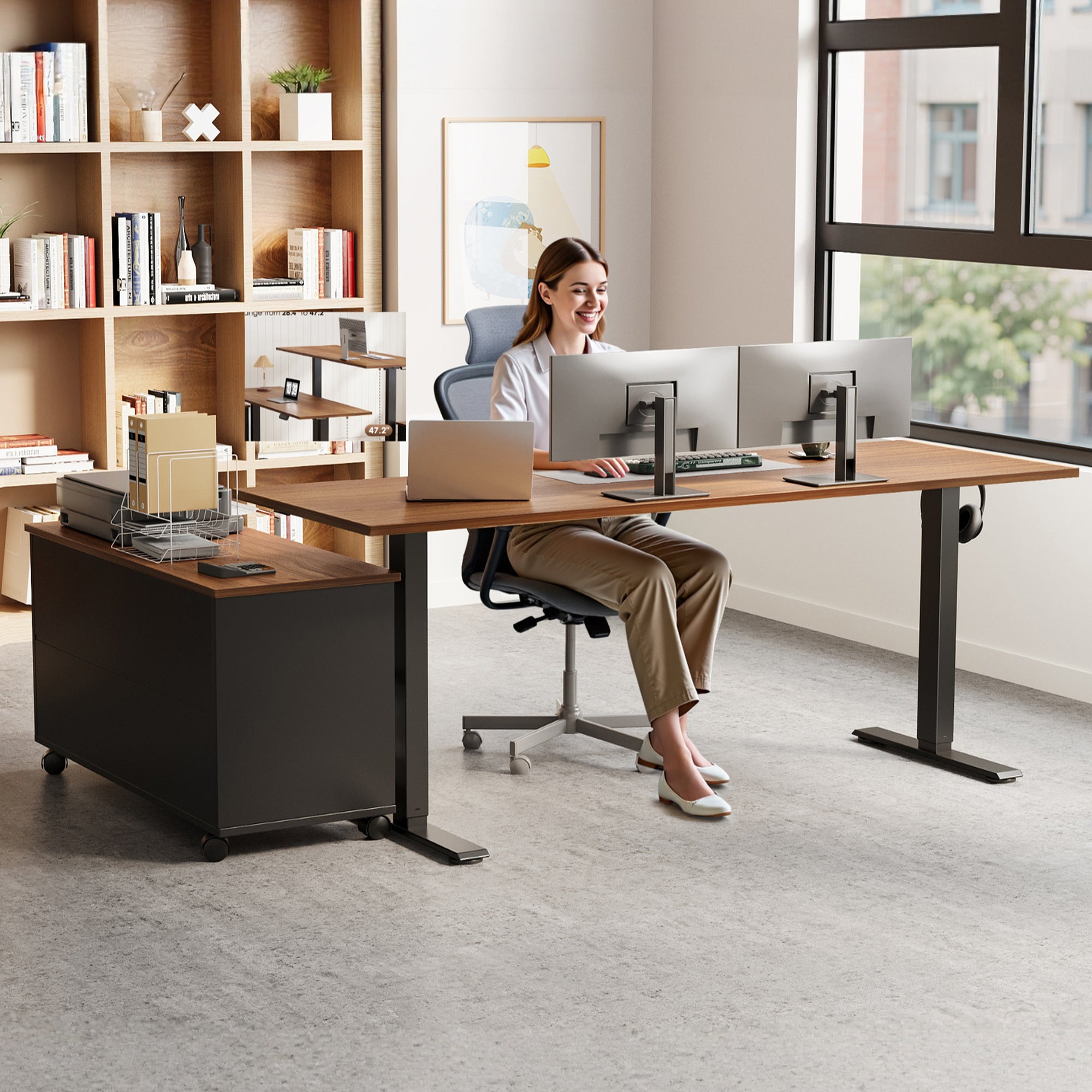
Principle first: set the desk to your hands, not your eyes. When the surface height is correct, your shoulders relax and your wrists stop bending up to reach the keyboard.
- Step 1: drop shoulders fully, then bend elbows
- Step 2: set keyboard height to match elbow height
- Step 3: keep mouse on the same plane
- Step 4: save positions as repeatable presets
In daily use, dial in two heights: one for seated work and one for standing work. Then check the telltales: if you shrug, the desk is too high; if you lean forward to reach, it is too low or too far away. Your best setup is repeatable, which is why memory controls matter for Sit-Stand Workstations.
OffiGo builds this repeatability into its L-shaped electric desk through an LED height display and three programmable memory buttons, so you can switch without re-guessing your posture every time. The height adjustment range (28.4 inches to 47.2 inches) also helps households where different users share the same workspace. This kind of Direct-to-Consumer Retail product design often focuses on reducing setup friction so you actually use the standing function, not just own it.
Monitor and Laptop Geometry
Principle first: keep your head upright and let your eyes do the moving. If you set the monitor too high, you tilt your head back. If it is too low, you hunch.
OSHA notes that monitor placement should keep your head, neck, and torso facing forward, and you should be able to view the screen without tilting your head back. OSHA
- Target angle: about 15 to 20 degrees downward
- Centered: nose points to the screen center
- Laptop-only warning: keyboard height fights screen height
If you work on a laptop for more than short bursts, separate the problems: raise the laptop for screen height and use an external keyboard and mouse for neutral wrists. For dual monitors, match top edges and keep the primary screen directly in front of you, with the secondary slightly angled.
L-Shaped Workflow Zoning
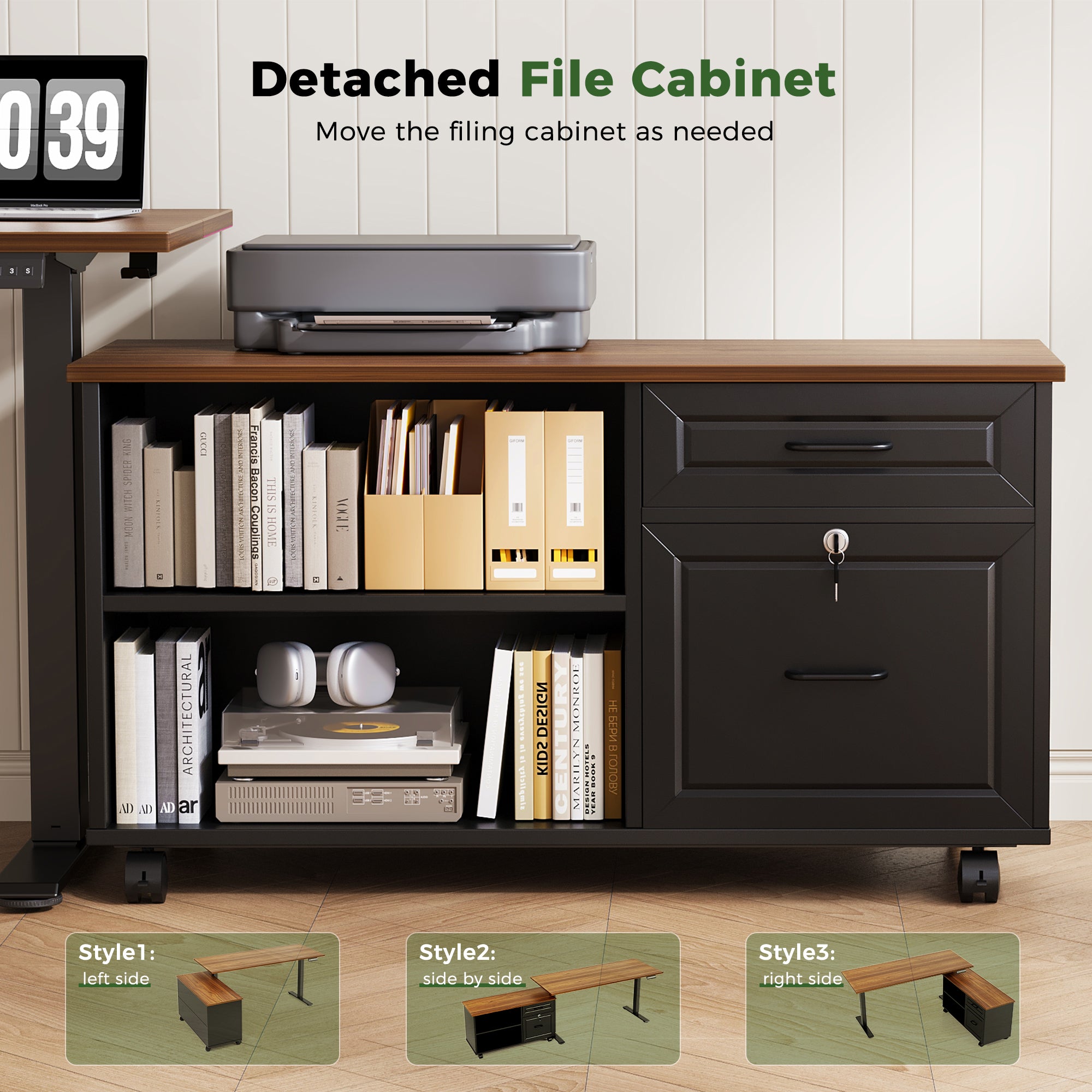
Principle first: your desk shape should match your task switching. If you bounce between typing, writing, printing, and charging devices, an L-shape reduces the constant swivel-and-reach that quietly loads your shoulders.
Use a simple zoning map:
- Primary zone (front of you): keyboard, mouse, notebook
- Reference zone (return side): second monitor, documents
- Utility zone (cabinet side): printer, paper, chargers
The OffiGo 55-inch L-shaped desktop pairs with a large independent side cabinet so you can keep equipment off the main typing surface. The cabinet can be placed left-side, right-side, or inline, which is the practical side of Modular Office Furniture: you can reconfigure for room layout, dominant hand, or whether you want a clear return for mousing and note-taking. Over time, this zoning also supports Predictive Demand Analytics in your own workflow: you notice what you reach for most, then move that tool forward and demote the rest.
Cable Management Systems That Stay Put
Principle first: treat moving cables and fixed cables as two different systems. Height-adjustable desks fail in real life when a power brick snags, a USB cable yanks a laptop, or a bundle gets tight at standing height.
- Build a slack loop for full height travel
- Anchor the loop under the desktop
- Separate motion bundle from wall bundle
- Keep power and data organized by route
OffiGo notes this desk model does not include integrated power outlets or charging modules, which is useful if you already have a preferred power strip, USB hub, or docking setup. That flexibility can also support Omnichannel Customer Experience habits, for example if you swap between a work laptop dock, a personal desktop, and a tablet. The key is consistency: once you find a routing that survives a full up-down cycle, do not keep re-plugging everything daily.
Storage, Surface, and Daily Reset
Principle first: reduce visual clutter and reach clutter, because both increase tiny interruptions. A clean surface makes it easier to keep neutral posture and to actually switch positions.
- End of day: clear the primary zone
- Store: cables, adapters, spare pens
- Keep forward: only todays essentials
The OffiGo movable storage cabinet is designed for document-heavy workflows and can hold office supplies, folders, and equipment while keeping the main desktop open. That helps you maintain a reliable primary work zone even when you have active projects. If Sustainable Materials are a priority in your home, use the same decision framework you use for devices: look for durable surfaces that you will not replace often, because longevity is often the biggest sustainability win in home furniture.
How to Choose a Healthy Standing Desk Setup (Decision Framework)
| Scenario | Key factor | Layout move | Trade-off |
|---|---|---|---|
| Dual monitors + notes | Depth for distance | Deeper main surface | More room needed |
| Printer + files | Separate utility zone | Add cabinet side | Larger footprint |
| Small room | Walkway clearance | Inline cabinet mode | Less L advantage |
Best Practices and Pitfalls
Best Practices
- Alternate blocks, not marathons: stand 10 to 30 minutes, then sit, then walk.
- Keep the monitor slightly below eye line so your gaze falls downward.
- Keep elbows close and wrists straight; adjust the surface, not your body.
- Use zoning so your mouse stays within shoulder width.
A practical reminder: in late 2025 and into 2026, more people are mixing devices and tasks at home, so the healthiest setup is the one you can reconfigure quickly without breaking your Cable Management Systems. That is also why DTC brands emphasize easy assembly and easy decision paths instead of only marketing specs.
Common Pitfalls to Avoid
- Standing still for hours: fatigue shows up fast in feet and low back.
- Reaching to the side for the mouse: shoulder load climbs quietly.
- Letting cables pull during lifts: it causes snags and device drops.
- Raising the desk for the monitor: it breaks keyboard height.
In a multi-user home, the fastest path to inconsistency is "eyeballing" the height every time. Use presets, mark a foot position on your mat, and keep the desk area clear so you can transition without moving clutter.
Conclusion
A healthy standing desk setup is not a single perfect height. It is a system: neutral posture, correct screen geometry, frequent movement, and a layout that reduces reach and clutter. Start by dialing in keyboard and mouse height, then fix the monitor, then build zones, then lock in cables.
Once your baseline works, audit weekly and change only one variable at a time. If you want a one-and-done foundation for a home workstation, an L-shaped desk with movable storage can make zoning and reset habits easier.
OffiGo: Standing Desk for Long Working Hours | Built-in Storage
FAQ
How often should I switch between sitting and standing?
Switch often enough that neither posture becomes tiring, which usually means several transitions during a typical work hour. Most people do well starting with 10 to 15 minutes of standing, then sitting again before fatigue builds. As your tolerance improves, you can extend standing blocks to 20 to 30 minutes, but you should still avoid standing motionless for long stretches. Your task type matters: deep typing often feels better seated, while calls and reading can be great standing tasks. The best cadence is the one you can repeat every day without soreness.
What is the healthiest monitor height for home office work?
The healthiest monitor height keeps your head upright and lets your eyes look slightly downward at the screen. For most people, that means the top portion of the display is near eye height and the center of the screen sits below your direct gaze. If you notice you are tilting your head back, lower the monitor or increase viewing distance. If you are tucking your chin down or hunching, raise the monitor slightly and bring it closer. If you wear progressives, a slightly lower monitor often reduces neck strain.
How do I know my keyboard and mouse height is correct?
Your keyboard and mouse height is correct when your shoulders stay relaxed and your wrists remain straight while you work. A quick test is to let your arms hang, then bend your elbows to about 90 degrees; your input surface should meet your hands there. If you feel pressure in your upper traps, your desk is likely too high. If you feel like you are reaching forward or leaning, the surface may be too low or the keyboard may be too far away. Keep the mouse on the same level as the keyboard so your wrist and forearm stay neutral.
What is the best way to manage cables on a height-adjustable desk?
The best way is to plan for motion by adding slack and anchoring it so cables never get tight at standing height. Create a single moving bundle under the desktop and form a gentle slack loop that can extend and retract during lifts. Keep the fixed run to the wall separate, so only one segment moves when the desk moves. Place heavier power bricks in a mounted tray or basket so they do not dangle. After routing, run the desk from lowest to highest height once to confirm nothing snags.
Do I need an anti-fatigue mat for standing work?
An anti-fatigue mat is not mandatory, but it often makes standing comfortable enough that you actually use standing time consistently. If you stand on hard flooring, a mat can reduce foot pressure and calf fatigue within the first 10 to 20 minutes. Choose a mat that stays flat and does not create a trip edge, especially if your desk sits near a walkway. If you already wear supportive shoes indoors, you may need a thinner mat than you expect. The real goal is comfort that supports frequent switching, not maximum cushioning.
How can I set up an L-shaped desk so I stop twisting my body?
Set up an L-shaped desk so your primary screen and keyboard are directly in front of you, then place secondary tools on the return side. Your chair should face the primary zone, not the corner, so your torso stays squared during typing. Put the mouse close to the keyboard and keep any frequently clicked devices within shoulder width. Move printers, chargers, and files to the cabinet or far side so they do not steal prime reach space. If you must turn for a second monitor, angle that monitor toward you so you rotate less.
What is the simplest daily reset routine to keep a healthy setup?
The simplest reset is a 2-minute routine that restores your primary reach zone and clears visual clutter. Put paperwork back into a drawer or cabinet, return chargers to one designated spot, and leave only the keyboard, mouse, and one notebook forward. Wipe the area where your forearms rest so you stop avoiding the correct posture due to sticky or crowded surfaces. Confirm your chair position and foot placement so you start the next session aligned. This small habit reduces friction, which makes movement breaks and posture consistency much easier.
0 comments