
Introduction
You finally sit down to work, and your desk surface disappears under chargers, notebooks, and random adapters. Then you spend the first 10 minutes doing a daily reset: clearing space, untangling cords, and hunting for the one cable that always slips behind the desk. This is exactly how home office clutter becomes a productivity tax, even when you own Electric Standing Desks.
If storage is an afterthought, you will keep fighting your setup: items migrate back onto the surface, cables end up on the floor, and standing feels awkward because the "fix" steals legroom. This guide helps you choose Height Adjustable Tables with storage that actually works for your workflow, using seven practical checks you can run in one sitting and apply to Compact Office Furniture or bigger L-Shaped Standing Desks.
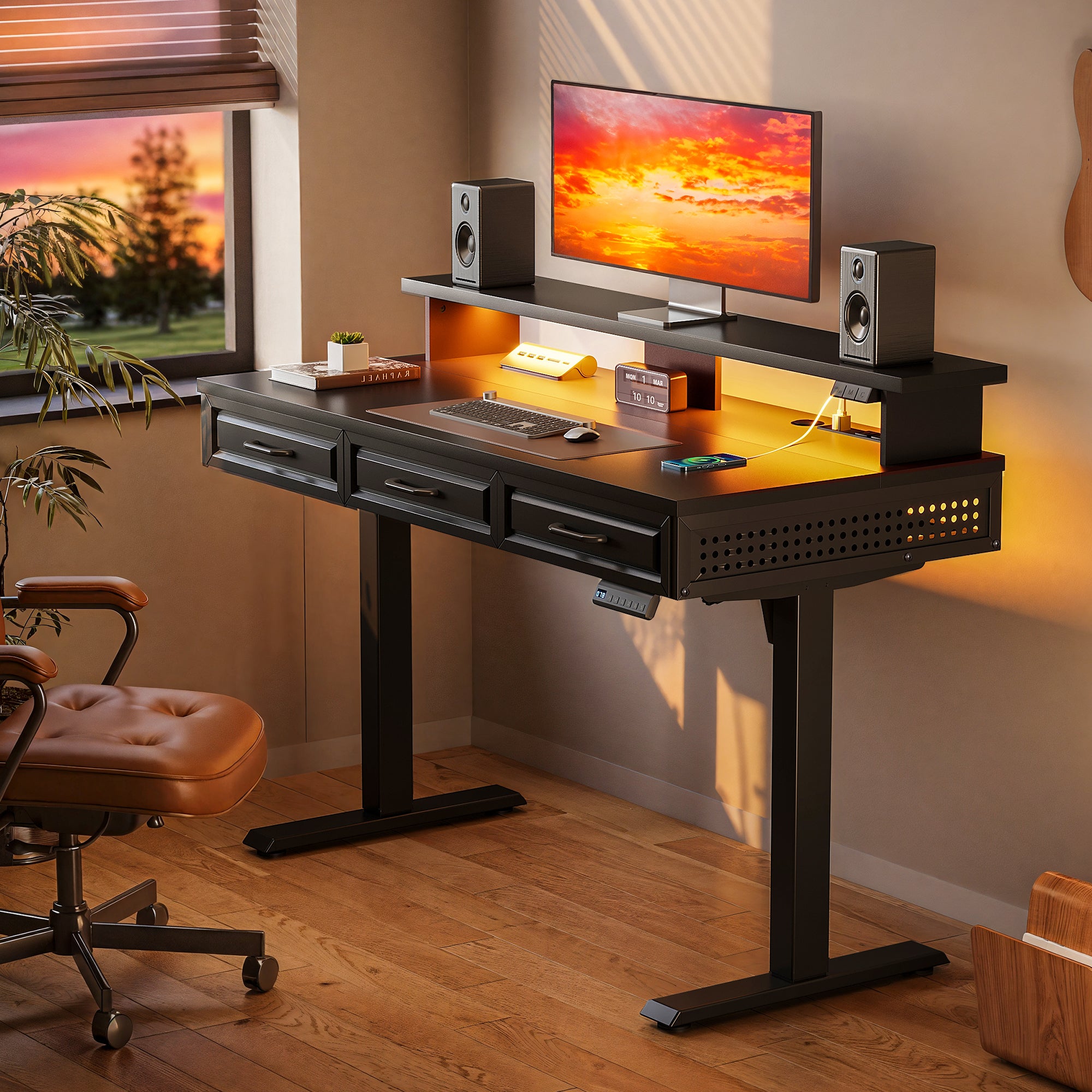
Official Site: OffiGo: Standing Desk for Long Working Hours | Built-in Storage
7 Tips to choosing electric standing desks with storage
1: List your daily storage categories
Start by writing down what you touch every day, because "storage" fails when it is not designed around frequency. Split your items into four buckets: tech (laptop charger, dock, headphones), paper (notebook, mail, forms), tools (pens, tape, scissors), and personal (medicine, lens wipes). Then count how many of those items you want within a 5-second reach while sitting and while standing. This list is your filter for Home Office Design.
Use a simple rule: if you use it daily, it needs a dedicated home that does not require moving other items first. That is why Under-Desk Storage and shallow desktop drawers often beat decorative shelving. Once you have your buckets, you can match them to the right drawer count, drawer size, and surface layout.
- Quick check: list your "always out" items
- Goal: move them off the surface
- Output: drawer count and placement needs
2: Choose built-in drawers first
Prioritize drawers that move with the desk, because they keep your organization intact at every height. Add-on bins and rolling carts look fine at sitting height, but they can block knee space and become awkward when you raise the desk. Built-in drawers also reduce the urge to stack items on the desktop, which matters when you are trying to keep a clean typing zone.
A strong example of storage-first design is the OffiGo 48" Electric Standing Desk with 3 Wooden Drawers, Monitor Shelf & USB Power Outlets. It combines three solid wooden drawers with a full-sized monitor shelf, so your daily-carry items leave the surface while your screen stays elevated for a cleaner sightline. It also supports smooth height adjustment from 29.9" to 46.1" with 3 memory presets, so you do not sacrifice habit and speed just to get storage.
3: Verify legroom and knee space
Before you commit to any Under-Desk Storage, do a knee-clearance test on paper. Measure the distance from the front edge of the desktop to where your knees naturally sit when you are typing, then compare that to drawer depth and drawer position. You want drawers to sit behind your "knee zone" so you do not bump them while seated, and so your stance stays natural when you transition to standing.
If you want a bigger work surface without turning the underside into a knee obstacle course, look for storage that is offset to the side or integrated into a return section. L-Shaped Standing Desks can help here because the extra wing gives you a place to put storage and devices while keeping the main typing edge clear. Also, if you plan to add Ergonomic Office Chairs with armrests, factor that swing radius in so armrests do not collide with drawer pulls.
- Sit test target: knees clear at normal posture
- Stand test target: no shin contact when close-in
- Do not ignore: keyboard tray travel path
4: Match surface size to your workflow
Instead of shopping by inches first, map your zones. Draw three rectangles on your desk sketch: (1) screens, (2) input, (3) writing/parts. If you use two monitors plus a laptop, you will need a wide screen zone and a stable centerline so the primary monitor stays in front of you at both heights. If you take notes often, reserve a writing zone that does not force your keyboard to drift sideways.
For Compact Office Furniture, a 48-inch top can still work if storage is integrated and you keep the surface disciplined. For multi-device work, a larger L layout can reduce "towering" (stacking stands and shelves) because the return side can hold the printer, dock, or charging pad without invading your typing zone. As you compare Electric Standing Desks, treat size as a way to reduce add-ons, not as a status upgrade.
5: Pick L-shaped only when needed
Choose L-Shaped Standing Desks when your workflow truly benefits from separation, not just because the shape looks impressive. The best reason to go L-shaped is zoning: one side for deep work (keyboard, mouse, primary monitor), the other side for support tasks (printer, tablet, paperwork, audio gear). This keeps your main surface calm, which is the whole point of "real storage".
A practical storage-forward option is the OffiGo 63" L-Shaped Electric Standing Desk with Fabric Drawers & Built-in Power Outlets. It gives you a corner-friendly surface plus 4 built-in fabric drawers, a rear cable management tray, and integrated power with USB and Type-C charging, while keeping the height range at 29.9" to 46.1" with preset control buttons. The reversible layout also helps in shared rooms where you need the return on the left or right.

6: Demand integrated power placement
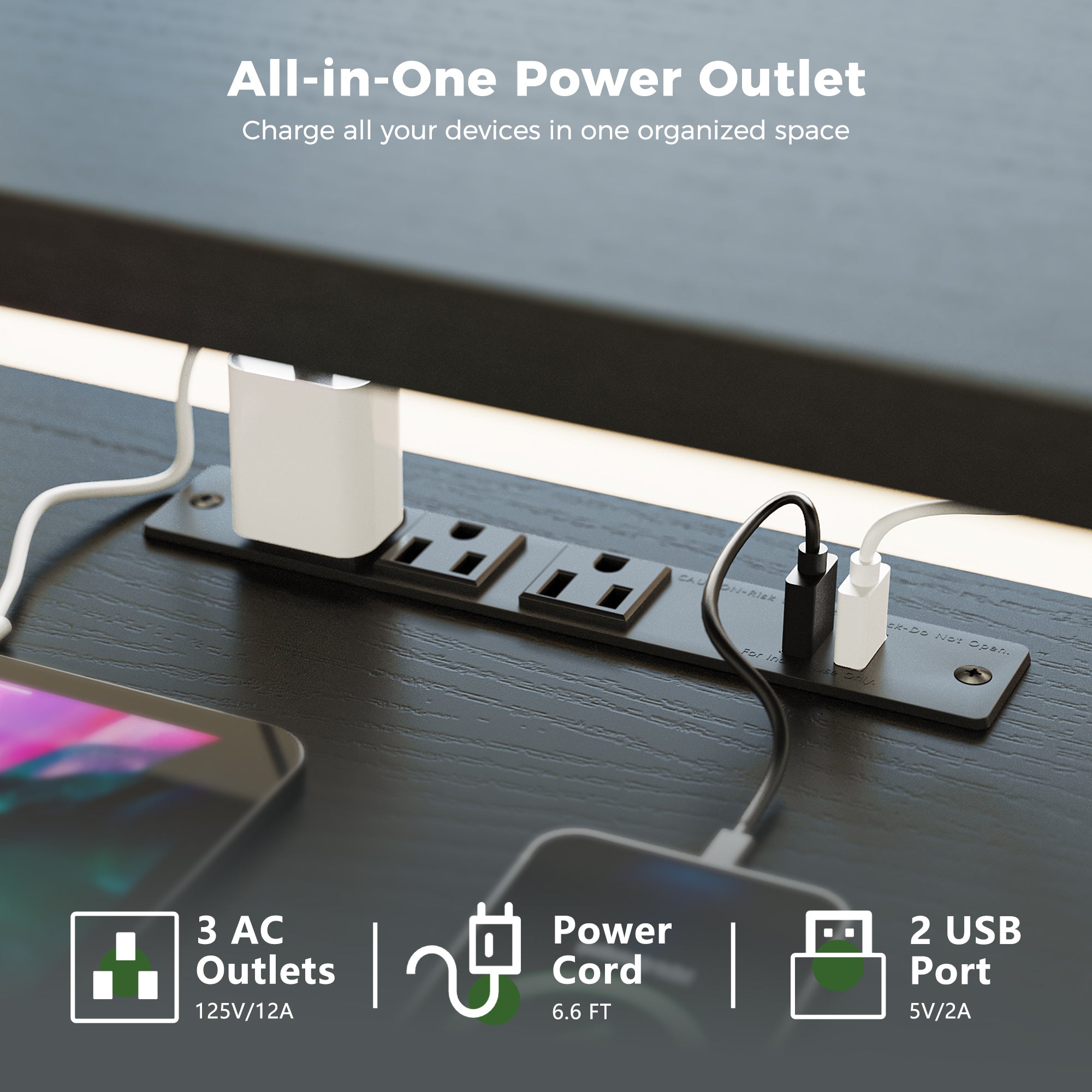
If you work tech-heavy, power placement is storage. When ports are easy to reach, chargers stay on the desk (not the floor), and cables take shorter paths. Look for integrated AC plus USB-C Charging Ports that sit where you can plug in without crawling under the desktop. This matters even more when you raise Height Adjustable Tables, because dangling bricks and long cords tend to snag.
The OffiGo 59" L-Shaped Electric Standing Desk with Drawers, Keyboard Tray & Monitor Stand is a good example of "built-in convenience" done in a way that supports Home Office Design: it combines an ergonomic monitor shelf, a pull-out keyboard tray, and drawers, while also including built-in power outlets and USB ports for everyday charging. It also uses 3 memory presets and a 28.4" to 45.7" height range, which makes it easier to keep your setup repeatable.
7: Audit cable routing and exit paths
Do one last check that most people skip: trace where every cable will go when the desk is at its lowest height and at your standing height. You want a single drop point (one bundled exit) and enough slack for lift travel, but not so much slack that cords loop into walkways. According to OSHA, aisles and passageways should be kept clear to reduce slip, trip, and fall risk.
Treat cable routing like part of storage, not an after-install chore. Look for a rear cable tray, clear routing points, and a desktop layout that lets devices sit close to the power hub. If you have Buy Now Pay Later Financing available for your setup, cable management is still the cheapest "upgrade" you can plan, because it prevents daily friction from turning into long-term desk regret.
- Keep cords off walking paths
- Route power brick weight to a tray
- Leave lift slack, avoid floor loops
Before You Start
Required Tools & Materials
- Tape measure (desktop and knee zone)
- Painter tape (mark zones on the desk)
- Device list (monitors, laptop, dock)
- Charger inventory (USB-C, AC bricks)
- Power strip count (what you can eliminate)
- Cable lengths (shortest workable runs)
- Baseline seating setup (Ergonomic Office Chairs adjusted)
Safety Considerations
- Keep cable runs away from feet and chair wheels
- Avoid placing power bricks on carpet
- Leave enough slack for full lift travel
- Place the top of your monitor at or below eye level; NIOSH notes this placement can reduce strain in work-from-home setups
- Do not let drawers force you to sit too far back
Troubleshooting
| Problem | Cause | Solution |
|---|---|---|
| Drawer bumps knees | Drawer too deep | Choose shallower drawer bank |
| Cables still messy | No routing points | Add tray, clips, shorter runs |
| Power strip still needed | Ports not reachable | Move hub to front edge |
| Storage stays unused | Wrong item placement | Sort by daily reach |
| Desk feels cramped | Zones overlap | Re-map surface layout |
- If your knees hit a drawer, move the keyboard forward only if your wrists can stay neutral. Otherwise, switch to a desk where drawers sit farther back or to the side.
- If cables pool on the floor, bundle into one drop point and mount weight (power bricks) in a rear tray so lift travel stays smooth.
Conclusion
Real storage is not about hiding clutter. It is about keeping the things you use every day reachable at both sitting and standing heights, without stealing legroom. Run the seven checks above, then choose Electric Standing Desks that bake in drawers, power placement, and cable routing so your Home Office Design stays stable over time.
FAQ
Are built-in drawers better than add-on storage?
Yes, built-in drawers are usually better because they stay aligned and usable as Height Adjustable Tables move up and down. Add-on bins can shift, steal knee space, or become awkward when you switch to standing. Built-in drawers also encourage a consistent "put it away" habit, since you can reach them quickly without moving other gear. If you work with chargers and small accessories daily, drawers reduce desktop scatter more reliably.
How do I compare storage quality beyond looks?
Compare how storage works at both sitting and standing heights, not just how it looks in photos. Check drawer count, drawer placement (front edge vs back), and whether the drawer area blocks your natural knee zone. Then match storage type to your items: wood drawers are great for daily essentials, while fabric drawers can work well for lighter supplies and cables. Finally, confirm you can still open drawers fully when your chair is tucked in.
What storage mistakes should I avoid when choosing a standing desk?
Avoid choosing storage that forces you to sit farther from your keyboard, because that often leads to shoulder reach and poor posture. Avoid setups where cables must drop to the floor in multiple places, since that creates clutter and trip risk. Also avoid buying a larger desktop to compensate for missing storage, because the surface will still fill up without drawers and power placement. Instead, size the surface to your zones and use drawers to keep the top clear.
How can a standing desk keep storage without sacrificing legroom?
Pick storage that sits behind or to the side of where your knees naturally land when typing. Measure from the front edge of the desk to your knee line, and make sure drawers do not occupy that space. If you need more storage, consider an L-shaped layout where the return side holds drawers and devices while the main typing edge stays clean. This approach keeps your stance close to the desk when standing without shin bumps.
How do I evaluate integrated power for daily work?
Start by counting what you plug in every day: laptop USB-C, monitor power, phone charger, and any desk lamp or dock. Then check whether the desk provides enough accessible AC and USB ports where you can reach them without bending under the desktop. Ports should shorten cable runs, not force you to use longer cords. If your desk includes USB-C Charging Ports, confirm you can plug in while your devices stay in their normal working positions.
How do I choose a desk size for a compact home office?
Choose the smallest surface that fits your main screen, keyboard, and a dedicated writing zone, then rely on Under-Desk Storage to keep the top clear. In many compact rooms, a 48-inch desk can work well if it includes drawers and a monitor shelf to free up usable space. Keep frequently used items in the top drawers and store low-frequency items elsewhere, so the desk does not become a catch-all. If you need more room for devices, a reversible L can add space without requiring a separate side table.