
Why Back Pain Changes the Standing Desk Decision
The real buying problem

Back pain rarely comes from one bad chair or one long workday. It usually builds from fixed posture, poor screen height, awkward reaching, and a desk setup that makes movement inconvenient. A sit-stand desk can help, but only when it supports relaxed shoulders, neutral wrists, monitor alignment, and easy position changes during real work.
Choose wrong, and the desk becomes another source of strain: wobble at standing height, a keyboard that sits too high, or clutter that forces twisting. Choose well, and the desk becomes a movement hub for sitting, standing, organizing, and staying powered through long work blocks. This shortlist compares five OffiGo electric standing desk options through a back-comfort lens, using practical fit criteria such as height range, storage, reach zones, stability, and setup control.
The Best 5 Standing Desks for Back Pain
1. OffiGo 55 inch L-Shaped Electric Standing Desk

This is the strongest starting pick if your back pain gets worse in a cramped corner setup. The OffiGo 55 inch L-Shaped Electric Standing Desk works well for dual monitors, a laptop, notebooks, and daily accessories without spreading everything across the room. The main tradeoff is footprint: it is compact for a corner desk, but still needs enough wall width to feel comfortable.
Why it stands out
- Height range: 28.4 to 47.2 inches for sit-stand adjustment.
- Controls: three memory presets for repeatable sitting and standing heights.
- Ergonomic support: pull-out keyboard tray plus raised monitor shelf.
- Layout: reversible L-shaped side table for left or right corner placement.
- Power: three AC outlets, one USB port, and one Type-C port.
- Stability detail: reinforced steel frame with crossbars and diagonal bracing.
Best for
- Corner multitasking with dual monitors.
- Users who want keyboard, mouse, and screen zones separated.
- Home offices where charging cables usually create clutter.
Shop: OffiGo 55 inch L-Shaped Electric Standing Desk
2. OffiGo 55 inch U-Shaped Standing Desk with LED Lighting
Pick this model if you want a wraparound work zone without moving to a full executive desk. Its U-shaped desktop brings side surfaces closer, which can reduce overreaching when you switch between typing, reading, charging, and note-taking. The practical watch-out is that the built-in LED lighting and U-shape may feel like more desk than a strict minimalist wants.
Why it stands out
- Height range: about 28.3 to 46.5 inches.
- Surface: 55.1-inch wide U-shaped layout with a 29.1-inch extension.
- Keyboard tray: 21.9 by 11.8 inches for keyboard and mouse placement.
- Monitor support: raised stand for screen alignment and under-shelf space.
- Power: three AC outlets and two USB ports.
- Extras: customizable LED lighting and dual hooks.
Best for
- Compact rooms that need close reach zones.
- Users who keep a laptop, dual monitors, phone, and paperwork active at once.
- Setups where posture suffers because everything sits too far away.
Shop: OffiGo 55 inch U-Shaped Standing Desk with LED Lighting
3. OffiGo 55 inch U-Shaped Standing Desk with Drawers
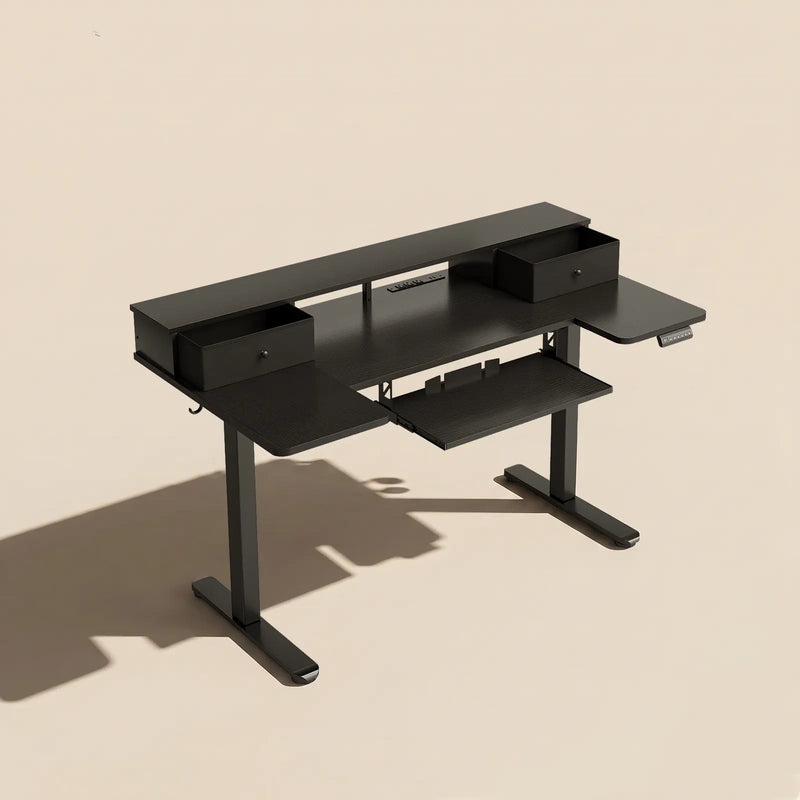
This pick is for the person whose back strain is partly caused by clutter. When files, chargers, pens, and small tools cover the desktop, you end up twisting, leaning, and reaching more often. The OffiGo 55 inch U-Shaped Standing Desk with Drawers keeps the wraparound layout but adds storage, so your main work zone can stay cleaner.
Why it stands out
- Height range: 28.3 to 46.5 inches.
- Storage: two drawers for daily supplies and small office items.
- Keyboard tray: 21.9 by 11.8 inches.
- Drawer size: 13.2 by 7 by 4.4 inches.
- Power: three AC outlets and two USB ports.
- Monitor support: full-width stand for a cleaner screen line.
Best for
- Paperwork-heavy home offices.
- Users who want a sit-stand desk with built-in storage.
- Workflows where clutter causes leaning or repeated reaching.
Shop: OffiGo 55 inch U-Shaped Standing Desk with Drawers
4. OffiGo 71 inch Executive Electric Standing Desk
Choose this desk if your back discomfort comes from crowding a large workload onto a small surface. The OffiGo 71 inch Executive Electric Standing Desk gives you room for monitors, a laptop, documents, and creative tools while keeping the main typing zone centered. Its main tradeoff is size: it is better for a dedicated office than a narrow bedroom corner.
Why it stands out
- Desktop: 71 by 27.6 inches.
- Tabletop: 1.38-inch thick, three-panel surface.
- Height range: 29.1 to 48 inches.
- Controls: three memory presets.
- Frame: reinforced dual crossbeam steel structure.
- Power: three AC outlets, two USB ports, and two Type-C ports.
- Organization: cable management and side hook.
Best for
- Wide workstations with two monitors and a laptop.
- Creators, students, and remote workers with many active tools.
- Users who want a stable-feeling rectangular ergonomic standing desk.
Shop: OffiGo 71 inch Executive Electric Standing Desk
5. OffiGo 63 inch L-Shaped Standing Desk with Fabric Drawers
This is the storage-heavy corner option for users who need a clean surface but also keep supplies nearby. The OffiGo 63 inch L-Shaped Standing Desk with Fabric Drawers suits rooms where cords, accessories, and loose paperwork quickly take over. The tradeoff is visual weight: four drawers add function, but the desk is less minimal than a simple open-frame model.
Why it stands out
- Height range: 29.9 to 46.1 inches.
- Main desktop: 47 by 21.2 inches.
- Side table: 31.5 by 15.8 inches.
- Storage: four fabric drawers for supplies and documents.
- Layout: reversible L-shape for left or right installation.
- Power: three AC outlets, one USB port, and one Type-C port.
- Cable control: rear cable tray for cleaner routing.
Best for
- Corner setups with storage needs.
- Users whose back strain worsens when supplies crowd the desk.
- Home offices that need power, cable control, and drawers in one setup.
Shop: OffiGo 63 inch L-Shaped Standing Desk with Fabric Drawers
How to Choose the Best Standing Desk for Back Pain
Match height to elbows
The best standing desk for back pain should let your elbows stay close to your body while your shoulders stay relaxed. OSHA notes that elbows should be about the same height as the keyboard, with wrists straight and shoulders relaxed during keyboard use.
- If the desk is too high, your shoulders lift.
- If the desk is too low, your wrists bend upward.
- If the keyboard is too far away, your torso leans forward.
- If two people share the desk, memory presets matter more.
Keep the monitor aligned
Back pain often travels with neck and shoulder strain, especially when the screen is low or off-center. Mayo Clinic recommends placing the monitor directly behind the keyboard, about an arm’s length away, with the top of the screen at or slightly below eye level.
- Choose a monitor shelf if your screen sits too low.
- Center the main monitor behind the keyboard.
- Keep the mouse close to the keyboard tray or main typing zone.
- Use the side surface for secondary items, not your main screen.
Prioritize movement, not all-day standing
A sit-stand desk should help you change posture, not force you to stand for hours. A review indexed by PubMed found sit-stand workstations were associated with a small reduction in low back discomfort, but the desk works best when paired with regular position changes.
- Sit for focused typing blocks.
- Stand for calls, reviews, and short work sprints.
- Walk briefly before stiffness starts.
- Save preset heights so changes take one button press.
Choose layout by reach pattern
Your layout should match how you work, not just what fits in a product photo. L-shaped desks are strong for corners, U-shaped desks help with wraparound reach, wide rectangular desks support multi-device work, and drawer models help reduce posture-breaking clutter.
| Desk type | Best fit | Back-comfort advantage | Trade-off |
|---|---|---|---|
| 55 inch L-shaped | Corner multitasking | Monitor shelf and keyboard tray create clear zones | Needs enough corner width |
| 55 inch U-shaped | Compact wraparound work | Tools stay closer on both sides | Less minimalist look |
| U-shaped with drawers | Paperwork and supplies | Storage reduces leaning and clutter | Drawers add visual bulk |
| 71 inch executive | Large workstation | Wide surface keeps devices centered | Too large for tight rooms |
| 63 inch L-shaped with drawers | Storage-heavy corner | Drawers and cable tray keep the surface clear | Bigger footprint than 55 inch models |
Scenario Variations and Setup Rules
Adapt the choice
Your best ergonomic standing desk depends on the pressure point in your room. If you keep bumping into furniture, go smaller. If you use two screens and paper notes, go wider. If your desk always fills with chargers and supplies, choose drawers before you choose extra width.
- For small rooms, choose a compact corner or 55 inch U-shaped layout.
- For multitasking, choose wraparound surfaces.
- For equipment-heavy work, choose the 71 inch executive model.
- For clutter control, choose drawer storage.
- For shared desks, prioritize three memory presets.
Quick ergonomic setup checklist

OSHA describes neutral computer posture as relaxed shoulders, elbows close to the body, supported feet, and straight hands, wrists, and forearms. Use that as your setup target after assembly, not just when you first test the desk.
- Put the monitor centered behind the keyboard.
- Keep the screen about arm length away.
- Set the top of the screen near eye level.
- Keep the mouse beside the keyboard, not forward or wide.
- Support your feet while seated.
- Change positions before discomfort starts.
Troubleshooting table
| Problem | Likely cause | Practical fix |
|---|---|---|
| Lower back tightness | Standing too long | Alternate sitting, standing, and short walks |
| Shoulder tension | Desk or keyboard too high | Lower the desk until elbows relax near your sides |
| Neck strain | Monitor too low | Raise the screen with a shelf or monitor stand |
| Wrist pressure | Keyboard angle or height is poor | Use the tray and keep wrists straight |
| Reaching pain | Mouse or supplies are too far away | Move daily tools into the primary reach zone |
| Cable clutter | Power source is on the floor | Use built-in outlets and route cords through cable control |
Conclusion and Next Action
Key takeaway
The best standing desk for back pain is not simply the tallest, widest, or most feature-heavy desk. It is the desk that makes good posture easier to repeat: correct height, stable lift, reachable tools, monitor support, cable control, and enough storage to prevent strain-causing clutter.
For most home office users, start with the OffiGo 55 inch L-Shaped Electric Standing Desk because it balances electric presets, a monitor shelf, keyboard tray, built-in power, and corner efficiency. If your pain comes from overreaching, look at the U-shaped models. If your pain comes from clutter or large equipment, move toward drawer storage or the 71 inch executive surface.
FAQ
What standing desk mistakes commonly worsen back pain?
Common mistakes include standing all day, setting the desk above elbow height, placing the monitor too low, and reaching too far for the mouse. A standing desk should support movement variety, not replace every seated posture. Set your keyboard near elbow height, keep your mouse close, and use presets for repeatable positions. If pain increases after setup, check height and screen alignment before blaming the desk itself.
How often should users switch positions on a standing desk for health?
You should switch positions before stiffness appears, often every 30 to 60 minutes depending on your body and task. Rotate between sitting, standing, short walks, and light stretching. Standing for several hours without movement can still create fatigue in your back, hips, and legs. Use memory presets so changing posture takes seconds instead of becoming another task.
Which standing desk features matter most for reducing physical strain?
The most important features are height range, stability, memory presets, monitor support, keyboard and mouse alignment, surface depth, cable control, and storage. For many users, a keyboard tray helps keep wrists neutral while a monitor shelf helps reduce neck bending. Built-in power also matters because it keeps chargers from spreading across the floor. Storage is useful when clutter causes twisting or repeated reaching.
Can a sit-stand desk help reduce lower back discomfort?
A sit-stand desk can help reduce lower back discomfort when it encourages posture changes and better workstation alignment. It should not be treated as a medical cure or a reason to stand all day. Pair it with a supportive chair, correct seated posture, and regular movement breaks. If discomfort is sharp, persistent, or worsening, get professional medical guidance.
What is the best standing desk for reducing back pain in a home office?
The best starting point for many home offices is the OffiGo 55 inch L-Shaped Electric Standing Desk. It includes a monitor shelf, keyboard tray, three memory presets, built-in charging, and a corner-friendly layout. Those features help you keep screens, hands, and daily tools in better ergonomic zones. If you need more storage, the 63 inch L-shaped model with fabric drawers may fit better.