
Introduction
You buy a standing desk to get organized, then a week later, your desktop is back to being a parking lot for cables, adapters, notebooks, and loose papers. The storage looked fine in photos, but in real life, drawers bump your knees, cords snag when the desk moves, and the one place you need clear (your typing zone) keeps getting buried.
Picking the wrong storage layout costs you time every day because you end up re-cleaning, re-routing cables, and re-stacking the same stuff. This list narrows in on standing desk storage designs that create clear work zones with fewer pinch, snag, and wobble points, using four OffiGo L-shaped options. The shortlist logic is simple: choose the storage layout first (cabinet, drawers, tray, or shelf), then match the footprint to your room.
Product Picks That Keep Storage Simple
1: OffiGo 55-inch L-shaped desk with movable side cabinet
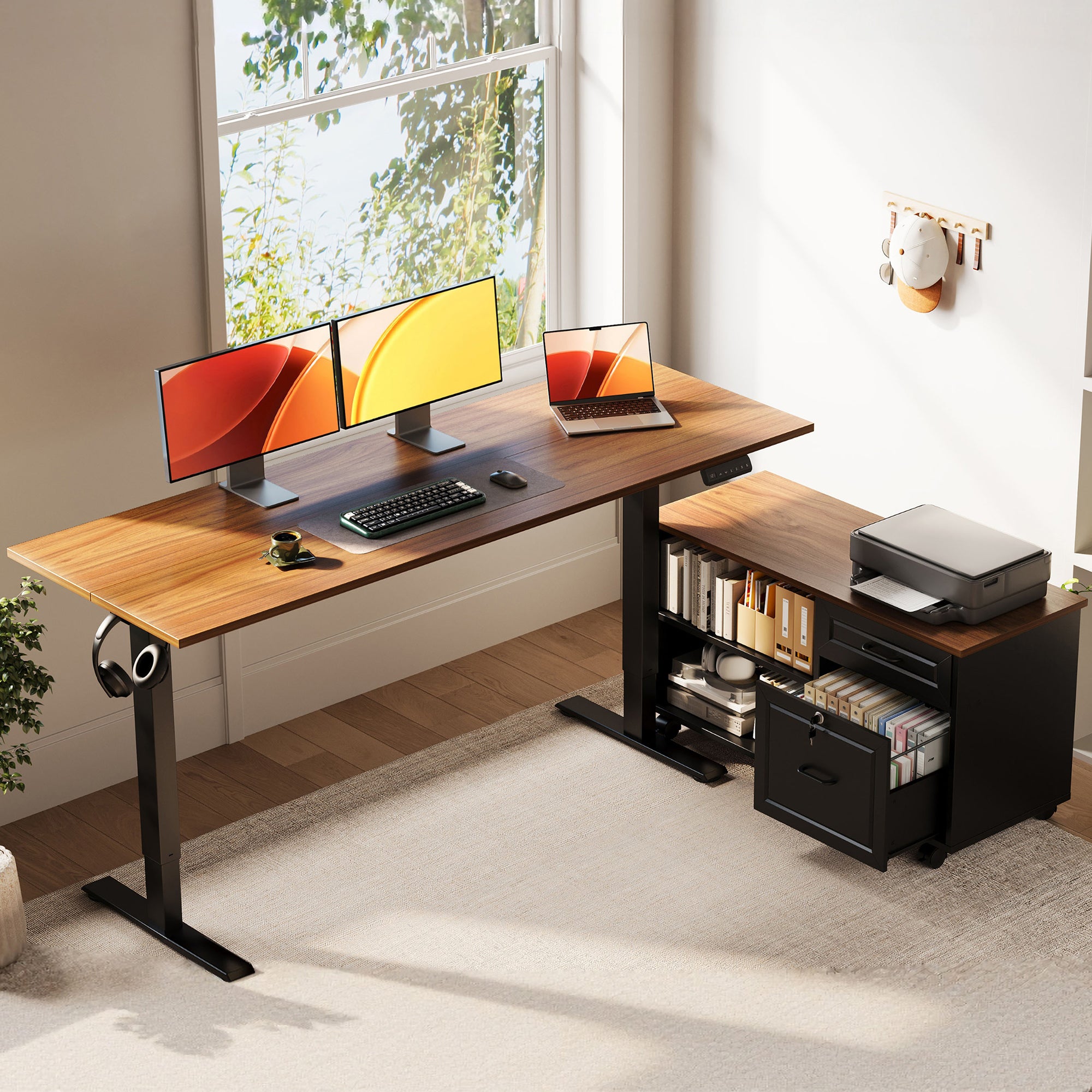
If your clutter is mostly big, awkward items (printer, paper reams, binders, mail trays), a separate side cabinet is usually the lowest-friction storage design. You keep the main desktop open for screens and typing, and you stop playing Tetris every time you need to scan, print, or file something.
- Best for: printer stations, hanging files, document-heavy workflows
- Storage layout: independent large-capacity side cabinet (movable)
- Placement flexibility: left-side, right-side, or inline (I-shaped)
- Fewer issues angle: cabinet reduces desktop clutter rebound
- Trade-off: No integrated power outlets on this model
This layout separates "work surface" from "storage surface," which prevents the most common failure mode of standing desks: your primary typing zone slowly disappears under gear. The movable cabinet also lets you tune the room flow later, which matters when you change printers or add a second monitor.
Shop: OffiGo 55 L-shaped with movable cabinet
2: OffiGo 55-inch L-shaped with wooden drawers and built-in power

If your daily mess is mostly small stuff (dongles, chargers, pens, sticky notes, notebook stacks), drawers right under the top can be the fastest path back to a clean surface. The key is using drawers as a "grab zone" near your chair, not as a place to overfill with heavy paper that makes access annoying.
- Best for: small-item storage you reach for often
- Storage layout: 4 wooden drawers under the desktop
- Power: 3 AC outlets, 1 USB port, 1 Type-C port
- Fewer-issues angle: charging stays on-desk, not wall-hunting
This is the "tidy fast" layout. Because power is built in, you can keep one short charging bundle near your work zones instead of dragging long cords across the floor. The trade-off is that under-desk storage always competes with legroom, so your chair position matters.
Shop: OffiGo 55 in with wooden drawers and power
3: OffiGo 63-inch L-shaped with fabric drawers, built-in power, and rear cable tray

If you are building a bigger corner setup (or sharing the desk area with a partner), the most common problem is "surface sprawl": you spread out, then you never reset. A longer L-shaped layout plus drawers and a cable tray helps you keep distinct zones (screens on one run, writing or device charging on the return) without cables turning into a snag hazard.
- Best for: larger corner setups, shared home office zones
- Storage layout: 4 built-in fabric drawers under the desktop
- Desk layout: reversible return (left or right install)
- Power: 3 AC outlets, 1 USB port, 1 Type-C port
- Cable control: rear cable tray for cleaner routing
The rear cable tray is the quiet hero here. It gives you a consistent place to anchor the "moving" portion of your cable runs so the sit-stand motion does not yank cords or pull plugs loose. Fabric drawers are also lighter-duty, which discourages overloading and keeps access easy.
Shop: OffiGo 63 in with fabric drawers and power
4: OffiGo 59-inch L-shaped with keyboard tray, monitor stand, drawers, and built-in power
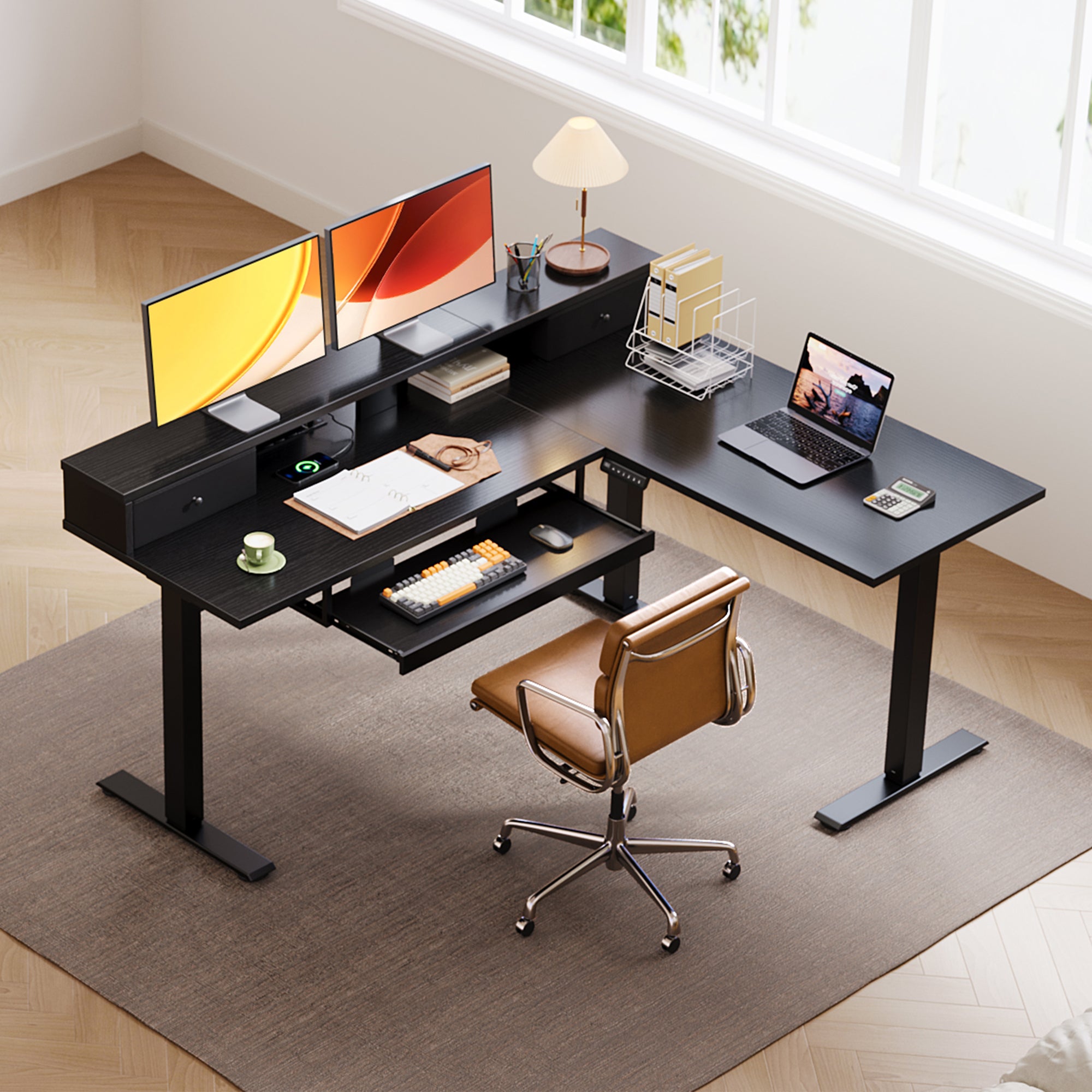
If your biggest issue is posture drift (shoulders up while typing, wrists bent, screen too low), storage is only half the battle. A keyboard tray and monitor shelf can reduce the need to pile things under your monitor or scoot your keyboard into awkward positions just to make room.
- Best for: posture-first setups and tight desktop zones
- Desktop size: 59 in long x 47.2 in wide
- Controls: 3 memory presets
- Power: 3 AC outlets and 2 USB ports
- Fewer issues angle: tray frees desktop; shelf reduces stacking
A keyboard tray can solve the "desktop is too tall" problem when you want your arms relaxed while sitting. Per 2025 guidance, keeping the keyboard around elbow height helps you maintain an approximately 90-degree elbow bend and reduces awkward shoulder elevation. According to Kaiser Permanente, keyboard height that allows elbows to bend about 90 degrees and stay close to your sides is a common ergonomic target.
Shop: OffiGo 59 in with keyboard tray and monitor stand
Buying Guide: Choose Storage That Stays Problem-Free
What storage layout fits your workflow best?
Your storage should match what you touch most often, not what looks neat at setup day. If you choose the wrong layout, you create small daily annoyances (drawer collisions, awkward reaches, cable snags) that slowly kill the habit of staying organized.
- Side cabinet layout: best for printers, files, bulk supplies
- Under-desk drawers: best for small daily grab items
- Keyboard tray layout: best when the desktop height does not strain the shoulders
- Monitor shelf layouts: best when you stack risers/books now
How do you avoid posture issues while adding storage?
Storage can steal legroom and push you farther from your keyboard, which is where strain usually starts. Your goal is a neutral typing position: relaxed shoulders, straight wrists, and elbows near 90 degrees. If a drawer box forces you to sit back, you may end up reaching forward all day.
- Set keyboard height so elbows are near 90 degrees
- Keep the mouse on the same level as the keyboard
- If the desktop cannot go low enough, use a keyboard tray
- Keep the primary knee space clear in the center
How do you keep cables from undoing your organization?
Cable chaos is usually a routing problem, not a "too many devices" problem. If the desk moves, your cables also need a controlled path that moves with it; cords tug, snag, or sag into your leg space. Integrated power helps because it shortens the distance from the wall to the devices.
- Prefer built-in outlets if you charge 3+ devices daily
- Route one main power path, then branch to devices
- Anchor slack under the desk so it moves cleanly
- Use a rear cable tray to keep cords off your knees
In 2026, workspace safety teams still flag loose cords as a common trip and snag risk in offices and home work areas, especially when people add multiple chargers and power strips. A 2025 office/facility safety manual notes practical cord-handling steps to reduce tripping exposure (like avoiding dangling cords and managing them intentionally). According to Arizona Public Service, basic office safety guidance includes managing cords to avoid trip hazards.
Comparison Table
| Product | Storage type | Size | Height range | Power ports | Trade-offs |
|---|---|---|---|---|---|
| OffiGo 55 in L-shaped with movable cabinet | Mobile side cabinet | 55.1 inch top | 28.4-47.2 inch | None | Needs separate power solution |
| OffiGo 55 in with wooden drawers and power | 4 wooden drawers | 55.1 inch top | 29.9-46.1 inch | 3 AC, USB, Type-C | Drawers may reduce legroom |
| OffiGo 63 in with fabric drawers and power | 4 fabric drawers | 63 inch top | 29.9-46.1 inch | 3 AC, USB, Type-C | Fabric drawers not for heavy loads |
| OffiGo 59 in with keyboard tray and stand | Keyboard tray + monitor stand + drawers | 59 inch top | 28.4-45.7 inch | 3 AC, 2 USB | Tray changes seated knee clearance |
Conclusion
If you want standing desk storage designs with the fewest issues, pick the layout that matches your clutter type first, then confirm it will not steal your legroom or cable paths. A side cabinet is the cleanest way to keep printers and paper off your main surface, while under-desk drawers are better when tiny items are the real problem. If posture is your recurring pain point, a keyboard tray and monitor stand layout can keep your zones usable without stacking and reaching.
OffiGo: Standing Desk for Long Working Hours | Built-in Storage
FAQ
How do I choose between a side cabinet and under-desk drawers?
Choose a side cabinet when your storage needs include bulky items like a printer, files, or paper reams that would otherwise live on the desktop. Choose under-desk drawers when you mostly need fast access to small daily items like chargers, pens, adapters, and notebooks. If you often spread documents across the main surface, a cabinet plus a clear desktop usually stays cleaner over time. If your clutter is mostly small items, drawers solve it faster because everything gets a dedicated home.
Will drawers reduce legroom or force an awkward sitting posture?
Yes, drawers can reduce legroom if the drawer box sits where your knees and thighs naturally move while you scoot in. Measure your seated thigh clearance and how close you typically sit to the front edge of the desk, then compare that to where the drawer box will be. If you feel forced to sit farther back, you may start reaching forward, which can add shoulder and wrist strain. If that happens, prioritize layouts with open center knee space or a keyboard tray that lets you type comfortably without pushing the chair back.
Do built-in power outlets actually reduce cable mess?
Built-in outlets reduce cable mess when they shorten long runs to a wall outlet and let you keep charging cables routed as one controlled bundle. They work best if you charge multiple devices daily, like a laptop, phone, headphones, and a tablet, because you avoid a floor power strip and extra adapters. You still need to anchor cable slack under the desk so the sit-stand motion does not tug on plugs. If you only charge one laptop, built-in power is nice but not always essential.
What is the easiest way to decide left-return vs right-return on an L-shaped desk?
The easiest method is to stand in the room and map your primary work zone (monitor and keyboard) and your secondary zone (writing, printer, charging) before you pick a return direction. Put the return on the side that gives you the cleanest access to outlets while avoiding screen glare from windows. Also check door swing and walking paths so the return does not create a pinch point. If you switch tasks often, a return that creates two clear zones usually feels more efficient.
Are fabric drawers durable enough for daily office storage?
Fabric drawers are usually durable enough for lighter daily items like stationery, cables, small peripherals, and notebooks. They are not the best choice for heavy loads like dense stacks of paper or heavy equipment because weight can deform the drawer shape over time. Use them as a "soft storage" zone for things you want to hide but still grab quickly. If you need lockable or heavy-duty storage, a cabinet-style solution is typically a better match.
How can I reduce shoulder and wrist strain with a standing desk setup?
Start by setting the keyboard height so your elbows stay close to your sides and bend roughly around 90 degrees, then keep your wrists straight while typing. If your desktop cannot go low enough when you sit, a keyboard tray is often the simplest fix because it lowers the typing surface without forcing you to raise your chair. Next, set the monitor height so you are not craning your neck and keep the mouse on the same level as the keyboard. Finally, alternate between sitting and standing every 30 to 60 minutes so you do not load the same joints all day.