
Introduction
You finally sit down to work, and somehow the day starts with cable spaghetti, a missing pen, and a desktop that disappears under papers by lunch. If your workflow forces you to constantly reach, twist, or clear space just to type, your desk is quietly turning every task into a small interruption.
Get this wrong and you pay for it daily: slower focus, more device clutter, and a setup that never feels finished. This guide breaks down how to choose Sit-Stand Workstations that stay organized, using practical checks for layout, storage, and Cable Management Systems. Then you will see four real setup modules, and you will be able to pick the right OffiGo desk confidently.
Organized Sit-Stand Workstations
Sit-Stand Workstations: movement beats perfection
The main goal of Sit-Stand Workstations is not to stand all day. The goal is to remove the friction of switching positions so you can change posture often without breaking your flow. That is why a smooth lift, reliable presets, and stable standing height matter more than fancy extras.
According to the CDC, research reviewed by NIOSH links prolonged standing at work with negative health outcomes, and many interventions focus on reducing discomfort by making it easier to alternate positions and keep movement in the day. Practically, your best cadence is the one you can repeat: short standing blocks, then sit again, then move.
Ergonomic Standing Desks: height, reach, and sightlines
Ergonomic Standing Desks work when three alignments happen at once: your elbows can rest around 90 degrees, your screen is easy to see without craning, and your frequently used tools sit inside a comfortable reach zone. If any one is off, you compensate with neck tilt, shoulder lift, or wrist bend.
A simple fit check:
- Keyboard and mouse: forearms level, shoulders relaxed
- Screen: top line at or below eye level
- Reach: daily tools inside a forearm sweep
If you plan to use a monitor shelf or riser, treat it as part of your sightline plan. It can be great for posture, but only if it does not force the screen too high.
Module 1: Built-in storage for zero-pile days
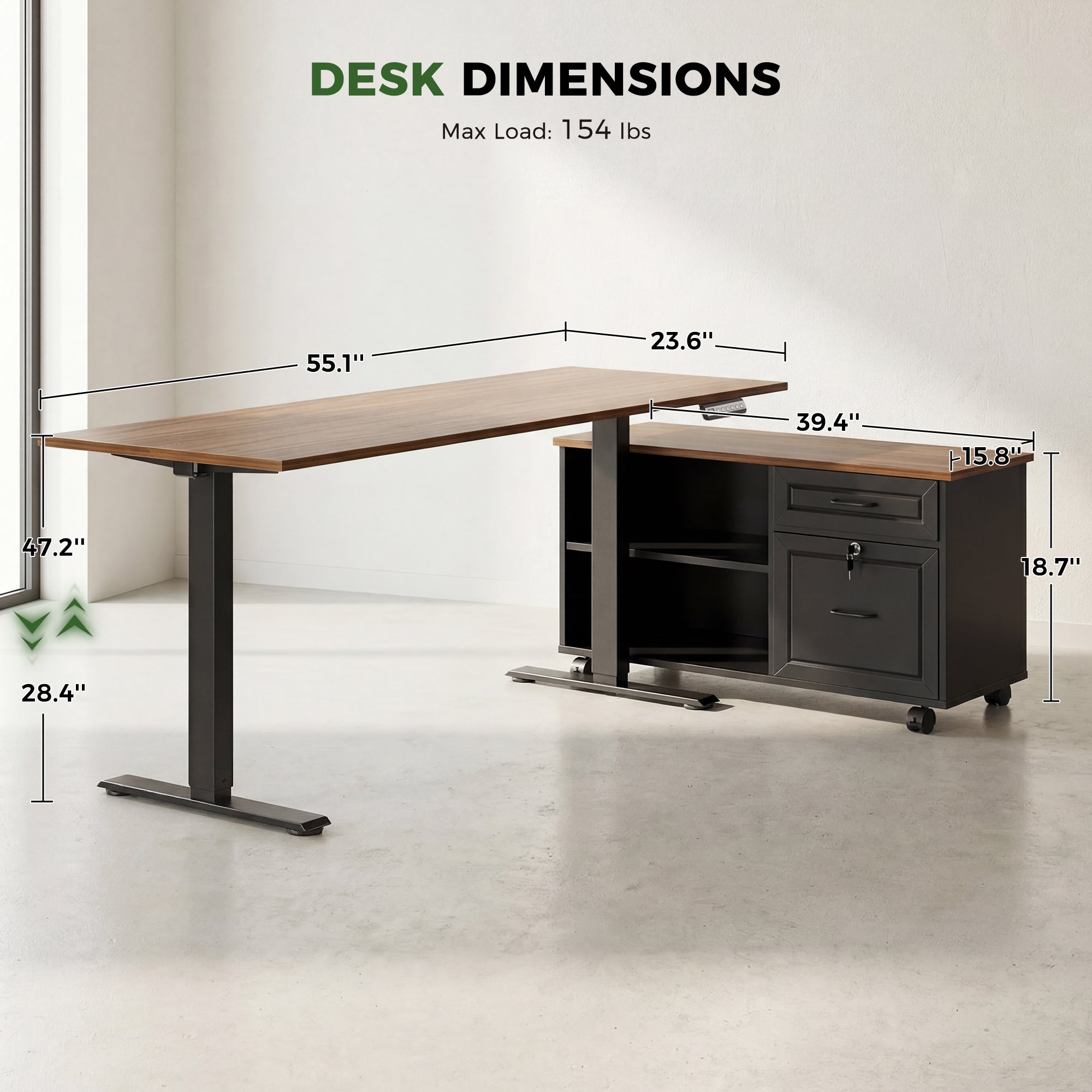
The fastest way to create an organized desk is to stop using the desktop as storage. Built-in drawers and cabinets work when they are sized for what causes your piles: chargers, adapters, notebooks, pens, mail, and current-project paper.
To make storage actually reduce clutter, split it by time horizon:
- Today drawer: pens, sticky notes, small cables
- This week drawer: current notebook, active folders
- Deep storage: backup devices, archived paper
OffiGo has two useful storage patterns. The first is drawer-forward designs that keep small items close so you do not leave them out. The second is a larger independent side cabinet that can hold bulk items like folders, printer-related gear, or a paper-heavy workflow without crowding your thinking surface.
If you handle documents, the cabinet approach is usually better than trying to force paper into shallow drawers. It also supports a more modular setup because you can position the cabinet left, right, or inline to match your room.
Product page: OffiGo 55-inch L-Shaped Height Adjustable Standing Desk with Large Movable Storage Cabinet
Module 2: Power and cable routing strategy

A clean setup usually comes from placing power where devices land. If your power strip lives on the floor, you tend to run long cables up the back, then you hide the slack in a messy coil. A desktop power hub flips that: short visible runs, hidden slack below.
Do this in order:
- Place charging devices where you actually drop them
- Route one main cord down the leg
- Hide slack in an under-desk tray
- Label ends so swaps take seconds
For tech-heavy workflows, an OffiGo L-shaped desk with integrated power can reduce clutter because your monitor, laptop, phone, and headset can charge from the same desktop hub. On the 55-inch L-shaped model with drawers and power, OffiGo includes 3 AC outlets plus USB and Type-C ports, which helps consolidate chargers and reduce adapter sprawl.
This is also where Hyper-personalization becomes practical: you can decide which port is always for your laptop, which is always for your phone, and which stays open for a guest device. That kind of predictable mapping is what keeps Cable Management Systems from drifting into chaos.
Product page: OffiGo 55-inch L-shaped electric standing desk with drawers and power outlets
Module 3: Height range and switching habits
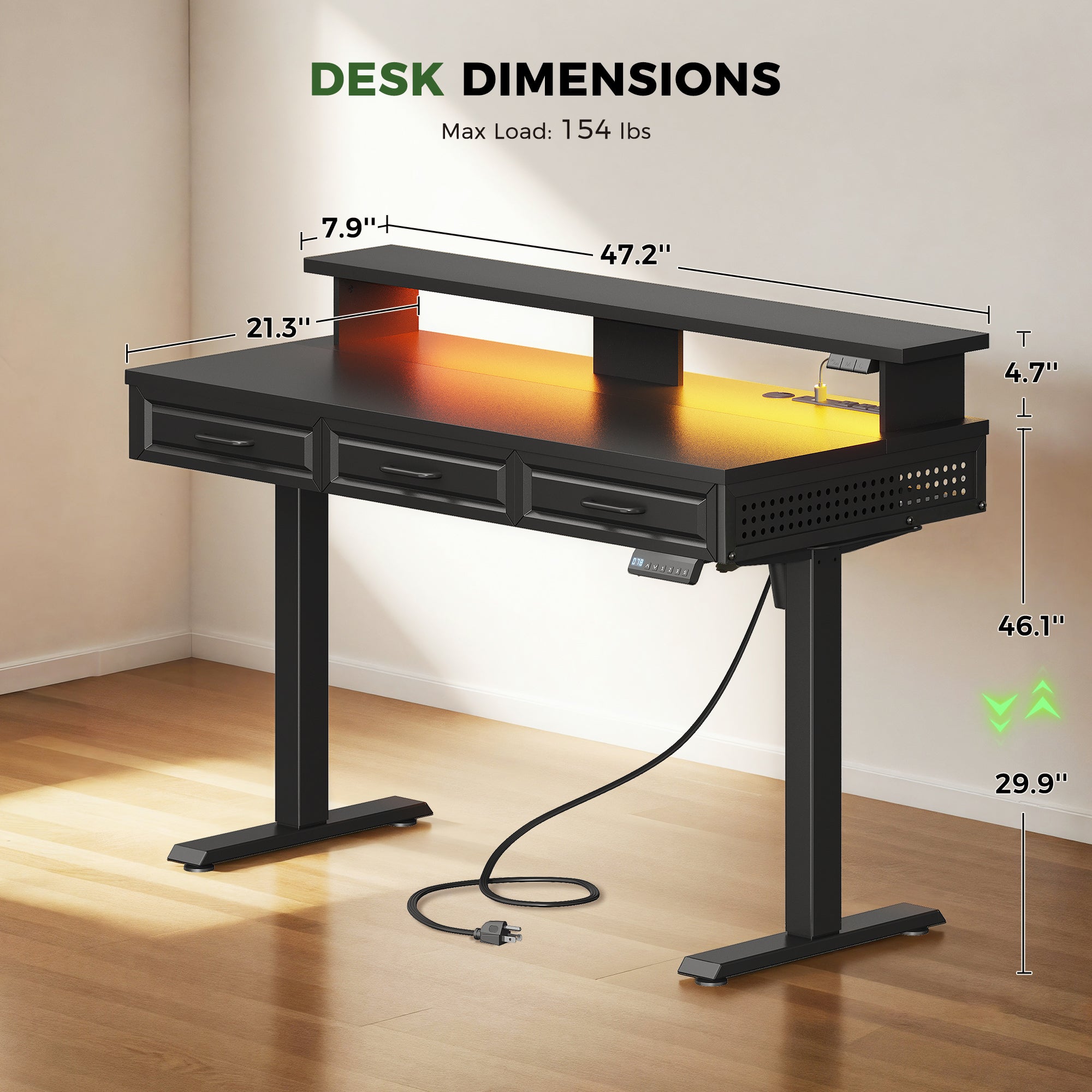
Your desk can be perfectly organized and still feel wrong if the height range does not fit your body. In Home Office Ergonomics, the simplest way to protect comfort is to set two correct heights and switch often enough that neither position becomes a strain.
A practical fit check you can do in two minutes:
- Seated: elbows float over the keyboard, wrists straight
- Standing: shoulders stay down, you do not shrug
- Screen: you can read without head tilt
The OffiGo 48-inch electric standing desk lists a height range of 29.9 to 46.1 inches and includes 3 memory presets, which reduces micro-friction because you do not have to hunt for the right height every time. When switching becomes one touch, Sit-Stand Workstations become a habit instead of a chore.
Just as important, avoid turning standing into a new kind of static posture. The CDC notes that the literature it reviewed commonly suggests the ability to move and to shift between sitting, standing, or leaning during the work shift.
Product page: OffiGo 48-inch electric standing desk with 3 wooden drawers, monitor shelf, and USB power outlets
A decision framework for organized workspaces
Height range fit: confirm your real working postures
Height range is your first gate. If the minimum is too high, you will raise your chair and lose foot support. If the maximum is too low, you will hunch at standing height. For shared households, this matters even more because two users can have very different elbow heights.
Use these checks:
- Can the desk store presets you will use daily?
- Can you type standing without shoulder tension?
- Does the monitor solution still fit the sightline?
Shape choice: corner efficiency vs wraparound control
Pick a shape that matches how you think.
- Straight desks: simplest, easiest to keep minimalist
- L-shaped: best for separating zones in corners
- U-shaped: best for wraparound multitasking
If you do lots of switching between tasks, a U-shaped layout can reduce shuffling because tools can live in fixed places. If you prefer visual calm, an L-shape often feels more open.
Storage system: drawers vs side cabinet
Drawers reduce small-item clutter fast. A cabinet reduces big clutter that would otherwise sit on the floor or on the desktop.
Common matches:
- Light gear, small tools: wooden drawers
- Paper volume, devices, printer gear: side cabinet
Power needs: match ports to devices, not marketing
Integrated power is worth it when it shortens visible cable runs. Count what truly charges at the desk every day.
| Setup type | Daily charging items | Best power approach | Cable goal |
|---|---|---|---|
| Laptop only | 1 device | 1 outlet nearby | One visible lead |
| Laptop plus phone | 2 devices | AC plus USB | No floor strip |
| Dual monitors plus dock | 3-5 items | AC plus USB-C | Short branches |
| Creator desk | lights, audio | more AC ports | one main spine |
If you care about future-proofing, Type-C on the desktop hub can reduce adapter clutter as more peripherals move to USB-C.
Conclusion
A truly organized home workspace starts with layout, not storage bins. When you pick the right footprint, assign zones, and design Cable Management Systems around where power actually needs to be, the desktop stays clear for thinking.
Next, fit-check the height range so Sit-Stand Workstations support real posture changes, then choose the storage style that matches your clutter type: drawers for daily tools, or a side cabinet for paper and equipment. If you do that in order, Ergonomic Standing Desks stop feeling like a furniture purchase and start feeling like a workflow upgrade.
FAQ
How do I choose an adjustable desk height range?
Choose a height range that covers both your seated and standing elbow heights with your shoulders relaxed. In practice, you want to type with elbows near a 90 degree bend and wrists straight in both positions. If multiple people share the desk, look for a wider range and reliable memory presets so each user can switch in seconds. Also verify that your monitor setup still works at the highest position, because a monitor shelf can push screens too high for some users.
What desk shape keeps a home office most organized?
The most organized shape is the smallest one that still supports clear work zones for your workflow. Straight desks are easiest to keep minimalist because there is less surface to accumulate piles. L-shaped desks are great when you want a hard separation between a computer zone and a paper or accessory zone, especially in a corner. U-shaped desks work well for wraparound multitasking, but they require enough room depth so the space does not feel crowded.
Do built-in drawers actually reduce clutter?
Yes, built-in drawers reduce clutter when the drawers match the items that usually live on your desktop. Assign each drawer a clear category, such as cables and chargers, writing tools, and current-week documents. Use shallow drawers for small daily tools so you do not create a junk drawer effect. If you have a lot of paper volume or equipment, consider pairing drawers with a larger cabinet so heavy items do not migrate back onto the surface.
Are built-in power outlets worth it?
Built-in outlets are worth it when you charge devices at the desk every day and want to avoid floor power-strip clutter. They shorten visible cable runs because devices can plug in close to where they sit. They also make it easier to keep a single main power cord routed neatly down a desk leg. To get the benefit, you still need a plan for slack and a place to hide excess length, such as an under-desk tray.
How can I keep cables tidy on a desk that moves up and down?
You keep moving-desk cables tidy by planning for slack at standing height and securing the rest so it cannot droop. Start by setting the desk at its maximum standing height, then plug everything in and create a gentle service loop for each device. Bundle and anchor the extra length under the desktop, not down by the floor. Finally, route one main power spine and keep device branches short so you do not create tangles during height changes.
What is the simplest way to maintain an organized desk daily?
The simplest way is to run a five-minute reset routine that returns your desk to a default state. Keep a clear rule that the desktop holds only active work, while drawers and cabinets hold everything else. Put a small tray or single inbox in your scratch zone so paper does not spread across the surface. At the end of the day, clear the scratch zone, coil any temporary cables, and return daily tools to their assigned drawer.
Should I use a monitor shelf, monitor arm, or neither?
Use a monitor shelf when you want a stable, simple way to raise the screen and create a small storage slot under it. Use a monitor arm when you need precise control of height, distance, and angle, or when you switch between sitting and standing frequently. Use neither if your monitor already lands at a comfortable height and you value a minimalist surface. The key is to keep your screen at a comfortable viewing height in both postures without forcing you to tilt your head up or down.