
Introduction
A professional home office setup is not only about having a nice chair and a big monitor. It is about building an ergonomic system that supports long-hour focus, reduces friction, and keeps your work surface clear. A well-planned standing desk plus smart file storage can prevent the slow drift into clutter and discomfort that happens in many home offices.
Most problems show up in three places:
- Posture and alignment: monitor height, elbow angle, and wrist position slowly creep into a strain pattern.
- Clutter and workflow drag: papers, chargers, and supplies pile up until you cannot find what you need.
- Rigid storage systems: fixed drawers or poorly placed cabinets make it harder to adapt your workspace to different tasks throughout the day.
This ultimate guide walks through the full system: desk placement, sit-stand ergonomics, storage taxonomy, and routines that keep the setup stable week after week. It also shows how a standing desk with storage and a movable cabinet can act as the hub for working, organizing, and switching modes without resetting your space every day.
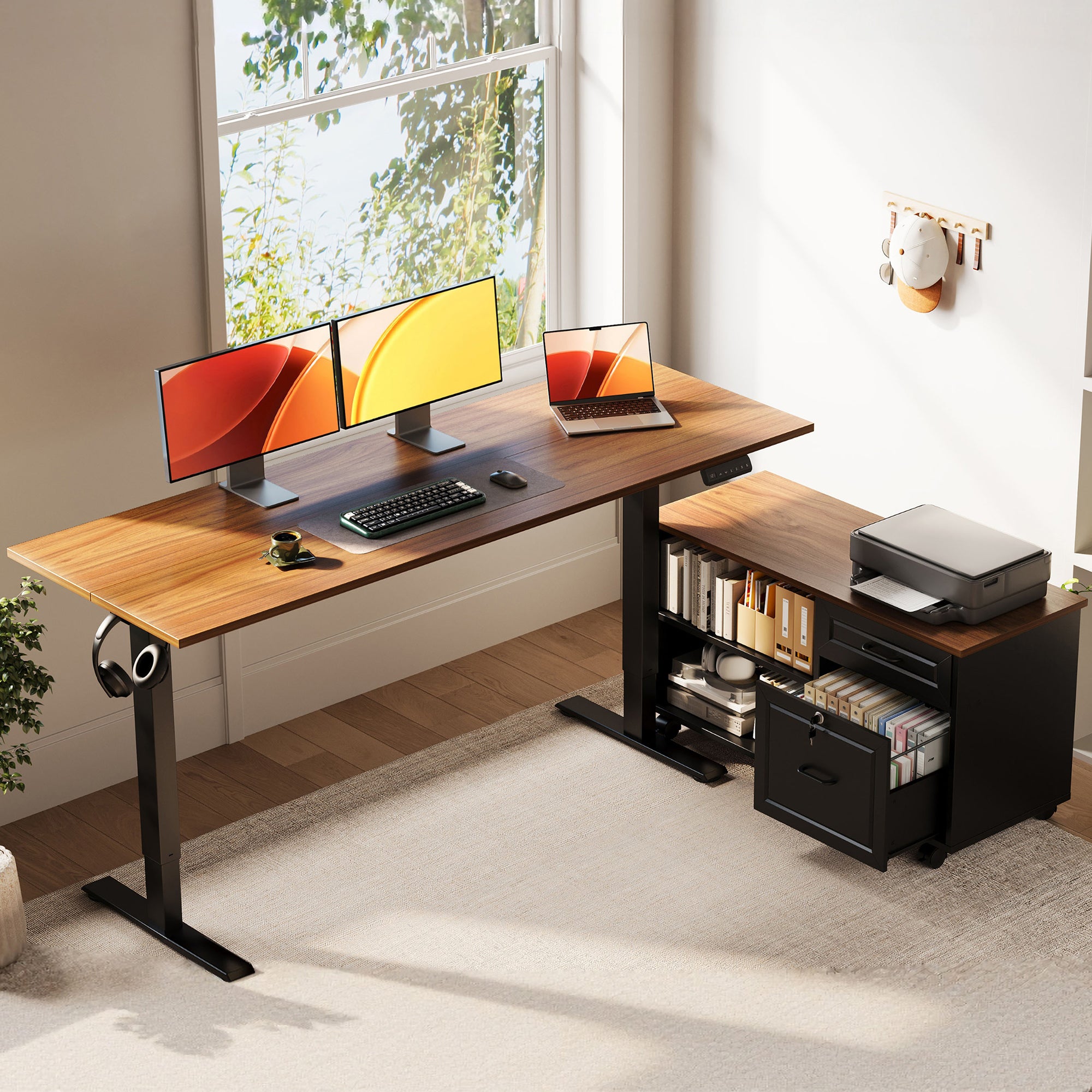
Official Site: OffiGo
Core Foundations
Ergonomic neutral posture and alignment
Neutral posture is the idea that your joints sit close to mid-range, so your muscles do not have to brace all day. In a desk job, the most common breakdown is a forward head and rounded shoulders caused by a low monitor and a keyboard that sits too far away.
A practical neutral checklist looks like this:
- Head stacked over shoulders, chin not jutting forward.
- Shoulders relaxed, not shrugged.
- Elbows close to your sides, not reaching.
- Wrists straight while typing and mousing.
When you build around these anchors, you reduce neck and shoulder flareups that often appear late in the workday.
Sit-stand rhythm and micro-break cadence
A standing desk is not a replacement for movement. It is a tool to change posture without leaving your workflow. The key is rhythm.
Mayo Clinic notes a simple starting point: take a short break from sitting to standing every 30 minutes. According to Mayo Clinic, breaking up sitting time with regular stand breaks is an accessible way to begin reducing prolonged sitting exposure.
In practice, many people do best with:
- Short stand blocks (10 to 20 minutes) mixed into the day.
- Frequent micro-breaks (30 to 60 seconds) for shoulders, hips, and eyes.
The goal is not to stand all day. The goal is to avoid being locked into one posture for hours.
Worksurface zoning and reach envelopes
A desk should feel like a cockpit. That means you place the most-used items in the easiest reach zone, and you push everything else outward. This is where a desk with cabinets becomes more than storage. It lets you keep the primary surface reserved for active work.
A simple zoning model:
- Zone A (primary): keyboard, mouse, main notebook, and the items you touch every 5 minutes.
- Zone B (secondary): chargers, audio interface, reference notebook, and items you touch a few times per hour.
- Zone C (tertiary): printer, bulk supplies, archives, and items you touch a few times per week.
Your setup becomes calmer when Zone A stays clean.
File storage taxonomy and retention habits
Most home office paper mess is not caused by volume. It is caused by undecided status. The fix is a clear taxonomy, ideally supported by file cabinets that are easy to access while seated.
A practical taxonomy for file storage:
- Active: items you will reference this week.
- Pending: items waiting on someone else.
- Archive: items you must keep, but rarely need.
- Shred/Recycle: items you are done with.
Retention habits matter more than drawer count. A rolling cabinet helps because you can position it where it is easiest to maintain the habit.
Module 1: Room Planning and Desk Placement
Module 1: Room Planning and Desk Placement
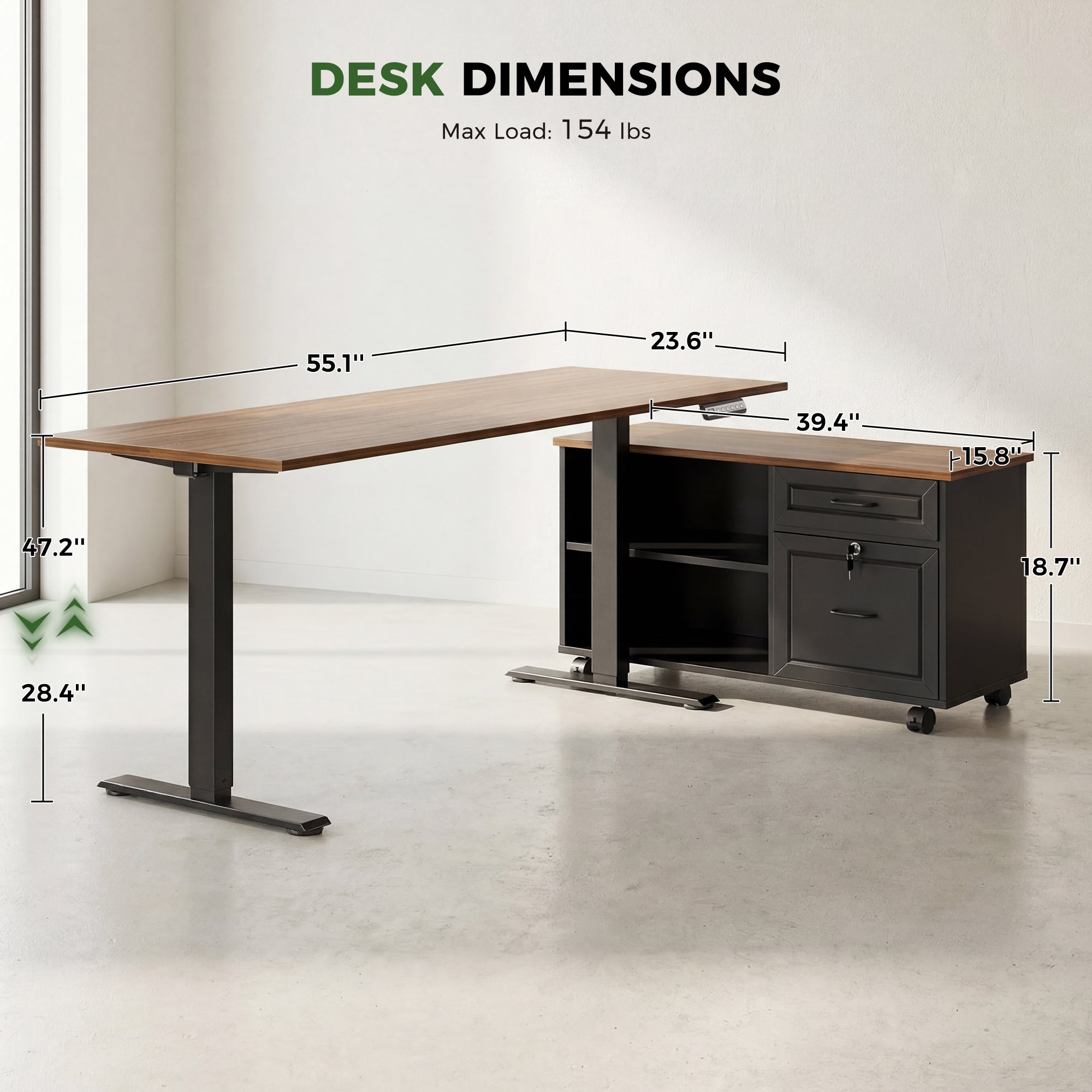
Room planning decides whether your home office setup stays comfortable over time. You want a layout that supports focus, movement, and predictable storage. If the space feels tight, you will stop using the cabinet, and papers will migrate onto the desktop.
Start with three clearances:
- Walking path: keep a clean lane so you can stand up, step back, and stretch without bumping furniture.
- Door swing: confirm doors can open fully without clipping the desk or cabinet.
- Chair travel: ensure the chair can roll back and pivot without catching on a cabinet corner.
Next, decide whether the desk should face a wall, a window, or the room. Many people focus best with the monitor facing a wall, because background motion is reduced. However, if you use natural light, avoid direct glare on the display.
How the L-shape changes placement. An L-shape gives you a natural separation between deep work and support tasks. One side can be for the primary computer zone, and the other side can hold writing, a scanner, or reference materials.
Where a movable cabinet helps. A movable side cabinet lets you choose left-side, right-side, or inline placement based on room constraints. That flexibility matters in home offices where outlets, vents, and doors are not centered.
OffiGo product fit for this module (how it supports the technique):
- The desk surface is labeled at 55.1 inches long and 23.6 inches wide, which is a solid base for a one to two monitor workflow plus a writing lane.
- The matching cabinet footprint is labeled at 39.4 inches long, 15.8 inches wide, and 18.7 inches high, so you can plan the cabinet parking zone as part of the room layout.
- The dimensions image also calls out a 154 lb max load, which is useful when you plan dual monitors plus peripherals.
Shop: OffiGo 55" L-Shaped Height Adjustable Standing Desk with Large Movable Storage Cabinet
Module 2: Desk Height, Monitor, and Input Alignment
Module 2: Desk Height, Monitor, and Input Alignment
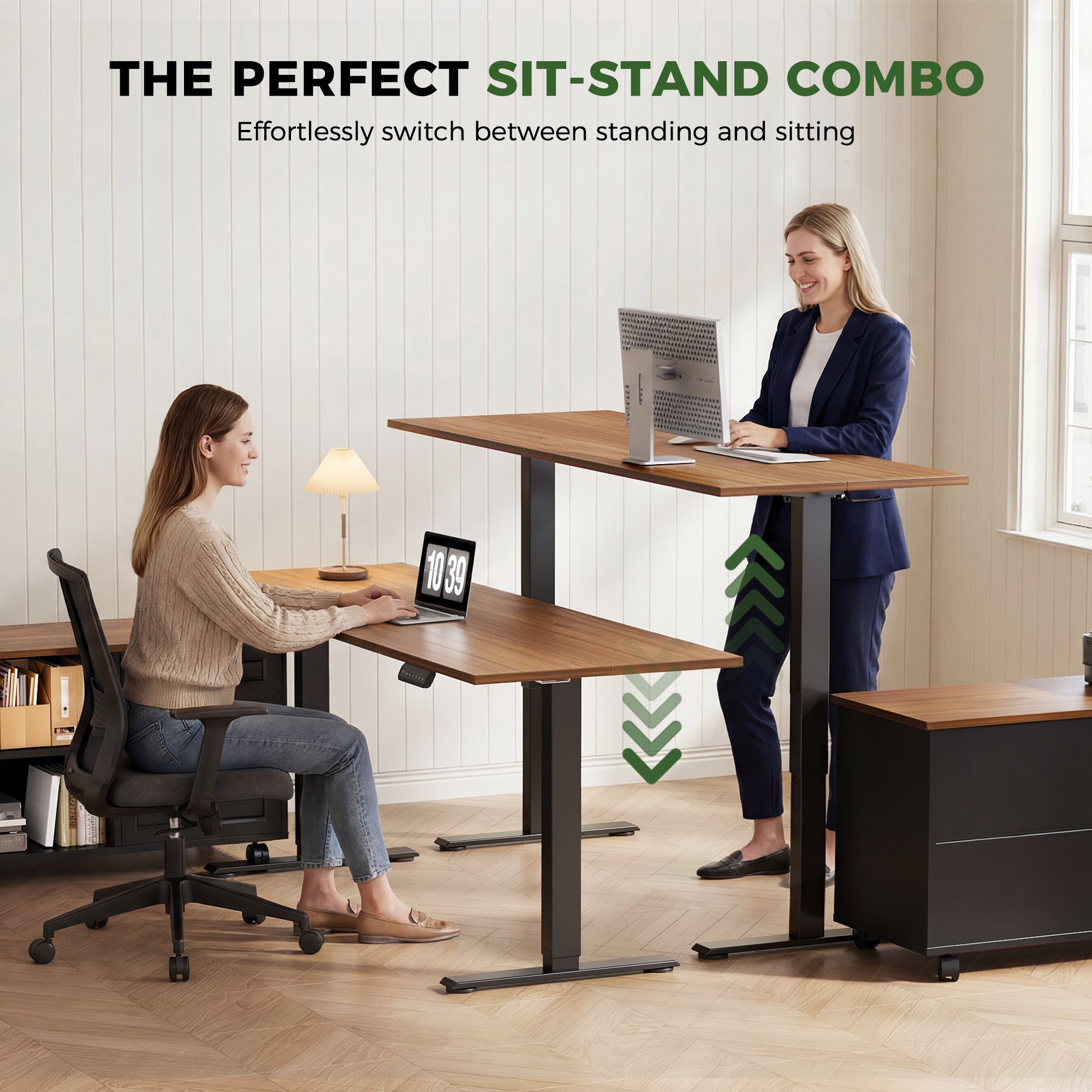
Ergonomics gets easier when you set a few anchors and then adjust the desk around them. The anchors are your elbow angle, monitor height, and mouse reach. Once those are right, your shoulders can relax and your neck stops bracing.
Step 1: Set desk height for typing first. Your keyboard height matters more than your monitor height, because your arms are working constantly.
- Keep elbows close to your sides.
- Aim for a comfortable elbow bend. OSHA describes forearms being about parallel to the floor and roughly 90 to 100 degrees at the elbow in its workstation evaluation guidance. According to OSHA, neutral postures include forearms approximately parallel to the floor with elbows around 90 to 100 degrees.
Step 2: Place the monitor, then fine-tune. Set the monitor so your eyes look slightly downward.
- OSHA notes the top of the screen should be at or below eye level. According to OSHA, monitor adjustability should allow the top of the screen to be at or below eye level.
- If you use two monitors, put the primary display directly in front, then place the second adjacent.
Step 3: Fix the mouse reach. Mouse reach causes more shoulder strain than typing for many people.
- Keep the mouse next to the keyboard.
- If you use a large mousepad, ensure the pad does not push the keyboard too far forward.
Step 4: Save sit and stand presets. The point of an electric desk is quick repeatability. If you need to guess the height every time, you will stop switching.
OffiGo product fit for this module (how it supports the technique):
- The product page describes a height range of 28.4 inches to 47.2 inches, which covers many seated and standing heights.
- The controller panel image shows an LED height display and three memory keys, which supports a repeatable sit preset and stand preset.
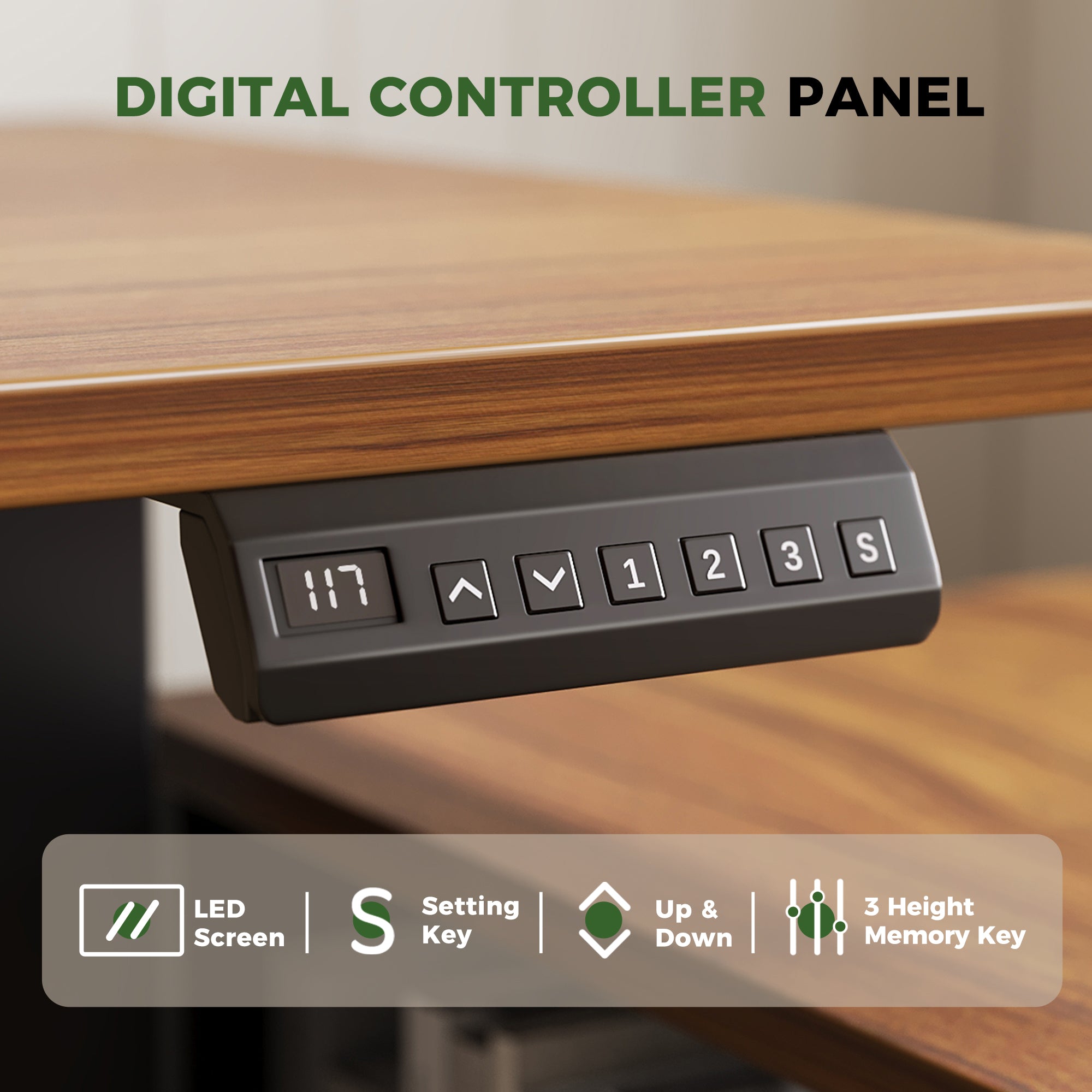
Shop: OffiGo 55" L-Shaped Height Adjustable Standing Desk with Large Movable Storage Cabinet
Module 3: Storage System With Rolling File Cabinet
Module 3: Storage System With Rolling File Cabinet
A clean desktop is not a personality trait. It is a storage design problem. If your file cabinets are awkward to reach, or if supplies have no home, your desk becomes the default home.
Build your storage system around two rules:
- The desktop is for active work only.
- Every paper has a status label.
Step 1: Define three storage lanes. You want a place for documents, supplies, and devices.
- Active lane: client files, current project folders, and the papers you touch daily.
- Supplies lane: pens, labels, batteries, and small tools.
- Device lane: printer paper, external drives, and the gear you do not want on the desktop.
Step 2: Create an "active vs archive" split. Most people mix these and then avoid filing.
- Keep active files in the easiest drawer.
- Move archives to a lower drawer or a separate bin.
Step 3: Assign a cabinet parking spot. A rolling cabinet is only helpful when it stays predictable.
- Park it under the return or beside the desk.
- Keep enough room to open drawers fully without hitting chair legs.
Step 4: Use the lock intentionally. A lock is less about security theater and more about privacy routines. If you handle personal documents, client paperwork, or HR materials, a lockable compartment encourages consistent storage instead of leaving papers out.
OffiGo product fit for this module (how it supports the technique):
- The product page emphasizes an independent side cabinet designed to hold documents and equipment without crowding the main work surface.
- The cabinet is described as movable, which supports the "parking spot" concept and lets you tune drawer access for your dominant hand.
Shop: OffiGo 55" L-Shaped Height Adjustable Standing Desk with Large Movable Storage Cabinet
Module 4: Cable, Power, and Device Docking
A professional home office setup should let you change posture without unplugging anything. Cable snags are one of the fastest ways to stop using a standing desk, because the first surprise pull teaches you to avoid moving the desk.
Step 1: Accept the power reality and plan around it. The OffiGo product page notes the model does not include integrated power outlets or charging modules, so you should plan an external power strip and routing.
Step 2: Build a simple docking map. Decide where each device lives when you are not actively touching it.
- Laptop: a consistent left or right parking zone.
- Charger bricks: mounted or tied down, not dangling.
- Printer: on the cabinet top or nearby stand, not on the main desktop.
Step 3: Separate "moving" cables from "fixed" cables. This is the core trick for sit-stand desks.
- Moving cables: monitor power, monitor video, and anything that needs slack for height changes.
- Fixed cables: power strip input cord and wall outlet connection.
Leave a controlled slack loop for the moving set so the desk can rise to full height without tension.
Step 4: Keep knee space clear. Knee space is where cables turn into daily irritation.
- Do not let cables hang under the typing zone.
- Route along the back edge and down a leg.
OffiGo product fit for this module (how it supports the technique):
- The desk is positioned as a desk-plus-storage system, so the cabinet can serve as a device docking surface. That supports a cleaner desktop even when you use printers, scanners, or bulk paperwork.
- The L-shape makes it easier to keep a dedicated cable edge behind the primary monitor zone.
Shop: OffiGo 55" L-Shaped Height Adjustable Standing Desk with Large Movable Storage Cabinet
Module 5: Work Rhythm, Breaks, and Eye Relief
Your desk can be perfect and you can still feel wrecked at 6 p.m. if you never change visual distance or body position. Rhythm makes the physical setup actually work.
Step 1: Use posture changes as a timer. Instead of relying on motivation, use the desk itself to cue movement.
- If you start seated, stand for a short block every 30 minutes.
- If you start standing, sit down before fatigue forces you into a slouch.
Mayo Clinic specifically suggests starting by taking short breaks from sitting to standing every 30 minutes. According to Mayo Clinic, this is an easy on-ramp to reducing continuous sitting.
Step 2: Protect your eyes with a distance habit. Digital work locks your focus at a fixed distance.
- The 20-20-20 rule is a simple pattern: every 20 minutes, look 20 feet away for 20 seconds.
- The American Optometric Association highlights the 20-20-20 rule as part of digital eye strain education. According to the American Optometric Association, the 20-20-20 rule is a recommended strategy for reducing digital eye strain.
Step 3: Pair a micro-task with every break. Breaks become consistent when they do something small.
- Refill water.
- Refile one stack of papers.
- Put away one cable.
This ties movement to maintenance, so your standing desk with drawers and cabinet system stays clean.
OffiGo product fit for this module (how it supports the technique):
- The desk includes programmable height memory, which makes posture changes easier to execute on a schedule.
- The storage cabinet supports quick reset rituals. You can clear the desktop in under a minute if everything has a home.
Shop: OffiGo 55" L-Shaped Height Adjustable Standing Desk with Large Movable Storage Cabinet
Selection and Decision Guide
A professional setup starts with matching your room constraints to a desk system that supports your workflow. Because this guide focuses on a standing desk with storage, the decisions are less about style and more about fit, reach, and storage behavior.
Desk size and monitor fit
Desk width and depth decide whether you can place monitors at a comfortable distance and still keep a writing lane.
- A 55-inch class top often supports one to two monitors plus a laptop.
- Depth matters for eye comfort because it sets your default viewing distance.
For this OffiGo model, the dimension graphic calls out 55.1 inches by 23.6 inches for the desktop, which is a strong baseline for many long-hour desk jobs.
Height range and seated-standing coverage
Height range should match both your seated typing height and your standing typing height. The goal is neutral shoulders and elbows, not a specific number.
For this OffiGo model, the product imagery and text call out a height adjustment range of 28.4 inches to 47.2 inches.
Cabinet capacity and file storage planning
A cabinet only works if it matches what you store. Before you buy, count:
- Active folders you touch weekly.
- Archive folders you must keep.
- Devices you want off the desktop (printer, paper, external drive cases).
For this OffiGo model, the cabinet size is labeled as 39.4 inches by 15.8 inches by 18.7 inches.
Layout modes and room constraints
The best desk with cabinets is the one that fits your room without compromise. Look for flexible cabinet placement so you can adapt to:
- Outlet locations.
- Doorways.
- Which hand you use to grab files.
This OffiGo model is described as supporting left-side, right-side, or inline cabinet placement.
Decision table: match your workflow to the setup
| Your scenario | What usually goes wrong | What to prioritize | Best desk-system approach |
|---|---|---|---|
| Dual monitors plus paperwork | Desktop becomes a paper landing zone | Separate active work vs storage zones | Standing desk with storage cabinet to keep papers off the main surface |
| Printer-heavy admin work | Printer steals your typing lane | Device docking area | Cabinet top or dedicated side zone for printer |
| Small room, tight clearances | Chair hits cabinet corners | Footprint and cabinet parking spot | Choose cabinet orientation that preserves chair travel |
| You forget to switch posture | You sit for hours without noticing | Repeatable height presets | Standing desk with memory keys and a simple schedule |
Best Practices & Pitfalls
Best Practices
- Set two height presets and name them. Use one for typing while seated and one for typing while standing. A predictable preset removes decision fatigue and increases sit-stand consistency.
- Keep Zone A clean by design. Limit the desktop to the tools you touch constantly. Store everything else in the cabinet so you protect your focus space.
- Use an active file basket plus drawer filing. A small in-progress tray for today prevents half-filed stacks. Then move items to active or archive drawers once per day.
- Create a cable slack loop for the moving set. Leave enough slack for full standing height so the desk can rise without pulling monitor cords.
- Do a weekly 10-minute reset. Review what is living on the desktop, then assign each item to a drawer, shelf, or recycle bin.
Common Pitfalls to Avoid
- Standing static for long blocks. Standing still can be as fatiguing as sitting still. Switch posture before discomfort starts, and add small movements.
- Letting cables hang in knee space. Knee-level cables snag chair arms and force awkward leg positions. Route cables behind the desk edge and down a leg.
- Using the cabinet as a random drawer. A cabinet that holds everything holds nothing. Keep the active vs archive split and label zones, even if the labels are just mental.
- Storing files on the desktop as a default. Desktop file piles grow because they feel convenient. Fix the convenience by making the cabinet the easiest place to put paper.
- Chasing perfection instead of iteration. Ergonomics is personal. Adjust one variable at a time, then keep what feels better after a full workweek.
Conclusion
A pro home office setup comes from a system, not a single purchase. When you combine a standing desk with deliberate zones, consistent cable routing, and a simple file storage taxonomy, you reduce friction and protect your focus.
Start small: lock in your typing posture, set two height presets, and give every paper a home in your file cabinets. Then review comfort weekly and make one improvement at a time.
Official Site: OffiGo
FAQ
How big is a 55" standing desk in practice for a home office setup?
A 55-inch standing desk usually supports one to two monitors plus a laptop if you keep a clear typing zone. The bigger limiter is often depth, because you need enough distance to place the monitor without leaning forward. If you use dual monitors, center the primary screen and angle the secondary screen slightly inward. If paperwork is part of your day, plan a dedicated paper lane so documents do not crowd the keyboard.
Where should I place rolling file cabinets in a desk with cabinets layout?
A good default is to place rolling file cabinets on your non-dominant side so file access does not interrupt mousing. You should also confirm you can open drawers fully without colliding with chair legs or the desk frame. If you stand often, park the cabinet where you can reach it while standing without twisting your torso. Finally, keep one consistent parking spot so filing becomes automatic instead of a daily decision.
How often should I switch between sitting and standing at a standing desk?
Most people do best when they switch posture before fatigue begins, not after pain shows up. A practical starting point is a posture change about every 30 to 60 minutes, then adjust based on comfort and workload. Short standing blocks tend to be easier to sustain than long standing marathons. If your shoulders tense while standing, your desk height or keyboard position is usually too high.
What is the difference between standing desk with storage and standing desk with drawers?
A standing desk with drawers usually means small built-in compartments attached to the desktop area. A standing desk with storage often includes a larger cabinet or side unit that can hold files, devices, and supplies. Drawers work well for small items like pens and chargers, while cabinet storage is better for file storage and bulk equipment. Many professional setups combine both: quick-access drawers plus a larger file cabinet zone.
Why do neck and shoulder flareups happen even after I buy a standing desk?
Neck and shoulder pain often comes from monitor height and mouse reach rather than from sitting alone. If the screen is too low, you will drop your head forward and load your neck for hours. If the mouse is too far away, your shoulder stays slightly raised and tense. Fix the typing height first, then set monitor height, then bring the mouse close to the keyboard.
Do I need a standing desk mat for long-hour work?
A mat can reduce foot fatigue and encourage small movements during standing blocks, especially on hard floors. However, it is not required if you stand for short intervals and switch posture frequently. If you feel heel or arch discomfort within 10 to 15 minutes of standing, a mat usually helps. Supportive shoes and small posture changes can provide similar benefits if you prefer not to use a mat.
How do I build a file storage system that stays organized week after week?
You need a simple taxonomy that assigns every paper a status, such as active, pending, archive, or shred. Keep active files in the easiest-to-reach drawer so filing is faster than stacking. Use a small in-progress tray for the current day so you do not half-file papers during calls. Then schedule a weekly reset to move items from active to archive and clear anything that no longer has a purpose.
0 comments