
Introduction
Paper-heavy work rewards the same thing every time: predictable flow. When exhibits, receipts, and signed packets live on your main surface, your keyboard gets crowded, your scanner becomes a wall, and your posture slowly collapses.
This guide focuses on a desk-centric setup built around standing desks with cabinets, an office desk with drawers, and standing desks with storage. The goal is simple: keep active documents within reach, keep sensitive files out of sight, and make sit-stand switching feel routine.
Monitor placement is a fast win. The top line of your screen should be at or below eye level for neutral neck posture, which aligns with common computer workstation ergonomics guidance from OSHA.
Paper-Ready OffiGo Desk Picks
Below are five OffiGo electric sit-stand desks designed for home offices and long-hour workflows. Each pick includes a best-fit scenario, the storage logic behind it, and what to watch out for.
1) OffiGo 55-inch L-Shaped Desk with Movable Storage Cabinet
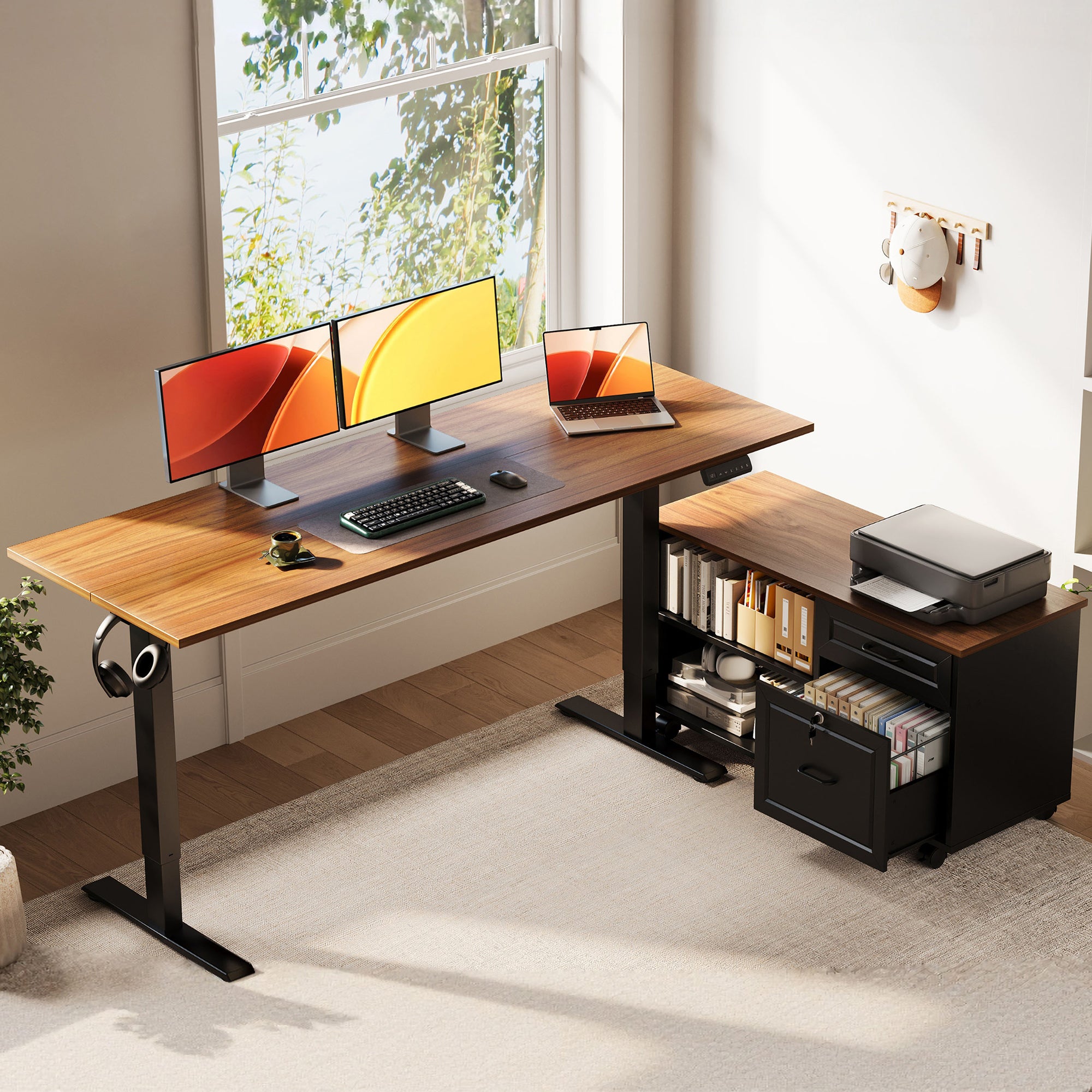
- Best for: standing desks with cabinets when you handle confidential files, client binders, and a printer that cannot sit on your main writing zone.
- Why this layout works for paper: the separate cabinet acts like a physical boundary. It protects your keyboard area from becoming a staging table for stacks.
- Key surface + storage geometry:
- Desktop: 55.1 in long x 23.6 in wide.
- Cabinet: 39.4 in long x 15.8 in wide x 18.7 in high.
- Height range: 28.4 in to 47.2 in, which supports true sit-stand switching rather than a single fixed posture.
- Workflow zoning tip: place the cabinet on your non-dominant side and treat it as your "archive + devices" zone (printer, labeled folders, spare paper). Keep the dominant side clear for markup and signing.
- Trade-offs to expect:
- The cabinet footprint needs planning in tight rooms.
- If you frequently reconfigure your office, you will want to decide whether you prefer the cabinet fixed or mobile.
Shop: OffiGo 55-inch L-Shaped Desk with Movable Storage Cabinet
Why it wins: For lawyers and accountants, the cabinet is not just storage. It is a control point that prevents file creep onto your typing area. If your day includes scanning, printing, and sorting, this is the fastest way to keep the desktop from turning into a paper landfill.
2) OffiGo 55-inch L-Shaped Desk with Wooden Drawers and Power Outlets

- Best for: an office desk with drawers when you need quick access to tools (stamp, stapler, notary log, calculator) and you hate countertop organizers.
- Storage logic: four drawers let you separate "touch every hour" items from "touch once a day" items without using desktop trays.
- Key specs that matter in paper workflows:
- Desktop: 55.1 in long x 31.5 in wide.
- Drawer size (listed on-page): 12.6 in long x 11.8 in wide x 4.6 in high.
- Height range: 29.9 in to 46.1 in.
- Built-in power: includes 3 AC outlets, 1 USB port, and 1 Type-C port, which helps reduce cable sprawl on sit-stand lifts.
- Setup tip for paper-heavy pros: keep one drawer as a "current matter" drawer. Put only today’s active folder(s) there, so you stop stacking them next to your mouse.
- Trade-offs to expect:
- Drawer depth is ideal for supplies and slim folders, but it is not a replacement for a true filing cabinet.
- If you use extra-wide binders, you may still need side storage.
Shop: OffiGo 55-inch L-Shaped Desk with Drawers and Power
Why it wins: This is a practical "daily driver" for paper plus screens. The drawers remove visual clutter, and integrated power keeps chargers from dangling when you change height. It is a strong choice if your work is 70% computer, 30% paper review and signing.
3) OffiGo 55-inch L-Shaped Desk with Keyboard Tray and Monitor Shelf
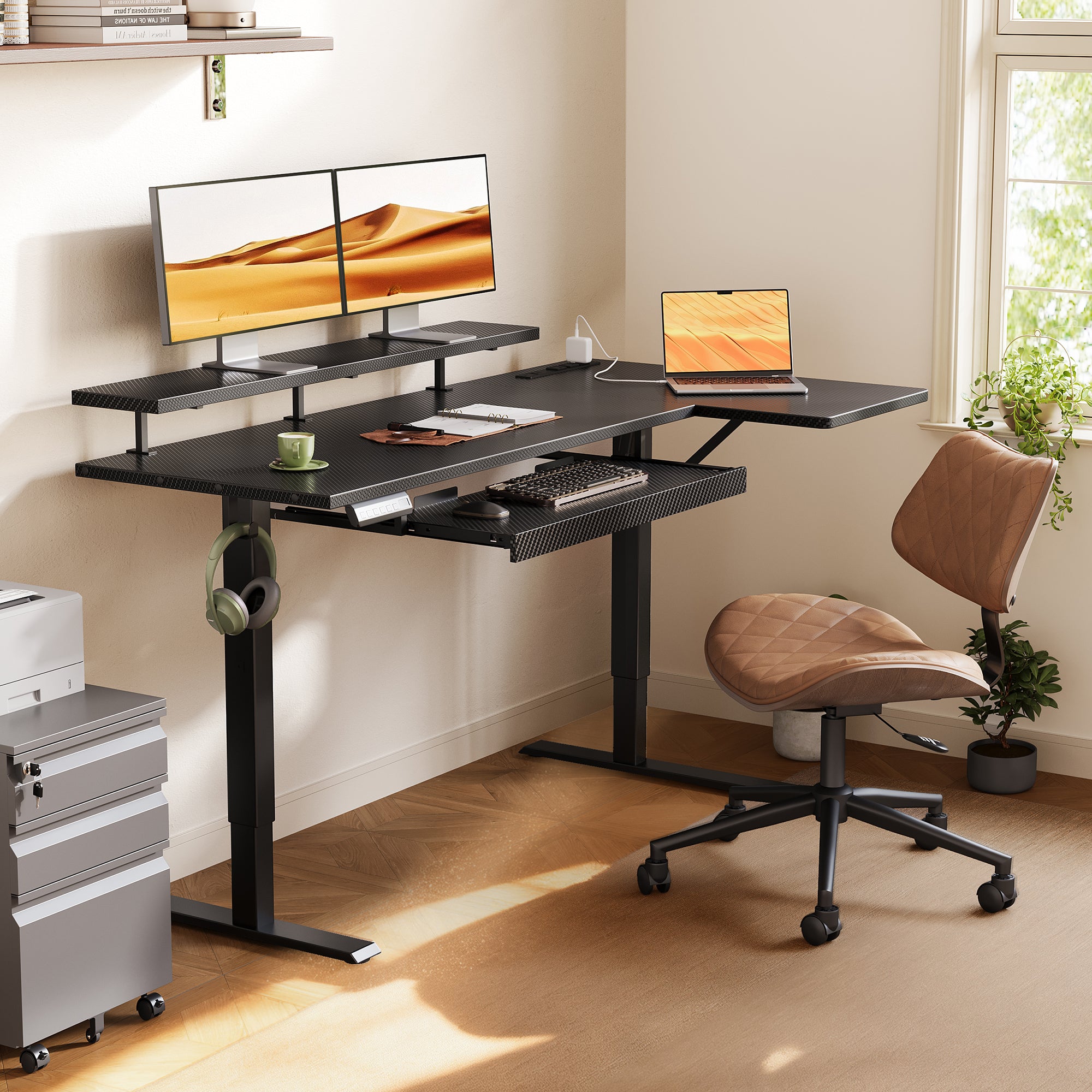
- Best for: heavy typing days where you still need a dedicated paper lane (review notes, redlines, billing backup).
- Why it fits paper-heavy workflows: the keyboard tray shifts input devices off the primary surface, so your main desktop can become a clean "document workbench".
- Key layout specs:
- Main desktop: 39.4 in x 21.3 in.
- Side desktop: 31.5 in x 15.8 in.
- Keyboard tray: 25.6 in x 11.8 in.
- Height range: 28.4 in to 47.2 in.
- Built-in power: includes 3 AC outlets, 1 USB port, and 1 Type-C port, which supports docks, monitors, and phone charging without a desktop power strip.
- Real-world use case: set the main surface for writing and paper sorting, keep the side wing for reference binders or a small scanner, and keep the tray for keyboard and mouse.
- Trade-offs to expect:
- A keyboard tray changes your seated knee clearance. Measure chair arm height and leg position before committing.
- If you switch between mousing and handwriting every few minutes, you may need a consistent "parking spot" for the mouse when you slide the tray in.
Shop: OffiGo 55-inch L-Shaped Desk with Keyboard Tray
Why it wins: If paper work keeps pushing your keyboard back, a tray is the simplest structural fix. It prevents the classic posture problem where you lean forward because documents stole your input space.
4) OffiGo 55-inch U-Shaped Desk with Storage, Keyboard Tray, and Built-In Power

- Best for: standing desks with storage when you need multiple zones at the same time (forms open, laptop active, reference stack visible).
- Why U-shape helps paper: it creates natural "left, center, right" lanes. That reduces shuffling and re-stacking because each pile has a home.
- Key specs to plan your layout:
- Desktop length: 55.1 in, with a 29.1 in U-shaped extension.
- Keyboard tray: 21.9 in x 11.8 in.
- Drawer size: 13.2 in x 7 in x 4.4 in.
- Height range: 28.3 in to 46.5 in.
- Built-in power: supports on-desk charging so your work zone does not fill with adapters.
- Workflow tip: keep the center lane as your "clean capture" space (signing, stamping, checklists). Keep the side lanes for open folders and "next" items.
- Trade-offs to expect:
- U extensions can feel big in narrow rooms. Map the footprint with tape before you assemble.
- If you use a large under-desk filing pedestal, confirm it will not conflict with the tray movement.
Shop: OffiGo 55-inch U-Shaped Desk with Storage
Why it wins: This is the closest thing to a "paper spread" desk without jumping to full executive furniture. If your workflow depends on seeing multiple piles at once, the U zone layout is a real productivity lever.
5) OffiGo 48-inch Desk with 3 Wooden Drawers, Monitor Shelf, and USB Power Outlets
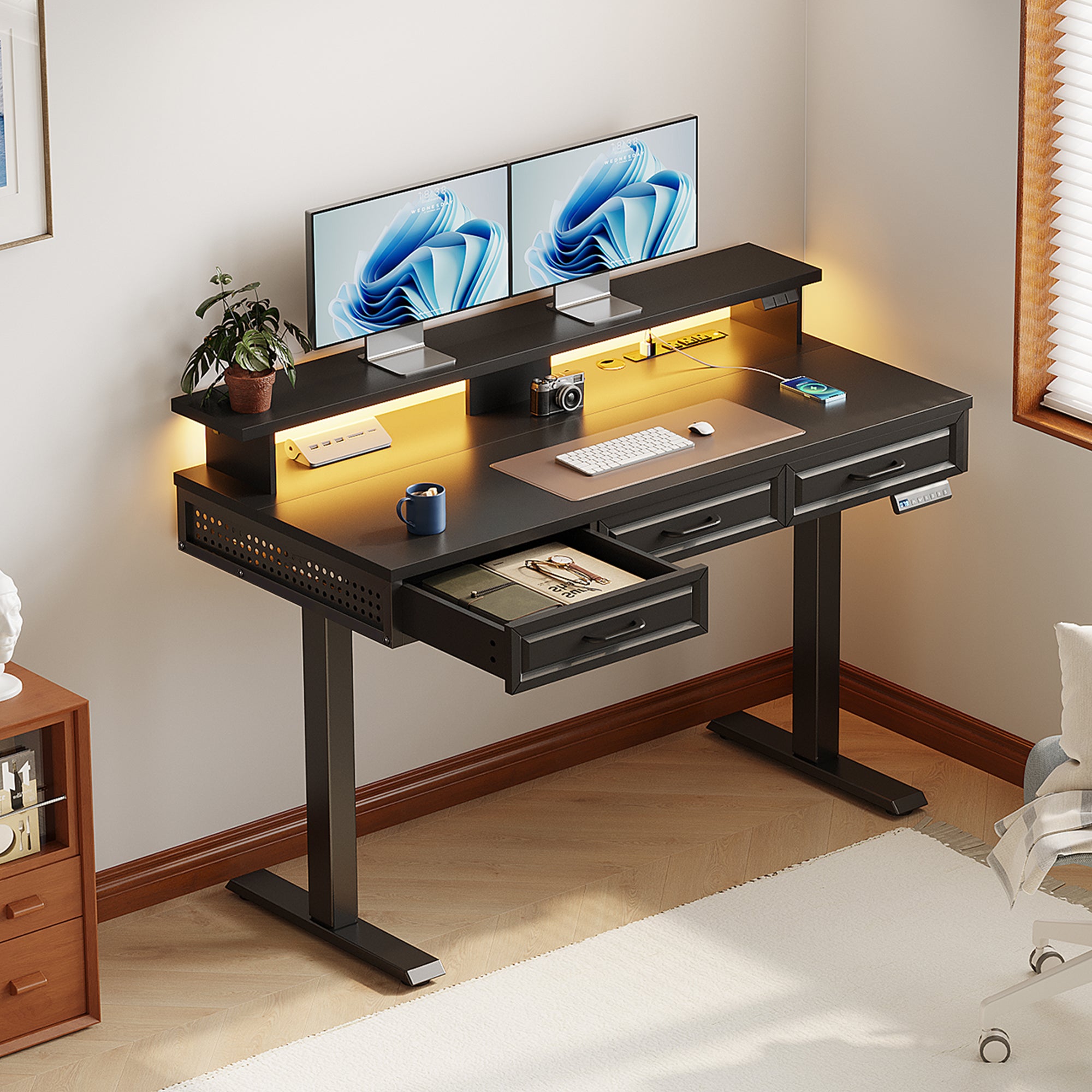
- Best for: small offices that still need standing desks with storage and integrated power for a laptop + monitor + paper tray.
- Storage logic: the three wooden drawers cover daily tools so you do not rely on desktop caddies.
- Key specs:
- Desktop: 47.2 in long x 21.3 in wide.
- Monitor shelf height: 4.7 in (helps lift screens without a separate riser).
- Height range: 29.9 in to 46.1 in.
- Built-in power: 3 AC outlets and 2 USB ports for dock, monitor, phone, and peripherals.
- Paper workflow tip: use a vertical file sorter on the far corner as your "intake" lane. The drawers then become the "tools" lane, and the center stays clear for active review.
- Trade-offs to expect:
- Dual-monitor plus large stacks can feel tight at 48 inches. This matters if you keep open binders on the surface.
- If you process oversized documents (legal-size packets, wide spreadsheets printed), you may prefer a larger top.
Shop: OffiGo 48-inch Desk with 3 Wooden Drawers
Why it wins: This is the "compact but complete" option. It keeps the essentials (drawers, power, sit-stand range) while fitting apartments, spare rooms, and tight home-office corners.
Buying Guide: Build a Desk Setup That Handles Paper
The right desk is only half the solution. Next you need rules for paper flow, cable movement, and ergonomics so the system stays stable in week three.
1) Do you need drawers, a cabinet, or both?
- Choose drawers when you grab items constantly: stamps, envelopes, checklists, sticky notes, calculator, spare pens, and a notary kit.
- Choose standing desks with cabinets when you store volume: client files, multi-year tax folders, or confidential packets that cannot sit out overnight.
- Choose both if your day switches between "processing" and "deep drafting". Drawers handle rapid tools, while a cabinet controls bulk paper.
2) How much desktop surface do paper-heavy pros really need?
- A simple test: place your keyboard and mouse where they normally sit. Now add an open folder (or binder) plus a writing pad. If your forearms lose support, you need either a larger top or a keyboard tray.
- L-shapes help because they add a second lane. Use that lane for reference stacks, scanner staging, or "next" documents.
- U-shapes help when you need multiple piles visible at once (intake, active, output) without stacking them.
3) Should you prioritize built-in power?
Built-in outlets matter more on sit-stand desks because the cable path moves.
- Built-in power reduces the number of separate bricks and strips that must rise and fall.
- It also encourages a single "device edge" where charging happens, rather than cords crossing your paper zone.
- However, if you use large power adapters, confirm the outlet location will not block drawers or a cabinet door.
4) What height range is practical for sit-stand routines?
For real posture variation, you need a range that covers both a neutral seated typing height and a relaxed standing typing height.
- Several OffiGo models in this list sit in the high-20s to mid/high-40s inches (for example 28.4-47.2 in and 29.9-46.1 in), which supports varied body sizes and shoe choices.
- Save presets. Use one for seated drafting, one for standing triage, and (optionally) one for a perching stool.
5) Q-and-A guidance users actually ask
How many drawers do I need for files?
- If you mostly store tools and small supplies, 2-4 drawers can cover daily needs.
- If you store active folders, plan one drawer as "today only". Keep anything older in a cabinet or shelf so it does not pile back onto the surface.
Do standing desks with cabinets feel cramped?
- They can if the cabinet blocks knee clearance or steals your dominant-side elbow room.
- A movable cabinet can solve this because you can align it with your workflow (inline, left, right) instead of forcing a single layout.
Where should the printer and scanner live?
- Put them on the non-dominant side, ideally on a cabinet top or the far wing of an L/U desk.
- The main desktop should stay reserved for writing, keyboarding, and reviewing.
Is a keyboard tray worth it for typing?
- It is worth it when paper keeps pushing your keyboard backward.
- It is also worth it when you want a deeper, cleaner writing lane without buying a much larger desktop.
6) Practical tips for paper-heavy workflows (law and accounting)
- Use three zones:
- Intake: mail, new receipts, new discovery.
- Active: only what you will touch today.
- Archive: everything else, preferably closed storage.
- Keep one "clean rectangle" on the desk for signing and stamping. Protect it like a tool.
- Standardize labels. If a drawer is "Client A 2026", keep that naming pattern across your cabinet folders.
7) Common mistakes to avoid
- Storing files on the main work surface overnight. That habit turns every morning into re-sorting.
- Putting the monitor too high and then looking up while you read paper. Neck extension stacks up quickly over long review days.
- Treating power strips as permanent desktop objects. On sit-stand desks, they should usually live under the top or within a controlled cable path.
Comparison Table: Which OffiGo Desk Fits Your Workflow?
| OffiGo pick | Shape | Storage type | Built-in power | Height range | Best workflow scenario | Trade-offs / limitations |
|---|---|---|---|---|---|---|
| OffiGo 55-inch L-Shaped Desk with Movable Storage Cabinet | L-shaped + cabinet | Cabinet + compartments | None | 28.4-47.2 in | Confidential files, printer, scanning station, uncluttered main surface | Needs room planning; cabinet footprint can feel large in tight offices |
| OffiGo 55-inch L-Shaped Desk with Wooden Drawers and Power Outlets | L-shaped | 4 wooden drawers | 3 AC + USB + Type-C | 29.9-46.1 in | Daily tools in drawers, quick paper handling, corner productivity | Drawers are not a full filing solution; may still need bulk storage |
| OffiGo 55-inch L-Shaped Desk with Keyboard Tray and Monitor Shelf | L-shaped | Keyboard tray + shelf (organization) | 3 AC + USB + Type-C | 28.4-47.2 in | Typing-heavy work plus a dedicated paper lane | Tray changes leg clearance; mouse parking habits matter |
| OffiGo 55-inch U-Shaped Desk with Storage and Keyboard Tray | U-shaped | 2 drawers + tray + shelf | 3 AC + 2 USB | 28.3-46.5 in | Multi-pile visibility: forms, reference, output lanes | Extension needs floor space; confirm tray clearance with under-desk items |
| OffiGo 48-inch Desk with 3 Wooden Drawers and Monitor ShelfU-shaped | I-shaped | 3 wooden drawers + shelf | 3 AC + 2 USB | 29.9-46.1 in | Small office, minimal clutter, laptop + monitor + paper tray | Desktop can feel tight for dual monitors plus large stacks |
Conclusion
Paper-heavy work needs structure, not just a bigger desk. Start by choosing the storage strategy that matches your day: standing desks with cabinets for security and bulk files, an office desk with drawers for high-frequency tools, and standing desks with storage when you need a system that prevents piles from taking over.
If you want the simplest "paper control" upgrade, prioritize closed storage first, then add sit-stand presets so posture changes become automatic.
Official Site: OffiGo
FAQ
1) How do I set up a standing desk for lots of paper documents?
Start by assigning three zones on the surface: intake (new papers), active (today), and output (to file or scan). Next, move everything that is not actively used into drawers or a cabinet so the keyboard area stays open. Then place your active paper lane beside your keyboard on your dominant side to reduce twisting. Finally, set two height presets so you can switch positions without rearranging your piles.
2) What is better for paper-heavy work: drawers or a file cabinet?
Drawers work best for tools and items you reach for repeatedly, like stamps, envelopes, calculators, and notepads. A cabinet is better for bulk folders, binders, and documents that should not stay visible between work sessions. Many paper-heavy pros use both: drawers for daily tools and a cabinet for client or tax-year storage. If confidentiality matters, prioritize storage that can be closed consistently at the end of the day.
3) Where should I place my monitor if I read paper and screen all day?
Place the main monitor directly in front of you so your neck does not rotate repeatedly during reviews. Then keep the primary paper-reading area next to the monitor on your dominant side, angled slightly toward you. If you often type while referencing documents, use a document holder that sits close to the monitor plane to reduce constant up-down head movement. Also keep the screen far enough away that you can read without leaning forward.
4) How do I prevent cable clutter on a sit-stand desk?
First, bundle the cables that must move with the desk (monitor, dock, laptop) into a single sleeve so they rise and fall together. Next, leave a service loop of a few inches so the desk can reach max height without tugging connectors. Then mount heavier bricks and power strips under the desktop if you can, because stationary weight reduces snagging. Finally, label both ends of key cables so troubleshooting does not turn into a full teardown.
5) How high should my desk be when I am standing and typing?
Set the height so your shoulders stay relaxed and your elbows remain close to your sides during typing. Your forearms should be close to parallel with the floor, and your wrists should stay straight rather than bent upward. If your shoulders creep up, the desk is too high, and if you hunch, the desk is too low or the monitor is poorly placed. Save the correct standing height as a preset so you do not re-measure every day.
6) Do I need a keyboard tray for document-heavy work?
A keyboard tray helps when paper constantly competes with your keyboard for space. By shifting the keyboard and mouse off the main surface, you can keep a consistent document lane for review and signing. The tray must be wide enough for both keyboard and mouse, otherwise the mouse ends up higher and strains the shoulder. If you regularly annotate and type in short cycles, a tray can make the workflow feel less cramped.
7) How can I alternate sitting and standing without losing focus?
Use fixed work blocks instead of switching randomly, because consistent blocks reduce mental friction. Many people stand for calls, quick reviews, and inbox triage, then sit for deep drafting and detail-heavy reconciliation. Keep both positions fully set up so the change is one button press rather than a full rearrange. Start with short standing intervals and increase gradually so your feet and lower back adapt over a few weeks.
0 comments