
Introduction
A well-built Electric Standing Desk setup is not only about switching from sitting to standing. It is about building enough space and structure to protect focus for hours at a time. When your work involves multiple apps, multiple screens, and constant messaging, the desk becomes the control center for attention.
Most productivity problems in a home office look small at first: clutter, awkward monitor angles, cables that snag your legs, and a lamp that creates glare. However, those details quietly increase friction. Over a long week, that friction becomes fatigue, distraction, and constant micro-breaks.
This guide shows how to build a deep-focus 63-inch sit-stand setup using layout, ergonomics, storage thinking, lighting, and workflow routines. It is designed for remote work, hybrid schedules, and anyone who wants a calmer, cleaner desk that supports long sessions.
OffiGo 63″ L-Shaped Height Adjustable Standing Desk, Reversible Large
Workspace Zoning for L-Shaped Standing Desk
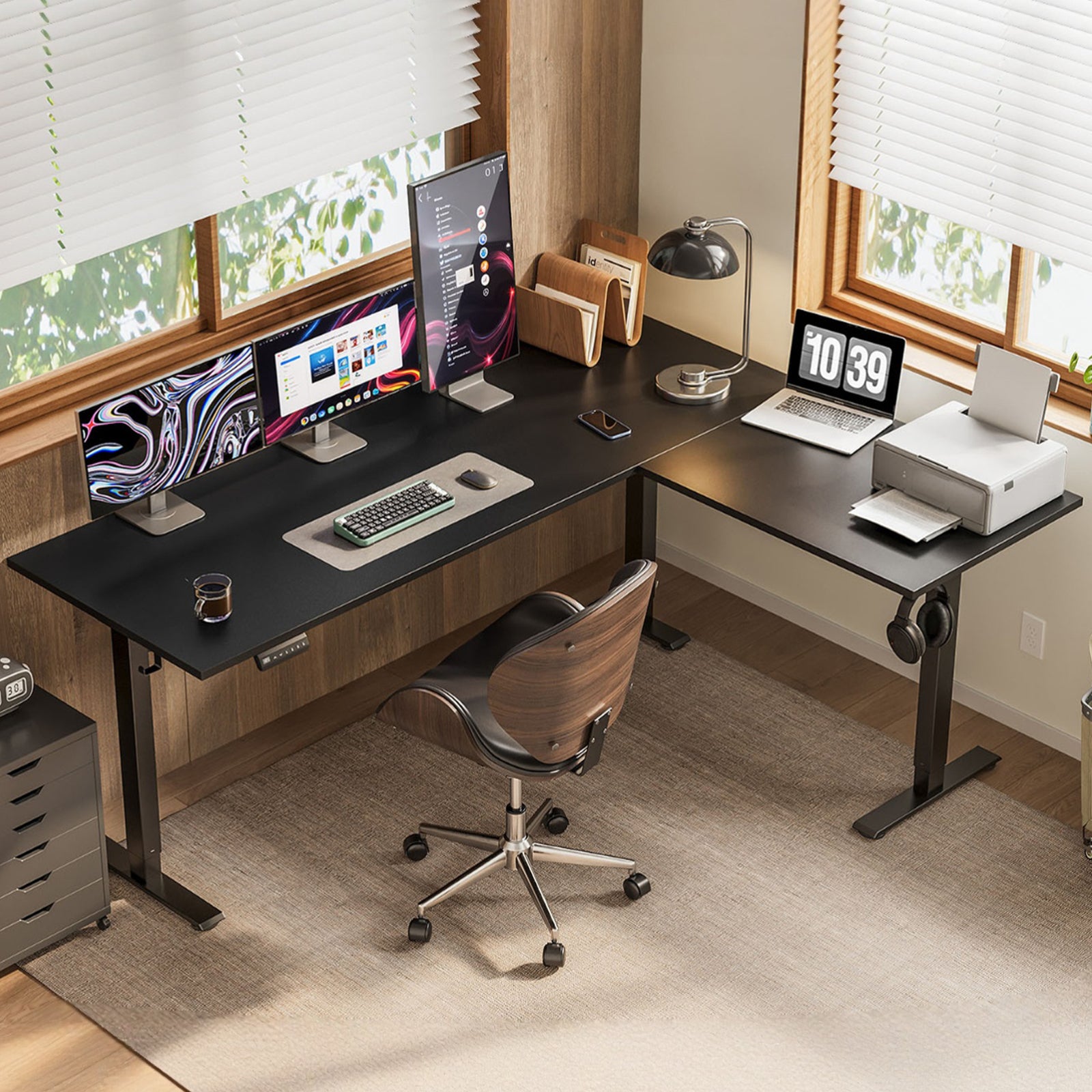
Workspace zoning is how you turn a big desktop into a focused system instead of a bigger mess. With an L-shape, you can separate thinking work from support tasks.
Use this simple zoning map:
- Primary zone (focus zone): keyboard, mouse, main display, and a single notebook.
- Support zone (utility zone): laptop dock, reference papers, printer, audio interface, or chargers.
- Drop zone (transition space): a small clear area where items land briefly, then get put away.
Next, decide how you will face the room. Many people focus better when their main monitor faces away from foot traffic. If your desk must sit near a door, place the support zone closer to the movement side so your primary zone stays calmer.
OffiGo builds this concept into the desk itself. The OffiGo 63-inch reversible L-shape lets you place the return on either side, so you can choose left-side or right-side configuration based on the room and your dominant hand. That flexibility is a real productivity feature because it helps you keep the primary zone consistent even when the room forces compromises.
Height Adjustable Desk Ergonomics Setup
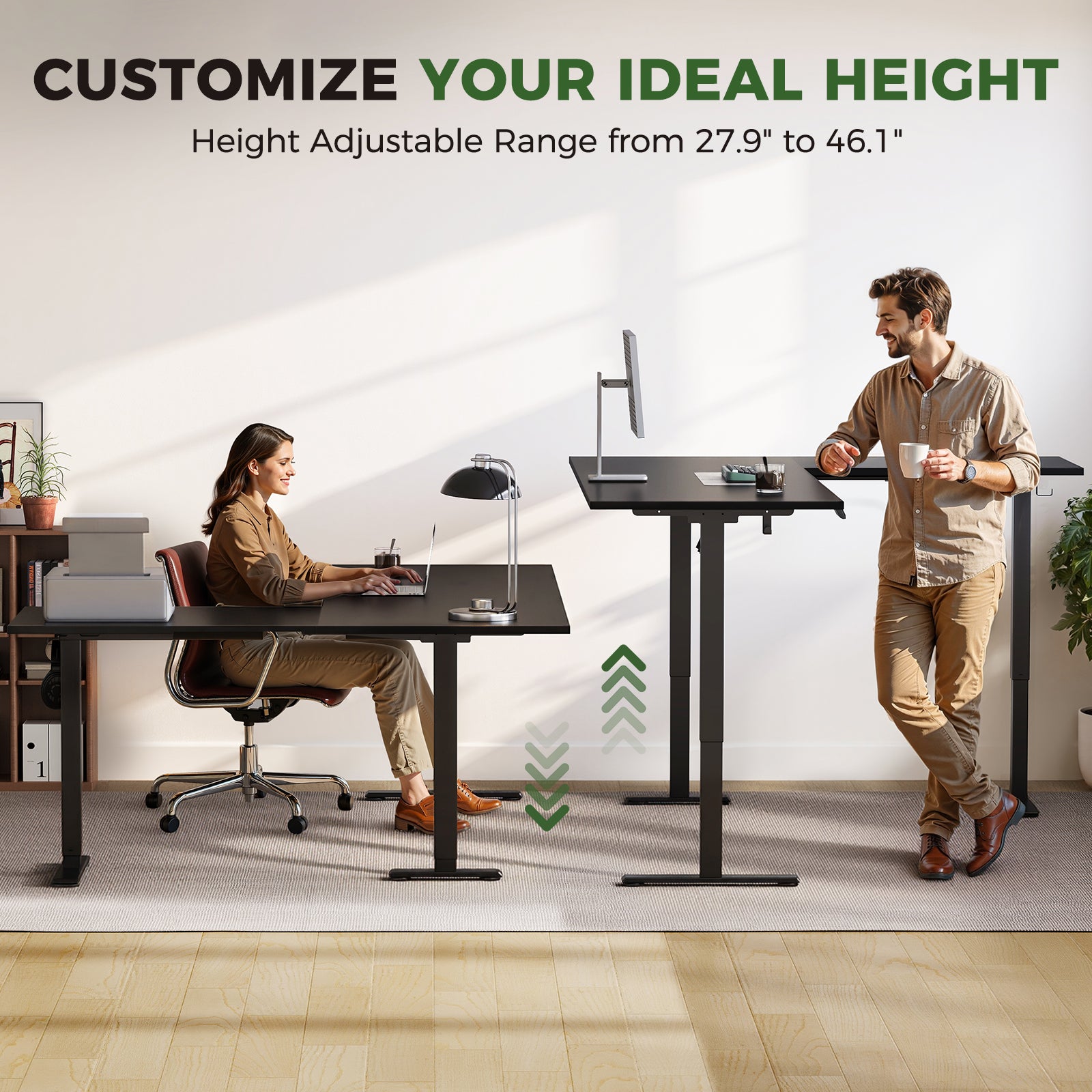
A Height Adjustable Desk should feel boring in the best way. When the height is correct, your body stops asking for attention.
Set your seated and standing heights using a repeatable method:
- Start with elbows. Set desk height so elbows stay close to the torso and bend roughly 90 to 120 degrees. According to OSHA, that elbow range supports neutral posture.
- Lock wrists neutral. Adjust keyboard angle so wrists stay straight, not cocked upward.
- Bring the mouse in. Keep the mouse right next to the keyboard to avoid reaching.
- Then adjust monitor height. Center the screen so you do not tilt your chin up for long periods.
To make this practical on busy days, you need presets. The OffiGo desk includes an LED display controller with three memory buttons. That means you can save a seated height and a standing height, then move between them with one press rather than fiddling every time.
Finally, treat sit-stand as movement, not a challenge. Stand for shorter blocks, then sit, then stand again. The win is variety, because static standing can feel as stiff as static sitting.
Multi-Monitor Deep Focus Placement
Multi-monitor setups can improve flow, but only if the layout reduces head rotation and eye strain. When screens are scattered, your neck becomes the switching cost.
Use a focus-first placement approach:
- One primary screen centered. Put the main monitor directly in front of you.
- Secondary screen slightly angled. If you use two monitors equally, angle both inward like a shallow V.
- Keyboard stays square to the primary screen. Do not aim the keyboard between monitors unless you truly split time 50/50.
Also, keep input devices close. OSHA emphasizes keeping hands, wrists, and forearms aligned and avoiding awkward reaching during keyboard work. According to OSHA, neutral alignment lowers strain risk.
An extra-large L-shaped surface helps here because it lets you keep monitors in the primary zone while moving secondary devices (like a laptop stand, tablet, or mixer) onto the return. That separation supports deep-focus work because your eyes spend more time on the main task.
Home Office Organization and Cable Control
Cable control is not cosmetic. It is a way to remove repeated interruptions: snagged cords, adapters you cannot find, and devices that slide around.
Build a cable plan in three layers:
- Under-desk backbone. Run power and data cables under the rear edge.
- Single exit point. Pick one corner where cables drop to the wall outlet.
- Desktop minimalism. Keep only the cables that must move (like a charging lead) on the surface.
Leg clearance matters too. If cables hang down, you will unconsciously shift posture to avoid them. OSHA notes the importance of sufficient room under the work surface so thighs are not trapped and legs have forward clearance. According to OSHA, clearance supports getting close enough to work without strain.
The OffiGo 63-inch L-shaped design supports this approach because it creates natural zones: power bricks and hubs can live on the support side while the primary side stays clean. The more predictable your layout becomes, the fewer attention breaks you pay each day.
LED Desk Lighting for Concentration
Lighting is part of focus because it changes how hard your eyes work. Poor lighting creates glare, reflections, and that subtle squint that drains energy.
Set up LED Desk Lighting using three rules:
- Aim light at the work surface, not the screen. The goal is even illumination without hot spots.
- Place the lamp opposite your dominant hand. That reduces shadows on paper and keyboards.
- Match brightness to time of day. Brighter earlier, softer later, so your workspace feels stable.
If you do video calls, check what the camera sees. The best desk lighting for concentration can still look harsh on camera if it points at your face. In that case, bounce light off a wall or use a diffused shade.
A practical L-shaped advantage is that you can place a lamp on the support zone, then angle it across the primary zone. That keeps the lamp base away from your keyboard area while still providing broad coverage.
Quick decision table
| Scenario | Key factors | Recommended approach | Trade-offs |
|---|---|---|---|
| Deep-focus writing and coding | Clean primary zone, stable monitor, consistent lighting | L-shaped zoning with one centered main monitor | More surface means more temptation to clutter |
| Multi-device remote work setup | Space for laptop, dock, chargers, paperwork | Extra-large L-shape with a dedicated support zone | Requires more room than Compact Office Furniture |
| Frequent sit-stand switching | Fast height changes, repeatable presets | Electric controls with memory buttons | More setup time on day one |
| Video calls plus focused work | Lighting control, camera-friendly background | Task lamp on support zone, clear primary zone | Needs lamp placement testing |
Best Practices & Pitfalls
Best Practices
- Save two presets and use them daily. Presets remove friction, so you actually alternate positions instead of thinking about it.
- Keep mouse close to the keyboard. Short reach reduces shoulder tension and helps wrists stay neutral.
- Use a two-zone workflow. Keep only current-task items in the primary zone, and push support tools to the return.
- Stand in short blocks. Alternate every 30 to 60 minutes so standing stays comfortable.
Common Pitfalls to Avoid
- Standing still for hours. Static standing can cause stiffness. Movement is the point.
- Placing the monitor too high. If you tilt your chin up, your neck pays the price later.
- Letting cables cross leg clearance. Hanging cables lead to awkward posture shifts and constant snagging.
- Turning the support zone into a junk zone. The return should hold intentional tools, not random piles.
Conclusion
A deep-focus Remote Work Setup starts with structure. Build your zones first, then tune ergonomics, then lock in cable pathways and lighting. When those basics are stable, your desk stops demanding attention and starts protecting it.
If you want a large, flexible foundation, an extra-large reversible Electric Standing Desk can make it easier to keep focus work separate from support tasks while still fitting real home layouts.
FAQ
What is the best adjustable desk setup for long work hours at home?
A good setup starts with a height-adjustable desk that lets your elbows stay close to your body and bend roughly 90 to 120 degrees. Save at least two presets so you can switch positions without re-measuring every time. Keep your keyboard and mouse close together so your wrists stay straight and your shoulders stay relaxed. Finally, plan storage and cable routing on day one so the main work surface stays clear all week.
What is the best standing desk setup for deep-focus work?
The best standing desk setup for deep focus uses zoning, with a primary focus zone and a separate support zone. Keep only the items needed for the current task in the primary zone, because visual clutter increases context switching. Put reference devices, chargers, and paperwork on the support side so they stay available without competing for attention. Add consistent lighting and a repeatable start-of-work routine so your brain associates the space with focused output.
What is the best standing desk size for a serious home office?
The best size is the one that fits your real footprint: monitors, keyboard, mouse space, and a writing area that does not overlap your input devices. If you use two monitors and a laptop, a wider desk or an L-shape often reduces stacking and crowding. A 63-inch L-shaped layout can also create a natural separation between active work and support tools. Measure the room carefully and leave walking space so the desk does not make the office feel tight.
Which standing desk features matter most for productivity-focused work?
Stability at standing height matters because wobble causes repeated micro-adjustments that interrupt concentration. Smooth, simple height changes matter because friction reduces how often you actually switch positions. Memory presets matter because they keep your ergonomics consistent even on busy days. A usable desktop layout and clear cable paths usually improve focus more than novelty electronics.
Which standing desks are best for tech-heavy home office setups?
Tech-heavy setups need surface area for multiple screens plus a dedicated space for docks, chargers, audio gear, or a laptop stand. An L-shaped desk often helps because it creates a primary zone for centered screens and a support zone for devices that do not need constant attention. Look for a height range that fits both seated and standing work so input devices stay at a neutral elbow height. Plan cable routing early so added devices do not turn into a visible tangle.
Are built-in drawers from reputable standing desk brands better than add-on storage?
Built-in drawers can reduce desktop clutter because small essentials always return to the same place. That consistency supports deep focus because you spend less time searching and re-organizing. Add-on storage can be more flexible, but it can also steal legroom or crowd the primary zone if it is not planned. If you choose add-ons, keep them on the support side so the focus zone stays clean and predictable.
0 comments